Connecting Uloz.to
This guide walks you through connecting an Uloz.to storage destination to Pluton.
Prerequisites
Before connecting Uloz.to, you need:
- An Uloz.to account - Sign up here
- Your Uloz.to username and password
About Uloz.to
Uloz.to is a Czech file hosting and cloud storage service. It provides file storage with support for resumable uploads. Files deleted from Uloz.to are moved to a recycle bin and permanently removed after 30 days.
Getting Your Credentials
Step 1: Create or Verify Your Account
- Go to Uloz.to and sign in or create a new account
- Note your username and password
Step 2: Get an App Token (Optional)
An application token can improve API access reliability:
- Visit the Uloz.to Resumable Upload API documentation
- Copy your app API key if available, or contact Uloz.to customer service to obtain one
- This is optional — username and password authentication works without it
Connecting to Pluton
Step 1: Add Storage
- In Pluton, navigate to Storages
- Click Add Storage button
- Select Uloz.to from the provider list
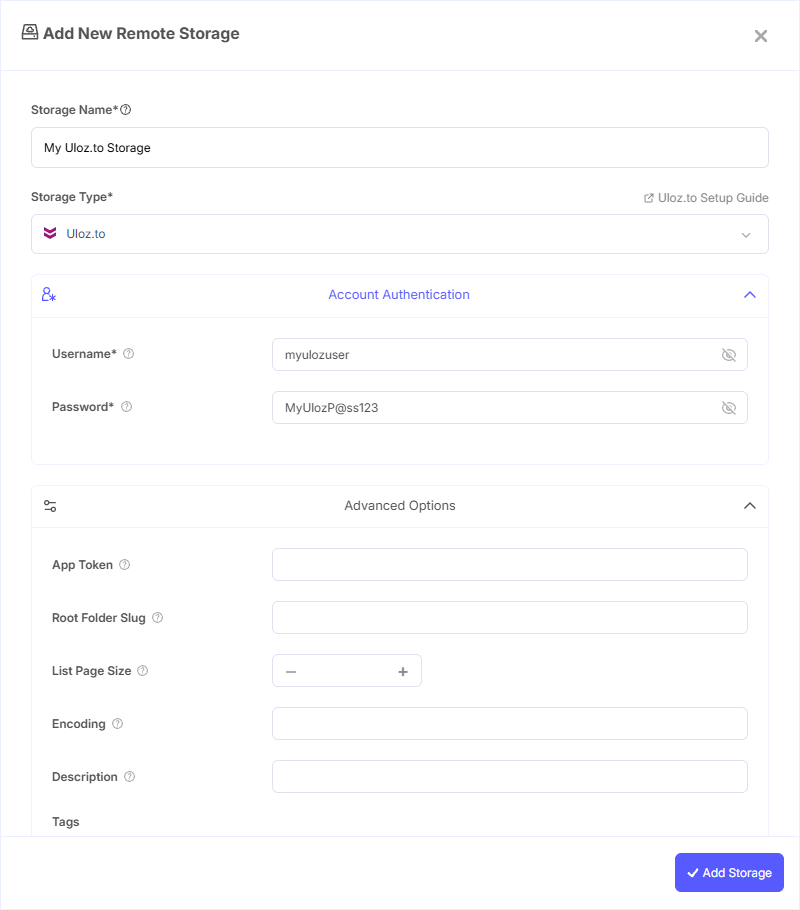
Step 2: Configure Connection
Fill in the required fields:
- Storage Name: A friendly name (e.g., "Uloz.to Backups")
- Username: Your Uloz.to username
- Password: Your Uloz.to account password
Step 3: Advanced Options (Optional)
Additional settings available:
- App Token: An application token identifying the app. Can be found in the API documentation or obtained from customer service
- Root Folder Slug: Set a specific folder as the root for all operations. Leave blank to use the account root
- List Page Size: The number of items per page for list operations (1–500, default: 500)
Step 4: Complete the Storage Setup
- Click the Add Storage button which automatically verifies credentials and adds the storage.
- Your Uloz.to storage is now ready for backup plans
Common Issues
Authentication Failure: Verify your username and password are correct. Uloz.to uses username/password as the primary authentication method.
Slow Uploads: All files are uploaded using a single HTTP request. For large files, ensure you have a stable internet connection.
Deleted Files Still Visible: Deleted files are moved to the recycle bin for 30 days before permanent removal. Folders are deleted immediately.
Root Folder Not Found: If you specified a Root Folder Slug, verify the folder slug is correct and the folder exists in your account.
Best Practices
- Use a dedicated folder for Pluton backups by setting the Root Folder Slug
- Ensure a stable internet connection for large backup uploads
- Monitor your Uloz.to storage quota to avoid backup failures
- Periodically check and empty the Uloz.to recycle bin if you need to free up space