Creating a Storage Sync Plan
This guide covers the storage-sync workflow in Pluton and explains which settings are actually used when the plan runs.
Storage Sync is a Pluton PRO feature.
Before You Start
A storage sync plan needs two storages that are already configured in Pluton:
- the source storage, which holds the data you want to copy
- the destination storage, which receives the mirror
They must be two different storages. If you have not added them yet, see Storage Configuration. You can also add a storage without leaving the plan form by choosing + Add New Storage in either picker.
Step-by-Step Guide
Step 1: Open the Add Plan Panel
From the main Backup Plans page:
- Click + New
- The add-plan panel opens on the right
Step 2: Basic Settings
Configure the plan identity and method.
Backup Plan Name
- Choose a clear name such as
S3 to Backblaze MirrororBucket Redundancy - This name appears in the plans list and plan details page
Backup Plan Description
- Optional, useful for recording why the mirror exists
Backup Strategy
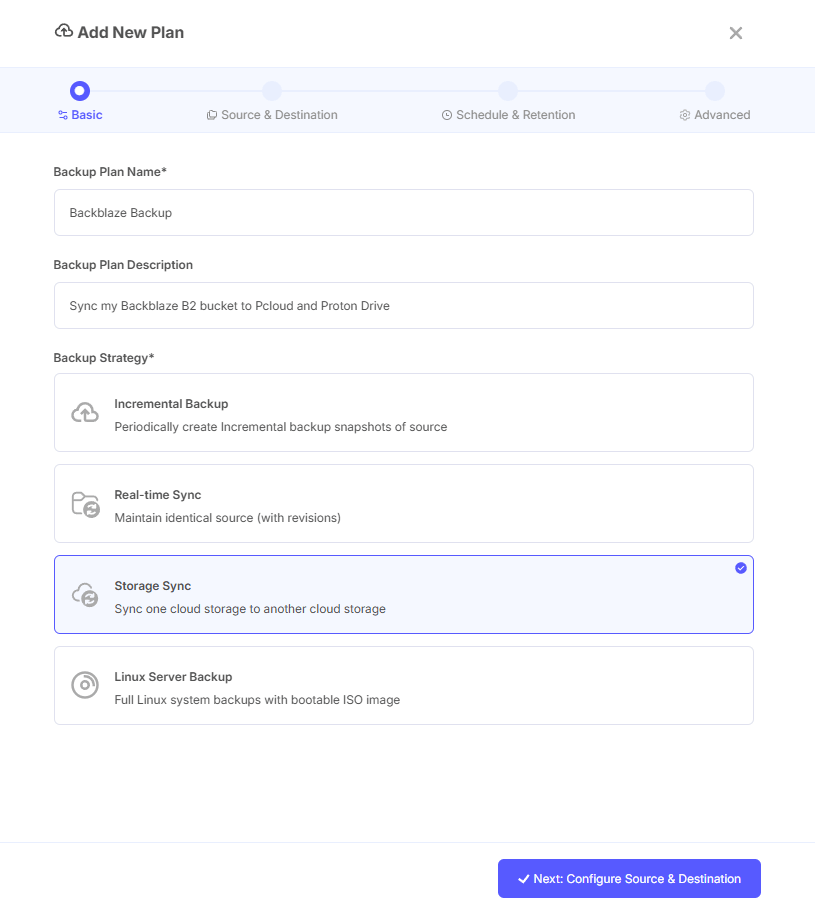
- Select Storage Sync
- This creates a sync plan whose source is a storage instead of a device
- Changing the strategy clears any source you already selected
- You cannot switch the plan to another strategy later
Click Next: Configure Source & Destination to continue.
Step 3: Source and Destination
Select the Source Storage
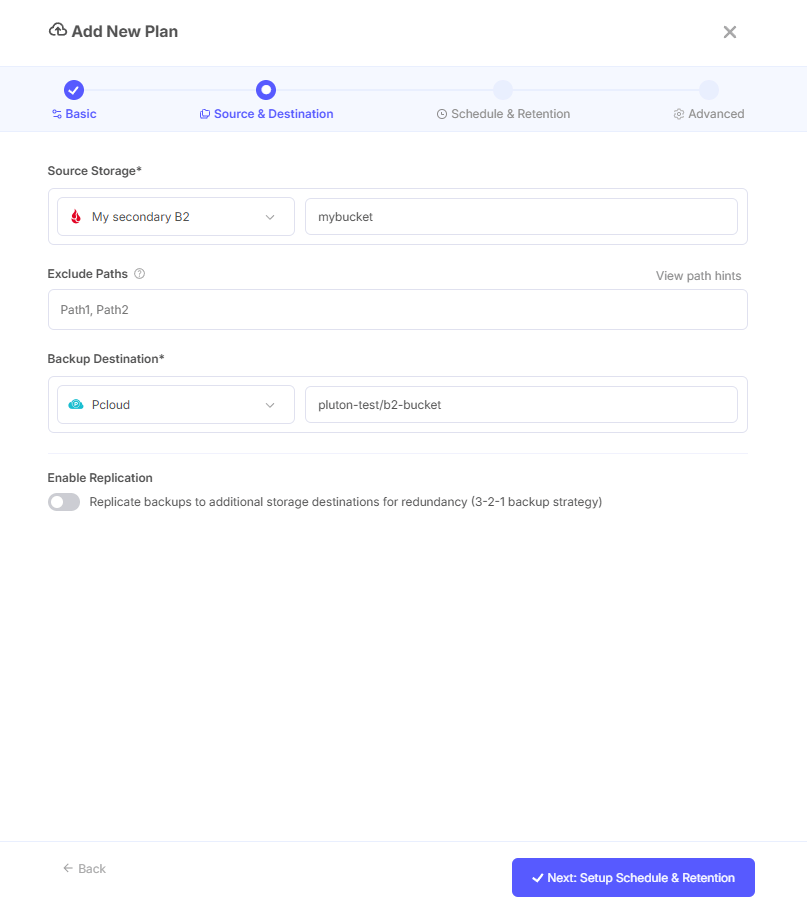
Under Source Storage:
- Pick the storage that holds the data
- Enter the path inside that storage, for example a bucket and subfolder
- Leave the path empty only if you intend to sync the whole storage root
- The destination storage does not appear in this list
What to expect:
- The path is relative to the storage, so a leading
/is not needed - The source storage cannot be changed after the plan is created
A storage sync plan uses one source path. If you need to mirror unrelated roots, create one plan per root.
Exclude Paths
Use exclude patterns to skip objects that should never be mirrored. Paths are relative to the source path, and a directory needs a glob pattern.
Common examples:
*.log*.tmpcache/**tmp/**folder2/**
Use View path hints in the form if you want the pattern reference.
Pluton always excludes its own .pluton/** folder, so revision data is never mirrored back into the source.
Select the Destination
Under Backup Destination:
- Choose the target storage
- Optionally set a subfolder path inside that storage
- The source storage does not appear in this list
- The destination storage and path cannot be changed after creation
What to expect:
- If the destination path does not exist, Pluton creates it during setup
- The destination is treated as a mirror of the source path
- Objects removed from the source are also removed from the destination on sync
Enable Replication (Optional)
Turn on Enable Replication to keep extra copies for a 3-2-1 strategy.
- Up to five additional destinations
- The source storage cannot be used as a replication target
- The same storage cannot be added twice
- Run replications concurrently runs them in parallel instead of one after another
Each replication destination receives its own independent sync from the same source.
Click Next: Setup Schedule & Retention to continue.
Step 4: Schedule
Choose how often the sync runs under Sync Interval.
Practical guidance:
- Use short intervals only when the source storage actually changes often
- Use hourly, daily, or weekly intervals for slower-moving buckets
- Very frequent schedules create more list and transfer activity, and more provider requests, but they do not make the feature event-driven
Snapshot retention settings are not shown, because sync plans do not create snapshots.
Click Next: Advanced Settings to continue.
Step 5: Advanced Settings
Storage sync plans expose the same sync settings as sync backup plans, across a few tabs.
Content
Detect file change based on
- Size & Modification Time is the default
- Hash Checksum is stricter but slower, and it only helps when both storages support a common hash type
- Size Only is the fastest and the least strict
Enable File Revisions
- Keeps older copies before objects are overwritten or deleted in the destination
- Revisions are stored under
.pluton/revisionsin the destination - Retention is age-based under Remove File Revisions Older Than
- Revision Skip Threshold lets a very large run skip revision creation for that cycle
- Max Tracked File Changes controls how many change records Pluton keeps per sync
- For the full explanation of setup, limits, and past-sync recovery, see Sync File Revisions
Important note for large or high-churn source storages:
- A bucket with millions of objects, or with constant churn, can grow revision storage very quickly
- Leaving File Revisions disabled is usually the safer default for such sources
- If you still need revision protection, keep retention short and review the skip threshold
Run Sync Now
- Runs the first sync immediately after the plan is created
- Leave it off if you want to review the plan before any data moves
Performance
This tab exposes:
- maximum transfer size
- maximum duration
- multi-thread cutoff
- multi-thread stream count
- multi-thread chunk size
- multi-thread write buffer size
Adjust these only if you have a clear throughput or provider reason to tune them. Storage-to-storage transfers are limited by both providers, not only by the Pluton server.
Integrity
- The UI lets you configure integrity preferences
- Integrity checks for sync plans are run manually from the plan actions, not on an automatic schedule
- See Sync Recovery and Integrity Checks
Notification
- Configure notifications for sync outcomes as supported by your deployment
- Failure notifications are usually the most useful for frequent plans
- For a storage sync plan, notifications identify the source as Storage and show the source storage name
Misc
- Add tags to organize related plans
Step 6: Create the Plan
Click Create Plan after reviewing the configuration.
What Pluton does next:
- Validates that the source storage exists and that it differs from the destination and from every replication target.
- Normalizes and stores the source path.
- Registers the sync schedule.
- Creates the destination path if needed.
- Creates
.pluton/revisionsif revisions are enabled. - Starts the first sync if Run Sync Now was enabled.
- Opens the plan details page.
What the First Sync Does
The first run is usually the longest one because Pluton has to create the initial mirror.
During this run:
- objects are transferred from the source storage to the destination storage
- progress appears in the plan details page
- change metadata is recorded for the sync task
- later runs transfer only what changed
Because both sides are remote, the first run can also produce significant egress charges at the source provider. Check the source path size before you start a large mirror.
Recommended Validation After Creation
After the plan is created, verify the behavior with a small test:
- Confirm the first sync completes successfully.
- Open the destination storage and verify the folder structure looks correct.
- Change one object in the source and trigger Sync Now.
- Delete one non-critical test object from the source and confirm the destination follows the change.
- If revisions are enabled, confirm a previous version appears under the revisions area after an overwrite or deletion.
- Run Check Integrity once and confirm the two sides match.
Planning Tips
Keep Plans Narrow
- One source root per plan is the safest approach
- Split unrelated data into separate plans for clearer history and simpler troubleshooting
Match the Schedule to Cost
- Every run lists both sides, which costs provider requests
- Long intervals are usually correct for archival buckets
Use Revisions Selectively
- Enable revisions for human-edited content where accidental overwrites are a realistic risk
- Consider disabling revisions for large machine-generated object stores
Pair Sync with Backup for Critical Data
- Storage sync gives you a current mirror
- Incremental backups give you historical recovery
- Critical data often benefits from both
Common Mistakes to Avoid
- treating storage sync as bidirectional replication between two providers
- expecting the plan to react to storage events instead of the schedule
- selecting the same storage as source and destination
- packing multiple unrelated source roots into one plan
- enabling revisions on a very large, high-churn bucket without a retention plan
- ignoring egress cost on the first full mirror
If Creation Fails
Pluton rejects the plan with a clear reason. The common ones are:
- "Source Storage is required" - no source storage was selected
- "The source storage and the destination storage must be different." - pick another destination
- "A source path is required." - the source path field is empty
- "A replication storage must be different from the source storage." - remove the source from the replication list
- "Source storage not found." - the storage was removed or is no longer configured
- an invalid path error - the path contains
..or other unsupported sequences
If the plan is created but the first sync fails, open the plan logs and verify credentials, connectivity, bucket permissions, and exclude patterns on both storages.
If the first run is simply slow rather than failing, check provider throughput, review your performance settings, and remember that later syncs are usually much smaller than the initial mirror run.
Next Steps
- Managing Storage Sync Plans - Running, pausing, editing, and restoring
- Sync File Revisions - How revisions work and when they are skipped
- Sync Recovery and Integrity Checks - Verifying the mirror
- Sync Plan Maintenance - Cleanup and troubleshooting
- Storage Configuration - Setting up storages
Remember: Test the plan with a small source path before mirroring a large or critical bucket.