Connecting Box
This guide walks you through connecting a Box storage destination to Pluton.
Method 1: Quick Connect (Using Rclone Client)
Step 1: Add Storage
- In Pluton, navigate to Storages
- Click Add Storage button
- Select Box from the provider list
- Set a Storage name. (e.g., "My Box Drive")
Step 2: Acquire Access Token
Acquiring Access Token on Desktop Installations
- From the Authentication Section, select User (oAuth)
- If you've installed Pluton on a desktop machine, simply click the Authorize & Get Access Token button.
- When a new browser tab opens asking you to authorize the Rclone connection, accept it.
- Once authorized, you will be returned to a Success screen in the same tab. Close the tab as its not needed anymore.
- Go back to Pluton, and the OAuth Access Token should be automatically filled.
Acquiring Access Token on Server/Docker Installations
Since Pluton installed on servers that may not have a web browser, you need to generate an OAuth token using rclone authorize on a machine that does have a browser:
- Install rclone on a machine with a web browser
- Run the following command:
rclone authorize drive - A browser window will open — log in with your Box account and grant access
- Once authorized, rclone will print a JSON token blob to the terminal which should looks something like this
   Paste the following into your remote machine --->
   {"access_token":"VWFL7ZDnONSzyJXpmZ6EiR5kZvWXNeprInuuCap7pW7jwzH65aGak","token_type":"bearer","expiry":"0001-01-01T00:00:00Z"}
<---End paste - Copy the entire JSON token between the
--->and<--- - Go back to Pluton, and insert the copied token in the OAuth Access Token field.
Step 3: Complete the Storage Setup
- Click the Add Storage button which automatically verifies credentials and adds the storage.
- Your Box storage is now ready for backup plans
Method 2: Using your own Box Client App
Prerequisites
Before connecting Box, you need:
- A Box account (Personal, Business, or Enterprise) - Sign up here
- A Box Developer App with OAuth 2.0 credentials
- Client ID and Client Secret from the Box Developer Console
Getting Your Credentials
Step 1: Create a Box Developer App
- Go to the Box Developer Console
- Click Create New App
- Select Custom App
- Choose User Authentication (OAuth 2.0) as the authentication method
- Give your app a name (e.g., "Pluton Backups") and click Create App
Step 2: Configure Your App
- In the app configuration page, go to the Configuration tab
- Under OAuth 2.0 Credentials, copy the Client ID and Client Secret
- Under OAuth 2.0 Redirect URI, add
http://127.0.0.1:53682/as a redirect URI (required for the rclone authorize flow) - Under Application Scopes, ensure Read and write all files and folders is enabled
- Click Save Changes
Step 3: Generate an OAuth Token
Since Pluton runs on a server that may not have a web browser, you need to generate an OAuth token using rclone authorize:
- Install rclone on a machine with a web browser
- Run the following command:
rclone authorize "box" "your_client_id" "your_client_secret" - A browser window will open — log in with your Box account and grant access
- Copy the JSON token blob printed to the terminal
Connecting to Pluton
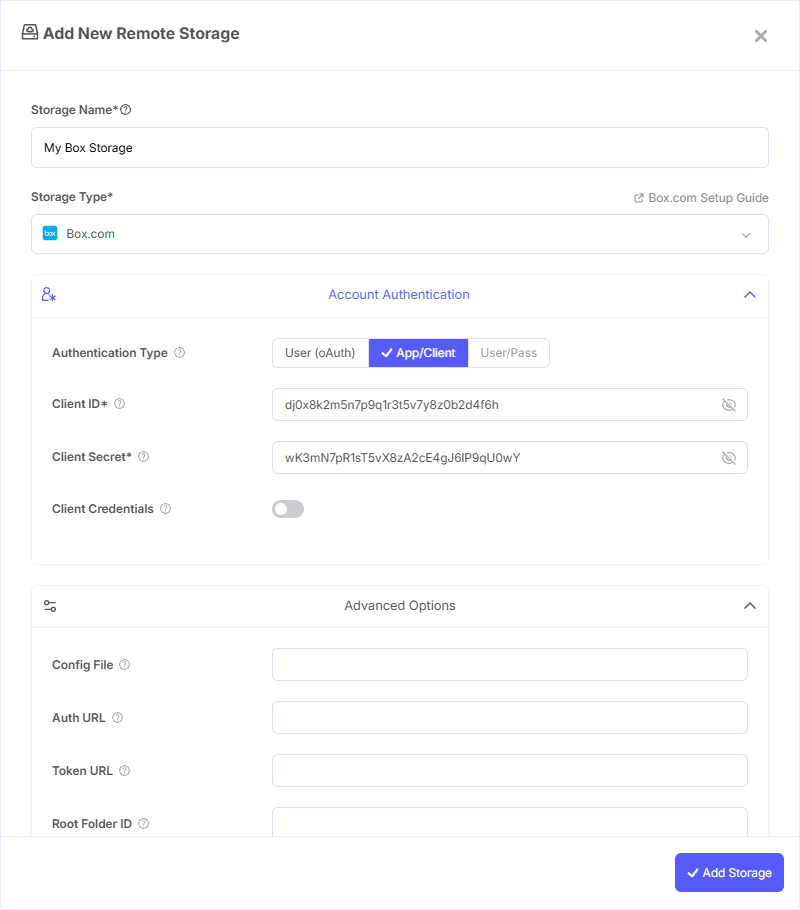
Step 1: Add Storage
- In Pluton, navigate to Storages
- Click Add Storage button
- Select Box from the provider list
Step 2: Configure Connection
Fill in the required fields:
- Storage Name: A friendly name (e.g., "Box Backups")
- Client ID: Your Box OAuth Client ID
- Client Secret: Your Box OAuth Client Secret
- OAuth Access Token: Paste the JSON token blob obtained from
rclone authorize
Step 3: Advanced Options (Optional)
Additional settings available:
- Root Folder ID: Set a non-root folder as the starting point. Use
0for the root folder (default). You can find a folder's ID in the URL when viewing it on box.com - Config File: Path to a Box App config.json file for JWT (Service Account) authentication as an alternative to OAuth
- Client Credentials: Enable to use the OAuth2 Client Credentials flow instead of interactive login. Useful for server-to-server authentication
- Upload Cutoff: Cutoff for switching to multipart upload (default: 50 MiB, minimum 50 MiB)
- Commit Retries: Maximum number of times to try committing a multipart file (default: 100)
- List Chunk: Size of listing chunk, from 1 to 1000 (default: 1000)
- Owned By: Only show items owned by a specific user (enter their email address)
- Impersonate User: When using a service account, impersonate this user ID to act on behalf of another user
Step 4: Complete the Storage Setup
- Click the Add Storage button which automatically verifies credentials and adds the storage.
- Your Box storage is now ready for backup plans
Common Issues
Token Expired: Box OAuth tokens expire periodically. Re-run rclone authorize "box" with your Client ID and Client Secret to generate a fresh token, then update it in Pluton.
App Not Authorized: For Box Business/Enterprise accounts, an admin may need to authorize your app in the Admin Console → Apps → Custom Apps before it can be used.
Redirect URI Mismatch: Ensure http://127.0.0.1:53682/ is listed as a redirect URI in your Box app configuration. This is required for the rclone authorize flow.
File Size Limits: Box has file size limits based on your plan (free: 250 MB, Business: 5 GB, Enterprise: 15 GB per file). Ensure your backup files do not exceed the limit.
Rate Limiting: Box enforces API rate limits. If you encounter "Too Many Requests" errors, the operation will automatically retry. For very large transfers, consider running backups during off-peak hours.
Best Practices
- Create a dedicated Box Developer App specifically for Pluton to keep credentials isolated
- Use a Root Folder ID to restrict backups to a specific folder rather than the entire Box account
- For Box Business/Enterprise, use Service Account (JWT) authentication for unattended server operations
- Monitor storage usage in the Box Admin Console to ensure you have sufficient space
- Box maintains file version history — check your plan's version retention settings
- Keep your OAuth token updated by refreshing it whenever you notice connection issues