Connecting Oracle Object Storage
This guide walks you through connecting an Oracle Cloud Infrastructure (OCI) Object Storage destination to Pluton.
Prerequisites
Before connecting Oracle Object Storage, you need:
- An Oracle Cloud account — Sign up here
- An OCI configuration file with API key authentication set up
- Your Object Storage namespace, compartment OCID, and region
Getting Your Credentials
Step 1: Set Up OCI API Key Authentication
- Log into the Oracle Cloud Console
- Click your profile icon in the top-right corner, then User Settings
- Under Resources, click API Keys
- Click Add API Key
- Choose to generate a new key pair or upload your own public key
- Download the private key file and note the Configuration File Preview shown after adding the key
- Create a config file (typically at
~/.oci/config) with the contents from the preview:[DEFAULT]
user=ocid1.user.oc1..aaaa...
fingerprint=xx:xx:xx:xx:xx...
tenancy=ocid1.tenancy.oc1..aaaa...
region=us-ashburn-1
key_file=<path to your private key>
Step 2: Get Your Object Storage Namespace
- In the Oracle Cloud Console, go to Administration → Tenancy Details
- Copy your Object Storage Namespace (e.g.,
idbamagbg734)
Step 3: Get Your Compartment OCID
- Go to Identity & Security → Compartments
- Click on the compartment you want to use
- Copy the OCID value
Step 4: Note Your Region
- Your region identifier is displayed in the console header (e.g.,
us-ashburn-1,eu-frankfurt-1) - You can also find it in your OCI config file
Connecting to Pluton
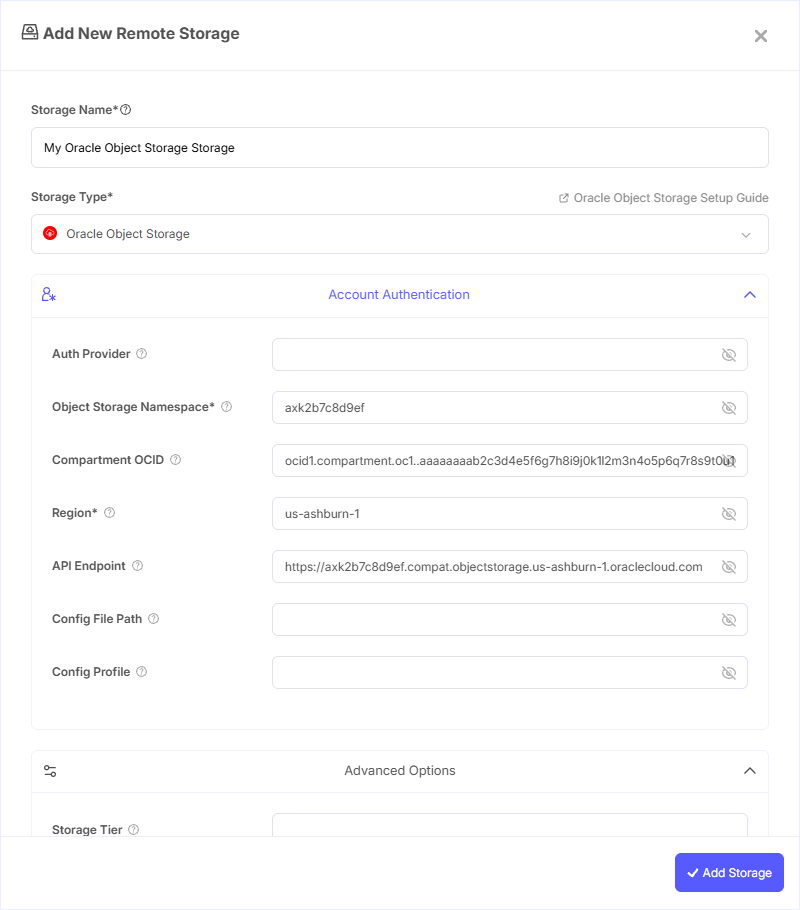
Step 1: Add Storage
- In Pluton, navigate to Storages
- Click Add Storage button
- Select Oracle Object Storage from the provider list
Step 2: Configure Connection
Fill in the required fields:
- Storage Name: A friendly name (e.g., "OCI Object Storage Production")
- Object Storage Namespace: Your OCI Object Storage namespace
- Region: The OCI region where your buckets are located (e.g.,
us-ashburn-1)
Step 3: Additional Configuration
- Auth Provider: Choose your authentication method. The default is
env_auth(automatically picks up credentials from the runtime environment) - Compartment OCID: Your compartment OCID. Required for listing buckets, but listing objects works without it
- API Endpoint: Custom endpoint for the Object Storage API. Leave blank to use the default endpoint for your region
- Config File Path: Full path to your OCI config file (default:
~/.oci/config) - Config Profile: Profile name inside the OCI config file (default:
default)
Step 4: Advanced Options (Optional)
Additional settings available:
- Storage Tier: Storage class for new objects (
standard,infrequentaccess, orarchive). See Oracle Storage Tiers documentation - Upload Cutoff: Cutoff for switching to chunked upload (default: 200 MiB). Files larger than this will be uploaded in chunks
- Chunk Size: Chunk size for multipart uploads (default: 5 MiB)
- Upload Concurrency: Number of chunks uploaded concurrently (default: 10)
- Max Upload Parts: Maximum number of parts in a multipart upload (default: 10,000)
- Disable Checksum: Skip MD5 checksum storage with object metadata to speed up uploads
- SSE Customer Key File: Path to a base64-encoded AES-256 encryption key file for SSE-C encryption
- SSE Customer Key: Base64-encoded 256-bit encryption key for SSE-C encryption
- SSE KMS Key ID: OCID of the master encryption key for OCI Key Management service
Step 5: Complete the Storage Setup
- Click the Add Storage button which automatically verifies credentials and adds the storage.
- Your Oracle Object Storage is now ready for backup plans
Common Issues
Authentication Failure: Verify your OCI config file is correctly set up with the proper user OCID, fingerprint, tenancy OCID, and private key path. Ensure the API key is added to your user in the OCI Console.
Namespace Not Found: Double-check your Object Storage namespace in the Oracle Cloud Console under Administration → Tenancy Details.
Compartment Access Denied: Ensure your OCI user has the proper IAM policies to access the compartment you specified. At minimum you need manage objects and manage buckets permissions.
Region Mismatch: The region must match the region where your buckets are located. Check the console header or your OCI config file for the correct region identifier.
Best Practices
- Use OCI IAM policies to limit access to only the buckets and compartments needed
- Use the
infrequentaccessorarchivestorage tiers for long-term backup retention to reduce costs - Set up OCI Object Storage lifecycle policies to automatically transition or delete old objects
- Keep your OCI config file and private keys secure with restricted file permissions
- Use a dedicated compartment for Pluton backups to isolate resources