Setting up Email Notifications
Configure email integrations to receive backup notifications, alerts, and reports. Pluton supports SMTP and several third-party email services.
Accessing Integration Settings
- Navigate to Settings → Integrations tab
- Select the email service you want to configure from the tabs
Setting up SMTP
Use any SMTP provider (Gmail, Sendpulse, SMTP2Go, or your own mail server).
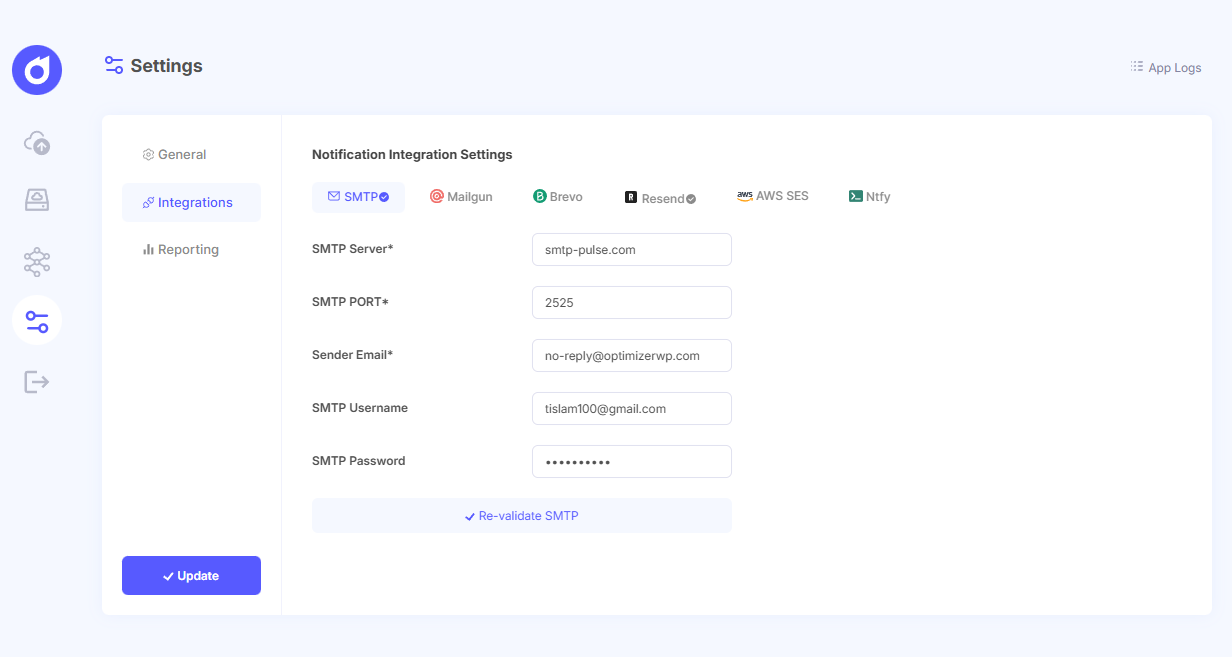
Required Fields:
| Field | Description |
|---|---|
| Server | SMTP server hostname (e.g., smtp.gmail.com) |
| Port | SMTP port (typically 587 for TLS, 465 for SSL) |
| Username | SMTP authentication username |
| Password | SMTP authentication password |
| Sender Email | Email address that will appear as the sender |
To Configure:
- Select the SMTP tab
- Enter your SMTP server details
- Click "Validate & Connect"
- Enter a test email address and click "Send Test Email"
- Verify you received the test email
Setting up Resend (PRO)
Resend is a modern email API service.
Required Fields:
| Field | Description |
|---|---|
| API Key | Your Resend API key |
| Sender Email | Verified sender email address |
| Sender Name | (Optional) Display name for the sender |
To Configure:
- Select the Resend tab
- Enter your API Key from the Resend dashboard
- Enter your verified sender email
- Click "Validate & Connect"
- Send a test email to verify the integration
Setting up SendGrid (PRO)
SendGrid is a popular email delivery platform.
Required Fields:
| Field | Description |
|---|---|
| API Key | Your SendGrid API key |
| Sender Email | Verified sender email address |
| Sender Name | (Optional) Display name for the sender |
To Configure:
- Select the SendGrid tab
- Enter your API Key from the SendGrid dashboard
- Enter your verified sender email
- Click "Validate & Connect"
- Send a test email to verify the integration
Setting up Brevo (PRO)
Brevo (formerly Sendinblue) is an email marketing and transactional email platform.
Required Fields:
| Field | Description |
|---|---|
| API Key | Your Brevo API key |
| Sender Email | Verified sender email address |
| Sender Name | (Optional) Display name for the sender |
To Configure:
- Select the Brevo tab
- Enter your API Key from the Brevo dashboard
- Enter your verified sender email
- Click "Validate & Connect"
- Send a test email to verify the integration
Setting up Mailgun (PRO)
Mailgun is an email API service for developers.
Required Fields:
| Field | Description |
|---|---|
| API Key | Your Mailgun API key |
| Domain | Your Mailgun sending domain |
| Sender Email | Sender email address |
| Sender Name | (Optional) Display name for the sender |
To Configure:
- Select the Mailgun tab
- Enter your API Key from the Mailgun dashboard
- Enter your verified domain
- Enter the sender email address
- Click "Validate & Connect"
- Send a test email to verify the integration
Setting up AWS SES (PRO)
Amazon Simple Email Service (SES) is a cloud-based email sending service.
Required Fields:
| Field | Description |
|---|---|
| Access Key ID | Your AWS access key ID |
| Secret Access Key | Your AWS secret access key |
| Region | AWS region (e.g., us-east-1, eu-west-1) |
| Sender Email | Verified sender email address |
| Sender Name | (Optional) Display name for the sender |
To Configure:
- Select the AWS SES tab
- Enter your AWS credentials (Access Key ID and Secret Access Key)
- Select your AWS region from the dropdown
- Enter your verified sender email
- Click "Validate & Connect"
- Send a test email to verify the integration
Ensure your sender email is verified in AWS SES before testing. If your account is in sandbox mode, recipient emails must also be verified.
Validating Integrations
After configuring any integration:
- Click "Validate & Connect" to validate your settings
- A test email modal appears
- Enter your email address
- Click "Send Test Email"
- Check your inbox for the test email
- A checkmark icon appears next to the integration tab when successfully connected
Using Email Integrations
Once configured, email integrations can be used for:
- Backup Plan Notifications: Send alerts on backup success/failure
- Integrity Check Alerts: Receive notifications when backup corruption is detected
- Global Email Reports: Receive daily/weekly/monthly backup digests