Adding a New Remote Device
This guide walks you through adding a remote device to Pluton PRO and installing the agent to enable backups.
Prerequisites
Before adding a remote device:
- Active Pluton PRO license with available device slots
- Network connectivity between Pluton server and remote device
- For auto-install: SSH access to the remote device with sudo/administrator privileges
Adding a Device
Step 1: Add Device in Pluton UI
-
Navigate to Devices Page:
- Click "Devices" in the main navigation menu
-
Click "Add Device" Button:
- Located in the top-right corner of the Devices page
-
Configure Device Settings:
- Device Name: Enter a descriptive name (e.g., "Production Server", "Database VM")
- Tags (optional): Add tags for organization
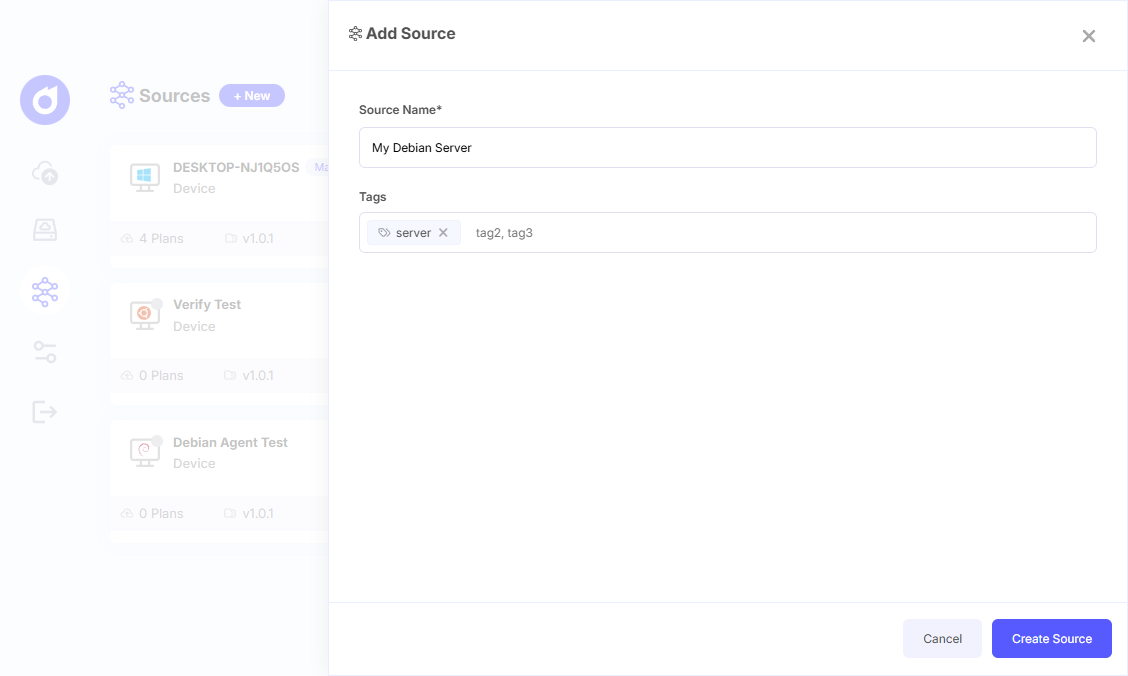
- Click "Create Device":
- Device is created and appears in the devices list
- Status shows as "Offline" until agent is installed
Step 2: Install Agent on Remote Device
After creating the device, you must install the Pluton agent on the remote machine. Follow the agent installation guide to install the Pluton agent on your machine that you want to connect to the Pluton Server/Hub.
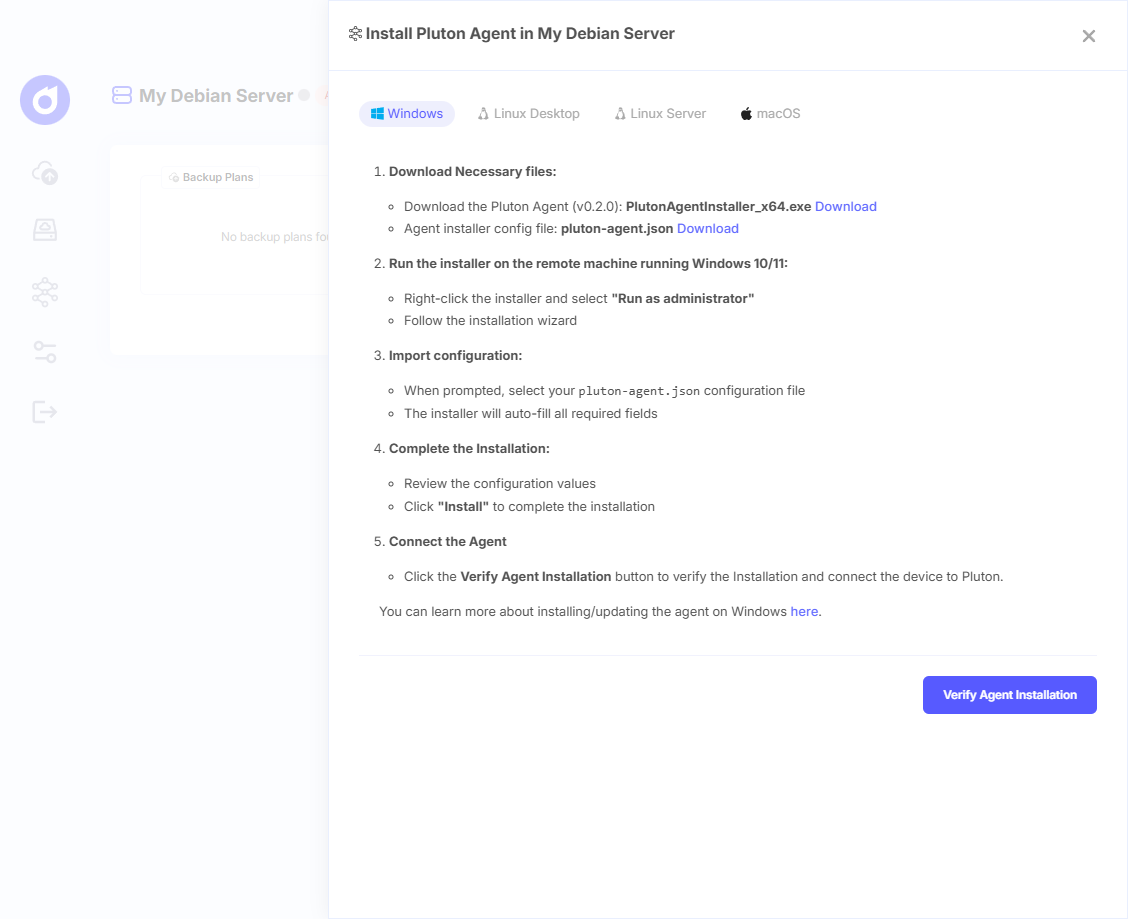
Step 3: Connecting the Agent to the Pluton Server/Hub
Once you have installed the pluton agent on your remote machine, go to Pluton's Sources page, and open the Source you created, and click the Verify Agent Installation button. Once connected it will display detailed system info of your connected device.
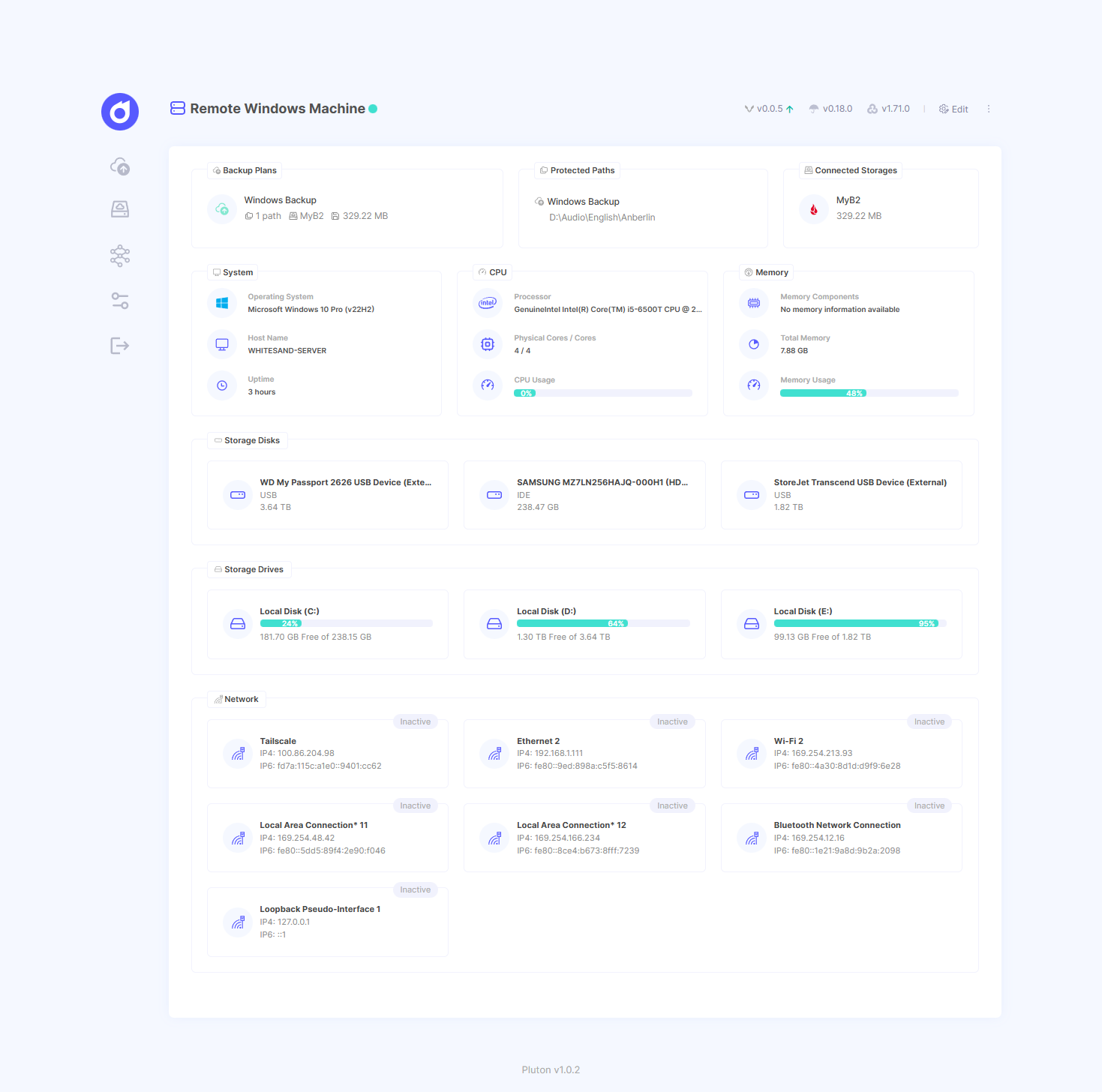
Now when you create a backup you will able to select the machines where the agent is installed from the Device selection dropdown.
Next Steps
Once your device is online:
- Create Backup Plans - Set up backups for the device
Troubleshooting
Device Shows "Offline" After Installation
- Check Network Connectivity: Ensure remote device can reach Pluton server
- Verify Agent is Running: Check if agent service is active on remote device
- Check Firewall: Ensure firewall allows outbound connections to Pluton server
- Review Agent Logs: Check agent logs on remote device for connection errors
Device Limit Reached
- Check License: View available device slots in Settings → License
- Remove Unused Devices: Delete devices you no longer need
- Upgrade License: Purchase additional device slots if needed
Successfully adding remote devices is the first step to centralized backup management across your infrastructure.