Connecting Mail.ru Cloud
This guide walks you through connecting a Mail.ru Cloud storage destination to Pluton.
Prerequisites
Before connecting Mail.ru Cloud, you need:
- A Mail.ru Cloud account - Sign up here
- An app password generated from your Mail.ru account security settings (regular passwords will not work)
About Mail.ru Cloud
Mail.ru Cloud is a cloud storage service provided by the Russian internet company Mail.Ru Group. It features transparent file deduplication, public link sharing, and support for large file uploads on paid plans (up to 2 GB on free accounts, unlimited on paid). Pluton connects using an app-specific password for security.
Getting Your Credentials
Step 1: Create an App Password
Mail.ru Cloud requires an app-specific password — your regular account password will not work and will result in authentication errors.
- Log into your Mail.ru account
- Click on your user icon in the top right corner
- Go to Security (Пароль и безопасность)
- Navigate to App Passwords (Пароли для внешних приложений)
- Click Add Password and give it a name (e.g., "Pluton Backups")
- Select Full access to Mail, Cloud and Calendar (all protocols) for the permission level
Selecting only "Full access to Cloud" (WebDAV) may not work. You must select "Full access to Mail, Cloud and Calendar" for Rclone-based access.
- Copy the generated app password — you will need it when configuring Pluton
Step 2: Note Your Username
Your Mail.ru username is typically your email address (e.g., [email protected]).
Connecting to Pluton
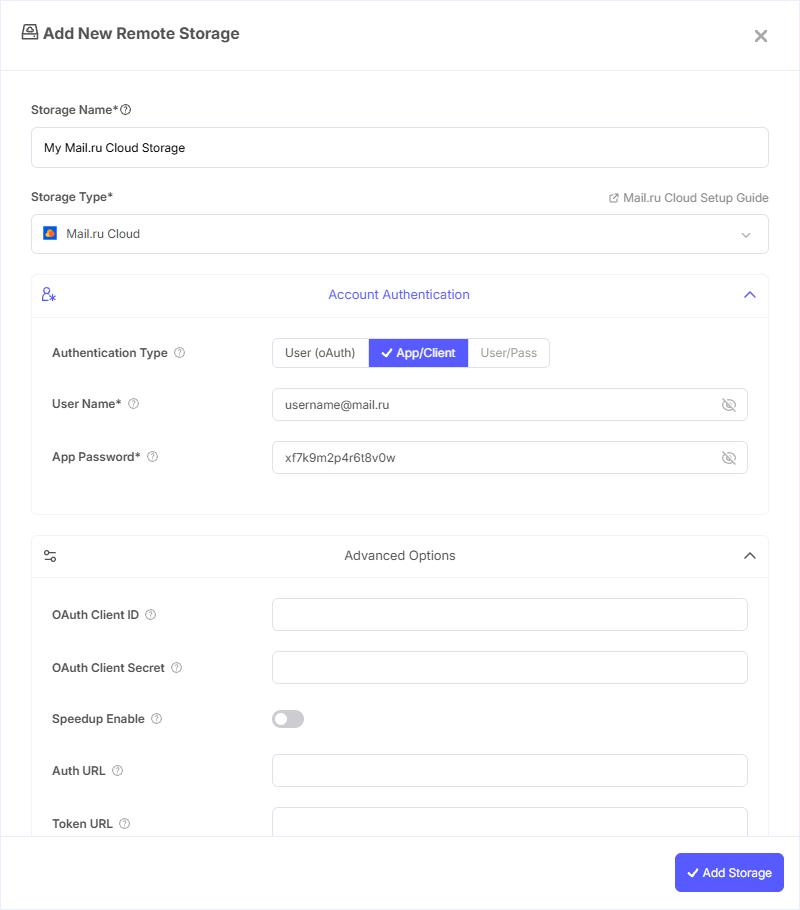
Step 1: Add Storage
- In Pluton, navigate to Storages
- Click Add Storage button
- Select Mail.ru Cloud from the provider list
Step 2: Configure Connection
Fill in the required fields:
- Storage Name: A friendly name (e.g., "Mail.ru Backups")
- User Name: Your Mail.ru email address (e.g.,
[email protected]) - App Password: The app-specific password generated from your Mail.ru security settings
Step 3: Advanced Options (Optional)
Additional settings available:
- Speedup Enable: Skip full upload if another file with the same hash already exists on Mail.ru (enabled by default). Especially efficient for common files like popular media. Not effective for unique or encrypted files
- Speedup File Patterns: Comma-separated list of file name patterns eligible for speedup (default:
.mkv,.avi,.mp4,.mp3,.zip,.gz,.rar,.pdf). Patterns are case-insensitive and support*and?wildcards - Speedup Max Disk: Maximum file size for disk-based hashing during speedup (default: 3 GiB). Prevents excessive disk usage for very large files
- Speedup Max Memory: Files larger than this are hashed on disk instead of in memory (default: 32 MiB)
- Check Hash: Verify file checksum after upload to detect transfer errors (enabled by default)
- OAuth Client ID: OAuth Client ID for custom app registration. Leave blank normally
- OAuth Client Secret: OAuth Client Secret. Leave blank normally
- User Agent: Custom HTTP user agent string for the internal client
Step 4: Complete the Storage Setup
- Click the Add Storage button which automatically verifies credentials and adds the storage.
- Your Mail.ru Cloud storage is now ready for backup plans
Common Issues
"oauth2: server response missing access_token": This error means you are using your regular Mail.ru password instead of an app password. Generate an app password from your Mail.ru security settings (see Step 1 above).
"Invalid username or password": Double-check that you selected "Full access to Mail, Cloud and Calendar" when creating the app password. The "WebDAV only" permission is insufficient.
File Size Limits: Free Mail.ru Cloud accounts have a 2 GB maximum file size limit. Paid accounts have unlimited file sizes. If backups fail on large files, check your account tier.
Speedup Not Working: The speedup feature (put by hash) only works for files matching the configured patterns and within size limits. Encrypted or unique files cannot benefit from speedup.
Best Practices
- Always use app passwords — never your regular Mail.ru password
- Keep speedup enabled (default) for faster uploads of common file types
- For encrypted backups, speedup will not apply since every encrypted file has a unique hash
- Monitor your Mail.ru storage quota regularly, especially on free accounts with limited space
- Mail.ru uses a modified SHA1 hash algorithm and supports transparent deduplication, making it storage-efficient for repeated files