Backing Up & Restoring Pluton
Pluton backs up your files, servers, and databases. But Pluton itself also holds important state: your backup plans, your storages, the credentials that connect to them, and your backup history. If the machine running Pluton dies, you don't want to rebuild all of that by hand while you're also trying to recover everything else.
Self-backup solves this. When enabled, Pluton periodically packs its own configuration into a single encrypted file and uploads it to a storage you choose. If you ever need to move Pluton to a new machine, or recover it after a failure, you restore from that file and Pluton comes back exactly as it was.
This page explains what a Pluton backup contains, how to enable it, and the exact steps to restore one.
What's in a Pluton Backup
Each Pluton backup is a single encrypted file (a .pluton blob) that contains:
| Included | Details |
|---|---|
| Backup plans | Every plan, its schedule, sources, and settings. |
| Storages | Every configured storage and its connection settings/credentials. |
| Backup history | The record of past backup and restore runs. |
| App settings | Notification integrations, reporting, and other app configuration. |
The file is encrypted with your Pluton encryption key before it leaves the machine, so it is safe to store anywhere, including third-party cloud storage.
A Pluton backup does not contain the data your plans back up (the files and snapshots sitting on your storages). Those are your regular backups and live independently. Self-backup protects Pluton's own configuration, so that after a restore every plan and storage is reconnected and pointing at the data it already wrote.
Enabling Self-Backup
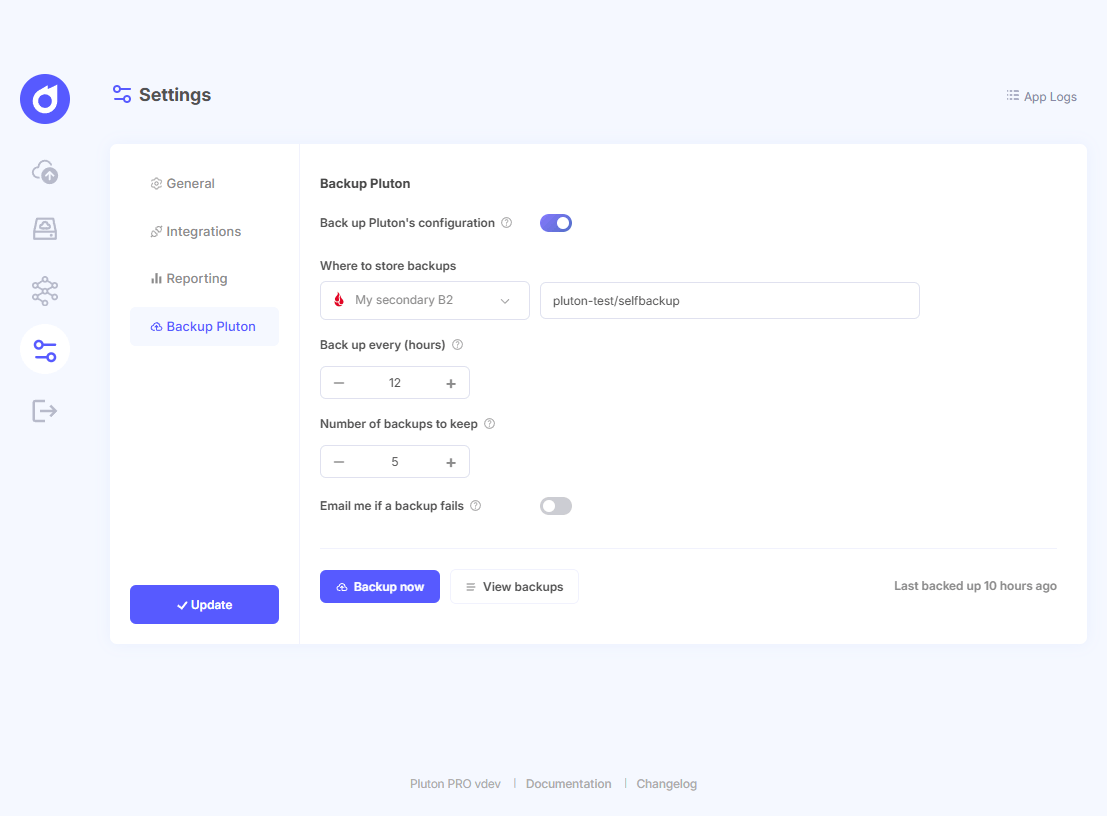
- Open Settings and go to the Backup Pluton tab.
- Turn on Back up Pluton's configuration.
- Configure where and how often it runs:
- Where to store backups. Pick one of your configured storages and, optionally, a path (folder) within it. This is where the encrypted
.plutonfiles are uploaded. - Back up every (hours). How often Pluton checks whether a new backup is needed. Pluton only uploads when something has actually changed since the last backup, so an idle instance won't re-upload identical copies.
- Number of backups to keep. How many recent backups to retain on the storage. Older backups beyond this count are automatically deleted.
- Email me if a backup fails (optional). See Failure Notifications.
- Where to store backups. Pick one of your configured storages and, optionally, a path (folder) within it. This is where the encrypted
- Save your settings.
Backing up on demand
The Backup now button runs a backup immediately instead of waiting for the next scheduled check. The status text next to the button shows the outcome of the most recent run (for example, Last backed up 3 hours ago), and switches to Backing up Pluton… while a run is in progress.
Viewing and downloading backups
Click View backups to see every Pluton backup currently on the storage, with its name, size, and date. Each entry has a Download button that saves the encrypted .pluton file to your computer, so you can keep a copy somewhere else or hand it to the restore command.
Downloaded backup files are encrypted. They can only be opened by Pluton during a restore, using the same encryption key that created them.
Failure Notifications
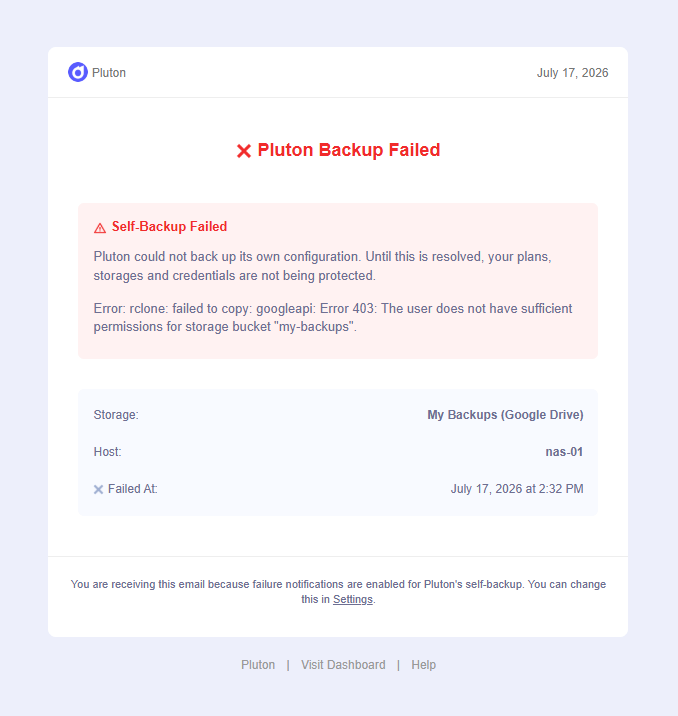
This is the one backup whose failure you'd otherwise only discover during a disaster, so Pluton can email you the moment a run fails.
Enable Email me if a backup fails on the Backup Pluton tab. When a backup run fails, Pluton sends an email to your admin email address describing what went wrong.
The toggle can only be turned on when both of these are true:
- An email integration is connected (SMTP, SendGrid, Mailgun, Brevo, Resend, or AWS SES). Set one up on the Integrations tab and send its test message so it is marked connected.
- An Admin Email is set on the General tab.
If either is missing, the toggle is disabled and its hint tells you which one to fix.
The Encryption Key
Your Pluton encryption key is what protects every backup. The same key is required to restore one.
Store your encryption key somewhere safe and separate from Pluton, for example in a password manager. Without it, a Pluton backup cannot be decrypted, and there is no way to recover it. Losing the key means losing the ability to restore.
The key is deliberately not stored inside a Pluton backup. A restore therefore asks for it explicitly (see below).
Restoring Pluton
Restoring rebuilds a Pluton installation from a .pluton backup file. It is a short-lived command-line operation that runs against a stopped Pluton server, not something you trigger from the web UI (the UI belongs to the very installation being replaced).
Use a restore to:
- Move Pluton to a new machine.
- Recover Pluton after a disk or host failure.
- Roll an installation back to an earlier configuration.
Before you start
You need:
- The
.plutonbackup file. Download it from View backups on a working install, or copy it from the storage it was uploaded to. - Your encryption key (the same one that created the backup).
- A Pluton install of the same edition and a version equal to or newer than the one that produced the backup.
Stop the Pluton server before restoring. A restore replaces Pluton's database on disk; doing that while the server is running will corrupt it. The restore command checks for a running server and refuses to proceed unless it is stopped.
How a restore stays safe
The restore validates everything before it touches any data. A wrong key, a corrupt or truncated file, a backup from a different edition, a backup from a newer version, or a still-running server each stops the restore before the existing installation is modified. Only once every check passes does Pluton replace the data directory.
Running the restore
The restore is invoked with the --restore-pluton flag, pointing at your backup file:
pluton --restore-pluton /path/to/pluton-2026-07-17T14-32-00-000Z.pluton
You will be prompted for your encryption key. Alternatively, provide it through the PLUTON_ENCRYPTION_KEY environment variable (useful for non-interactive shells). The key is intentionally not accepted as a command-line flag, so it never leaks into your shell history or the process list.
The exact steps depend on how Pluton is deployed.
Windows
Pluton installs to C:\Program Files\Pluton and stores its data in C:\ProgramData\Pluton. It runs as a Windows service named Pluton (managed by NSSM) under the LocalSystem account.
-
Open PowerShell as Administrator. The data directory is writable only by SYSTEM and Administrators, so an elevated shell is required.
-
Change into the install directory. It contains both
pluton.exeandnssm.exe:cd "C:\Program Files\Pluton"If you are using Pluton PRO, the directory is different:
cd "C:\Program Files\Pluton Pro" -
Stop the service:
.\nssm.exe stop Pluton(
Stop-Service Plutonworks too.)For Pluton PRO, the service name is PlutonPro
.\nssm.exe stop PlutonPro -
Confirm the data directory is resolved. The installer sets
PLUTON_DATA_DIRsystem-wide, so a newly opened elevated shell already points at the right place. Check it, and set it only if it is empty:echo $env:PLUTON_DATA_DIR
# If it prints nothing:
$env:PLUTON_DATA_DIR = "C:\ProgramData\Pluton"For Pluton Pro, set it to the Pluton PRO Data directroy:
echo $env:PLUTON_DATA_DIR
# If it prints nothing:
$env:PLUTON_DATA_DIR = "C:\ProgramData\Pluton Pro" -
Run the restore:
.\pluton.exe --restore-pluton "C:\path\to\pluton-2026-07-16T09-58-22-130Z.pluton"Enter your encryption key when prompted. To skip the prompt, set
$env:PLUTON_ENCRYPTION_KEY = "<your-key>"before running the command. -
Start the service again:
.\nssm.exe start PlutonFor Pluton Pro:
.\nssm.exe start PlutonPro -
Open Pluton and log in with your old password (the one from the backup).
If the restore reports that the database file is busy or locked, a pluton.exe process is still running. Confirm the service actually stopped with Get-Process pluton (it should return nothing), then run the restore again.
macOS
Pluton installs to /opt/pluton, stores its data in /var/lib/pluton, and runs as a launchd daemon (com.plutonhq.pluton) under root.
-
Stop the service:
sudo launchctl bootout system/com.plutonhq.pluton -
Run the restore. The daemon runs as root, so it owns the data directory — run the restore as root too:
sudo /opt/pluton/pluton --restore-pluton /path/to/backup.plutonEnter your encryption key when prompted. The key is written to
/var/lib/pluton/pluton.enc.env, which the daemon reads on start, so there is nothing more to do for the key. -
Start the service:
sudo launchctl bootstrap system /Library/LaunchDaemons/com.plutonhq.pluton.plist -
Log in with your old password (the one from the backup).
Linux (self-hosted binary)
Pluton installs to /opt/pluton, stores its data in /var/lib/pluton and /etc/pluton, and runs under systemd as the unprivileged pluton system user. This applies to both the desktop and server Linux binary installs.
Run the restore as the pluton user, not with plain sudo. The data directory is owned by pluton:pluton, and a restore run as root leaves files the service cannot modify, so Pluton then fails to start with permission errors.
-
Stop the service:
sudo systemctl stop pluton -
Put the backup where the
plutonuser can read it. That user has no login shell or home directory, so a file in your personal home (mode700) is unreadable to it. Stage it somewhere world-readable:cp ~/backup.pluton /tmp/backup.pluton && chmod 644 /tmp/backup.pluton -
Run the restore as the
plutonuser:sudo -u pluton /opt/pluton/pluton --restore-pluton /tmp/backup.plutonEnter your encryption key when prompted. To pass it non-interactively:
sudo -u pluton env PLUTON_ENCRYPTION_KEY="<your-key>" \
  /opt/pluton/pluton --restore-pluton /tmp/backup.pluton
The key is written to
/etc/pluton/pluton.enc.env, which systemd loads on start, so there is nothing more to do for the key. -
Start the service:
sudo systemctl start plutonLog in with the
PLUTON_USER_NAME/PLUTON_USER_PASSWORDfrom/etc/pluton/pluton.env. Those override the restored account, so they are your credentials now, not the old ones.
If you already ran the restore as root by mistake, you don't have to start over — hand ownership back before starting the service:
sudo chown -R pluton:pluton /var/lib/pluton /etc/pluton
Docker
The restore runs in a separate, one-off container. Because that container has its own network namespace, it cannot detect whether your Pluton container is still running, so you must stop it yourself and confirm with --force.
-
Stop Pluton:
docker compose down -
Run the restore in a one-off container. Mount your backup file in, pass the encryption key, and override the command with
--restore-pluton:docker compose run --rm \
-v /path/to/backup.pluton:/tmp/backup.pluton \
-e PLUTON_ENCRYPTION_KEY="<your-key>" \
pluton ./pluton --restore-pluton /tmp/backup.pluton --forceOn Windows hosts, give the mount the full host path, for example
-v C:\Users\you\backup.pluton:/tmp/backup.pluton. -
Set the key in your
.env. Open the.envnext to yourdocker-compose.ymland set:ENCRYPTION_KEY=<the same key you just used>The key is deliberately not stored in the data volume, so Compose is the only place Pluton can get it. Without it the container will refuse to start. While you're in that file,
USER_NAMEandUSER_PASSWORDare your login and override the restored account, so set them to what you want to log in with. -
Start Pluton:
docker compose up -dLog in with the
USER_NAME/USER_PASSWORDfrom that.env, not your old password.
--force is required on Docker. The restore container cannot see the server container, so the flag is how you confirm you have stopped it. Restoring while Pluton is still running will corrupt the database.
If the restore reports that the backup is from a newer version or a different edition of Pluton, it will refuse and leave your data untouched. Upgrade this install to at least the backup's version (and match the edition), then restore again.
Frequently Asked Questions
Where are the backups stored?
On whichever storage you selected on the Backup Pluton tab, under the optional path you configured. You can list them any time with View backups.
Can I restore onto a different machine?
Yes. That is the main point of self-backup. Install Pluton on the new machine (same edition, same-or-newer version), copy the .pluton file over, and run the restore.
What happens to my old password after a restore?
On Windows and macOS, nothing injects credentials, so you log in with your old password from the backup. On self-hosted Linux and Docker, the login comes from pluton.env / the Compose .env and overrides the restored account, so those become your credentials. See the per-deployment steps above.
Do I still need my regular backups?
Yes. Self-backup protects Pluton's configuration and history. The actual data your plans protect lives on your storages and is covered by those plans, not by self-backup.