Connecting Google Cloud Storage
This guide walks you through connecting a Google Cloud Storage (GCS) destination to Pluton.
Prerequisites
Before connecting Google Cloud Storage, you need:
- A Google Cloud account - Sign up here
- A Google Cloud project with billing enabled
- OAuth 2.0 Client ID and Client Secret (or a Service Account)
Getting Your Credentials
Step 1: Create a Google Cloud Project
- Go to the Google Cloud Console
- Click Select a project → New Project
- Enter a project name (e.g., "Pluton Backups") and click Create
- Note your Project Number from the project dashboard — you will need this for bucket operations
Step 2: Enable the Cloud Storage API
- In your project, go to APIs & Services → Library
- Search for Cloud Storage API (or Google Cloud Storage JSON API)
- Click on it and then click Enable
Step 3: Create OAuth Credentials
Option A: OAuth 2.0 (Interactive Login)
- Go to APIs & Services → OAuth consent screen and configure it
- Go to APIs & Services → Credentials
- Click Create Credentials → OAuth client ID
- Select Desktop app as the application type
- Click Create and copy the Client ID and Client Secret
Option B: Service Account (Server-to-Server)
- Go to IAM & Admin → Service Accounts
- Click Create Service Account
- Give it a name and grant the Storage Admin role (or a more restrictive role)
- Click Done, then click on the service account
- Go to the Keys tab → Add Key → Create new key → JSON
- Download the JSON key file — you will reference this file path in Pluton
Step 4: Generate an OAuth Token (for Option A)
If using OAuth credentials (not a Service Account):
- Install rclone on a machine with a web browser
- Run the following command:
rclone authorize "google cloud storage" "your_client_id" "your_client_secret" - A browser window will open — log in with your Google account and grant access
- Copy the JSON token blob printed to the terminal
Connecting to Pluton
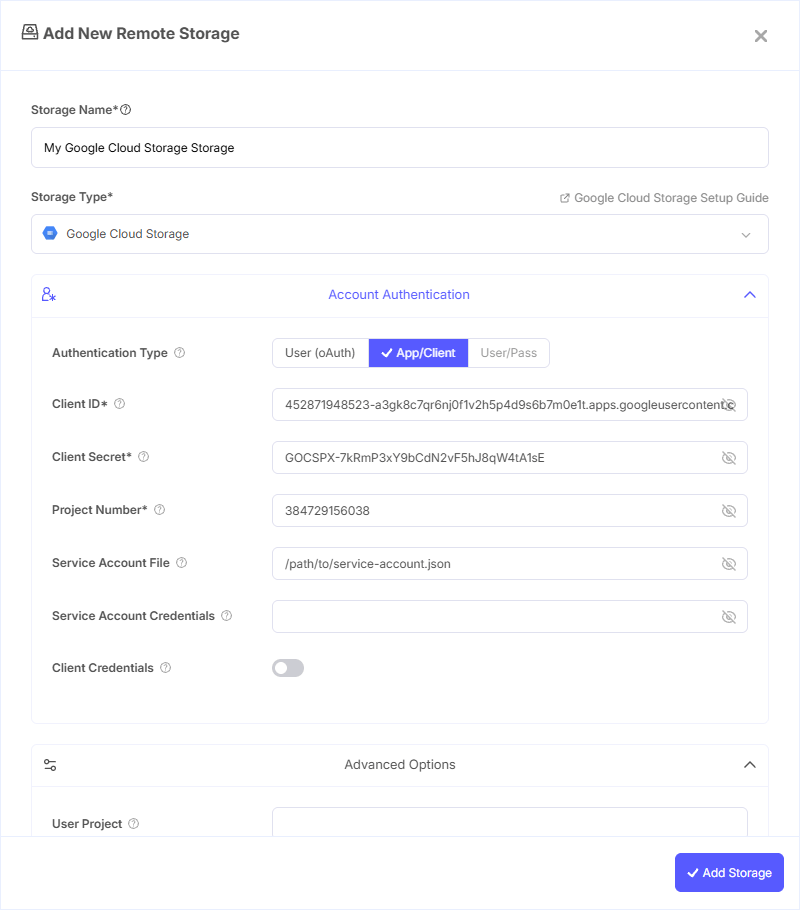
Step 1: Add Storage
- In Pluton, navigate to Storages
- Click Add Storage button
- Select Google Cloud Storage from the provider list
Step 2: Configure Connection
Fill in the required fields:
- Storage Name: A friendly name (e.g., "GCS Production Backups")
- Client ID: Your Google OAuth Client ID
- Client Secret: Your Google OAuth Client Secret
- Project Number: Your Google Cloud project number (needed for listing/creating/deleting buckets)
- OAuth Access Token: Paste the JSON token blob obtained from
rclone authorize
Alternatively, for Service Account authentication:
- Service Account File: Path to the Service Account JSON key file
- Service Account Credentials: Or paste the JSON content directly
Step 3: Advanced Options (Optional)
Additional settings available:
- Object ACL: Access Control List for new objects:
- Default (private), Authenticated Read, Bucket Owner Full Control, Bucket Owner Read, Private, Project Private, Public Read
- Bucket ACL: Access Control List for new buckets:
- Default (private), Authenticated Read, Private, Project Private, Public Read, Public Read/Write
- Bucket Policy Only: Use bucket-level IAM policies for access checks. Enable this if your bucket has Bucket Policy Only (uniform bucket-level access) set
- Location: Region for newly created buckets. Options include multi-regional (Asia, EU, US) and specific regions (Tokyo, London, Frankfurt, Iowa, Oregon, São Paulo, and many more)
- Storage Class: The storage tier for objects:
- Default — Uses the bucket's default class
- Multi-Regional — High availability across regions
- Regional — Single region
- Nearline — Best for data accessed less than once a month
- Coldline — Best for data accessed less than once a quarter
- Archive — Lowest cost for data accessed less than once a year
- Durable Reduced Availability — Legacy storage class
- User Project: For requester-pays buckets, the project to bill for requests
- Anonymous Access: Access public buckets without credentials
- Environment Auth: Use GCP IAM credentials from the runtime environment (instance metadata or environment variables)
Step 4: Complete the Storage Setup
- Click the Add Storage button which automatically verifies credentials and adds the storage.
- Your Google Cloud Storage is now ready for backup plans
Common Issues
Permission Denied on Bucket Operations: Ensure your project number is set correctly and your credentials have sufficient IAM roles (e.g., Storage Admin or Storage Object Admin).
Token Expired: OAuth tokens can expire. Re-run rclone authorize "google cloud storage" to generate a fresh token. Consider using a Service Account for long-running unattended operations.
Bucket Policy Only Errors: If your bucket uses uniform bucket-level access, enable the Bucket Policy Only option in Pluton.
Billing Not Enabled: Google Cloud Storage requires billing to be enabled on your project, even for free-tier usage. Verify billing is active in the Cloud Console.
Best Practices
- Use Service Accounts instead of OAuth for production server-to-server backup operations
- Choose the appropriate storage class based on your access patterns — Nearline or Coldline for backups that are rarely restored
- Select a bucket location close to your Pluton server for best performance
- Use Bucket Policy Only (uniform access) for simpler and more consistent permission management
- Set up lifecycle rules in GCS to automatically transition or delete old objects
- For cost optimization, use regional storage in a single region rather than multi-regional when geographic redundancy is not required