Connecting DigitalOcean Spaces
This guide walks you through connecting a DigitalOcean Spaces storage destination to Pluton.
Prerequisites
Before connecting DigitalOcean Spaces, you need:
- A DigitalOcean account - Sign up here
- A Spaces subscription enabled on your account
- An API key pair (Access Key and Secret Key) for Spaces
Getting Your Spaces Credentials
Step 1: Create a Space
- Log into the DigitalOcean Control Panel
- Click Spaces Object Storage in the left sidebar
- Click Create a Space
- Choose a datacenter region (e.g., NYC3, AMS3, SGP1)
- Configure your Space name and settings
- Click Create a Space
Step 2: Generate Spaces Access Keys
- Go to API in the left sidebar
- Scroll to the Spaces Keys section
- Click Generate New Key
- Enter a descriptive name (e.g., "Pluton Backups")
- Important: Copy both the Access Key and Secret Key immediately — the Secret Key is shown only once
Connecting to Pluton
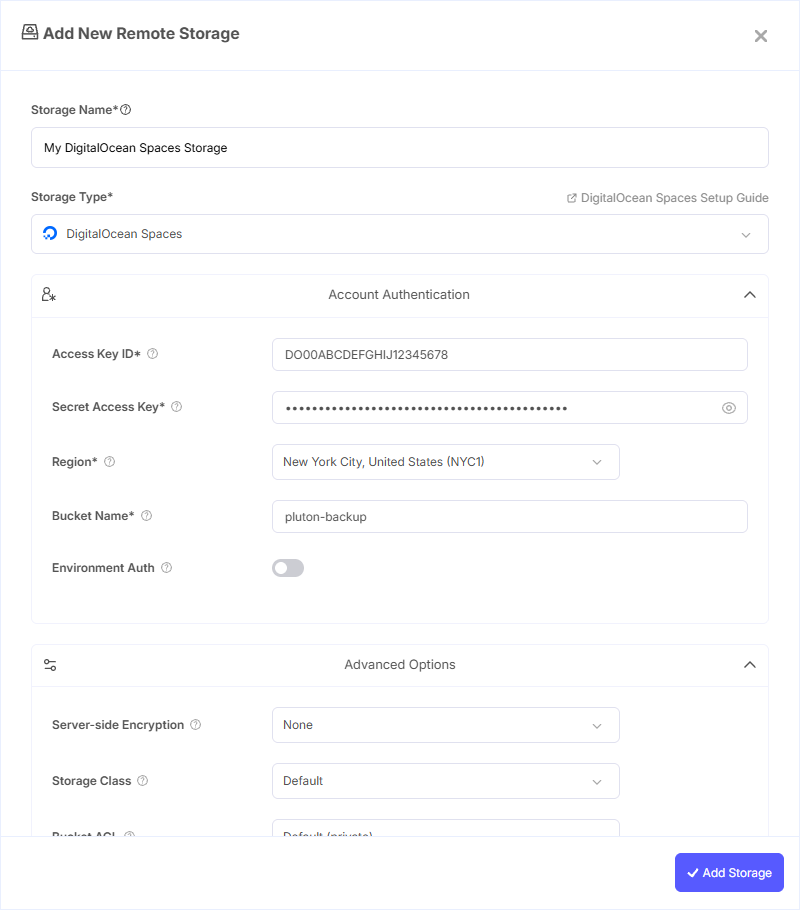
Step 1: Add Storage
- In Pluton, navigate to Storages
- Click Add Storage button
- Select DigitalOcean Spaces from the provider list
Step 2: Configure Connection
Fill in the required fields:
- Storage Name: A friendly name (e.g., "DO Spaces Production")
- Access Key ID: Your Spaces Access Key
- Secret Access Key: Your Spaces Secret Key (password)
- Region: Select the region where your Space is located (e.g., NYC3, AMS3, SFO3, SGP1). You can also enter a custom endpoint if needed
- Bucket Name: Your Spaces Bucket Name
Step 3: Advanced Options (Optional)
Additional settings available:
- Server-side Encryption: Choose AES256 encryption for data at rest
- Storage Class: Select the storage tier for your objects
- Chunk Size: Adjust the chunk size for multipart uploads (default: 5 MiB)
- Upload Cutoff: Set the threshold for switching to chunked uploads (default: 200 MiB)
- Force Path Style: Enable path-style access instead of virtual hosted-style
Step 4: Complete the Storage Setup
- Click the Add Storage button which automatically verifies credentials and adds the storage.
- Your DigitalOcean Spaces storage is now ready for backup plans
Common Issues
Invalid Access Key: Ensure you're using Spaces-specific keys (found under API → Spaces Keys), not your personal API token.
Region Mismatch: The selected region must match the datacenter where your Space was created. Check your Space's settings in the DigitalOcean dashboard.
Permission Denied: Spaces keys have full access to all Spaces on your account. If you encounter permission errors, regenerate a new key pair.
Best Practices
- Use Spaces CDN for faster downloads if you need to restore frequently
- Monitor your Spaces usage through the DigitalOcean dashboard
- Use separate Spaces for different backup plans for easier organization
- DigitalOcean Spaces includes 250 GiB of free storage and 1 TiB of outbound transfer with each subscription