Connecting Liara Object Storage
This guide walks you through connecting a Liara Object Storage destination to Pluton.
Prerequisites
Before connecting Liara Object Storage, you need:
- A Liara account - Sign up here
- S3 API credentials (Access Key ID and Secret Access Key) from your Liara console
Getting Your Liara Credentials
Step 1: Create a Bucket
- Log into your Liara Console
- Navigate to Object Storage in the sidebar
- Click Create Bucket
- Enter a bucket name and configure your preferred settings
- Note the bucket name and the S3 endpoint URL provided
Step 2: Generate Access Keys
- In the Object Storage section, go to Keys or Access Keys
- Click Create Key to generate a new S3 key pair
- Copy the Access Key ID and Secret Access Key
- Important: Save both credentials immediately - the Secret Access Key is shown only once
Connecting to Pluton
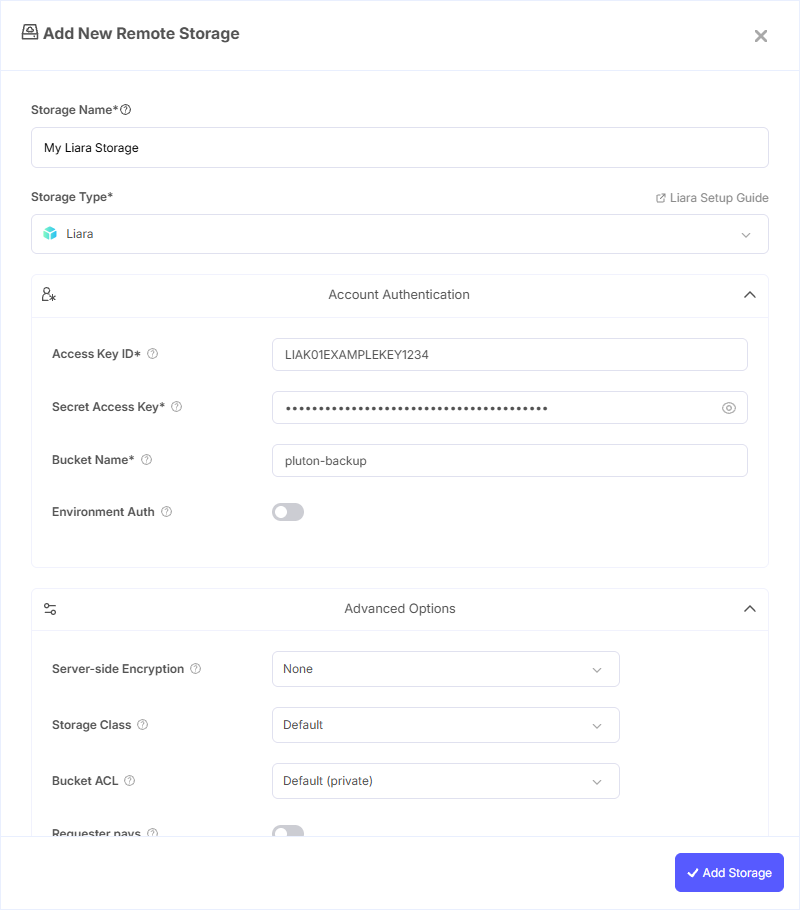
Step 1: Add Storage
- In Pluton, navigate to Storages
- Click Add Storage button
- Select Liara Object Storage from the provider list
Step 2: Configure Connection
Fill in the required fields:
- Storage Name: A friendly name (e.g., "Liara Backups")
- Access Key ID: Paste your Liara S3 Access Key ID
- Secret Access Key: Paste your Liara S3 Secret Access Key
- Bucket Name: Your Liara Bucket Name
Step 3: Advanced Options (Optional)
Additional settings available:
- Server-side Encryption: Choose AES256 or KMS encryption for data at rest
- Storage Class: Select the storage class for new objects
- Bucket ACL: Set access control for bucket operations
- Upload Cutoff: Threshold for switching to chunked uploads (default: 200 MiB)
- Chunk Size: Size of chunks for multipart uploads (default: 5 MiB)
- Force Path Style: Enabled by default; use path-style access for S3 requests
- V2 Authentication: Enable if your setup requires v2 auth signatures
Step 4: Complete the Storage Setup
- Click the Add Storage button which automatically verifies credentials and adds the storage.
- Your Liara Object Storage is now ready for backup plans
Common Issues
Authentication Failure: Verify your Access Key ID and Secret Access Key are correct. Regenerate credentials in the Liara console if needed.
Connection Timeout: Ensure your Pluton server can reach the Liara S3 endpoint. Check firewall or network restrictions.
Bucket Not Found: Confirm the bucket exists in your Liara account and that your credentials have access to it.
Best Practices
- Create dedicated S3 keys for Pluton with minimum required permissions
- Enable server-side encryption for sensitive backup data
- Monitor your storage usage through the Liara console
- Regularly review and rotate your S3 access keys for security