Connecting put.io
This guide walks you through connecting a put.io storage destination to Pluton.
Prerequisites
Before connecting put.io, you need:
- A put.io account - Sign up here
- A web browser to complete the OAuth authentication flow
About put.io
put.io is a cloud storage service that fetches and stores files from various sources. It provides a personal cloud space with streaming capabilities. Pluton connects to put.io using OAuth authentication, so your account password is never stored directly.
Getting Your Credentials
Step 1: Authenticate via OAuth
put.io uses OAuth for secure authorization. During the connection process in Pluton, you will be redirected to put.io's login page to authorize access. No manual credential generation is required for the default setup.
If your Pluton server does not have a web browser available (e.g., a headless server), you will need to run rclone authorize "putio" on a machine that does have a browser, then paste the resulting token into Pluton's OAuth Access Token field. See Rclone Remote Setup for details.
Connecting to Pluton
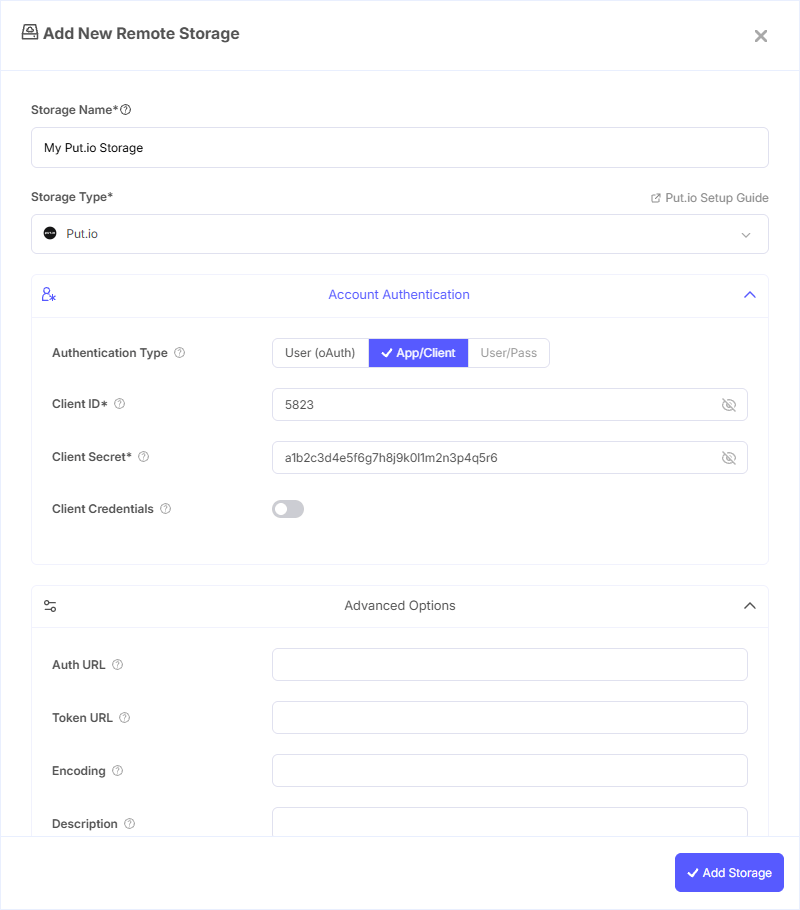
Step 1: Add Storage
- In Pluton, navigate to Storages
- Click Add Storage button
- Select put.io from the provider list
Step 2: Configure Connection
Fill in the required fields:
- Storage Name: A friendly name (e.g., "Put.io Backups")
- OAuth Access Token: The OAuth token obtained during authorization. For browser-based OAuth, this is populated automatically. For headless setups, paste the token from
rclone authorize
Step 3: Advanced Options (Optional)
Additional settings available:
- Client ID: OAuth Client ID. Leave blank to use Pluton's default application credentials
- Client Secret: OAuth Client Secret. Leave blank normally
- Client Credentials: Enable to use the OAuth2 Client Credentials Flow (RFC 6749)
Step 4: Complete the Storage Setup
- Click the Add Storage button which automatically verifies credentials and adds the storage.
- Your put.io storage is now ready for backup plans
Common Issues
OAuth Token Expired: put.io tokens can expire. Re-authorize through Pluton to refresh your connection, or generate a new token using rclone authorize "putio".
Headless Server Authentication: If your Pluton server has no browser, run rclone authorize "putio" on a machine with a browser, then paste the resulting JSON token into the OAuth Access Token field.
Storage Quota Exceeded: Check your put.io account storage limits. Free accounts have limited space.
File System Limitations
Restricted Characters: Backslash (\) characters in file names are automatically replaced during upload.
Best Practices
- Use the default OAuth flow with a browser for the simplest setup experience
- For headless server setups, generate tokens using
rclone authorizeon a machine with browser access and keep the workflow documented for future token renewal - Monitor your put.io storage quota to prevent backup failures
- put.io paths can be as deep as required (e.g.,
directory/subdirectory), so organize your backups into structured folder hierarchies