Connecting Quatrix by Maytech
This guide walks you through connecting a Quatrix by Maytech storage destination to Pluton.
Prerequisites
Before connecting Quatrix, you need:
- A Quatrix by Maytech account — Learn more here
- An API key and your Quatrix host name
Getting Your Credentials
Step 1: Log Into Your Quatrix Account
- Go to your Quatrix account URL (e.g.,
https://yourcompany.quatrix.it) - Log in with your credentials
Step 2: Generate an API Key
- Navigate to your Profile settings
- Go to the API Keys section at
https://<your-account>.quatrix.it/profile/api-keys - Click Create API Key
- Copy the generated API key
- Alternatively, you can create an API key via the Quatrix API Explorer
Step 3: Note Your Host Name
Your Quatrix host name is the URL you use to access your account, e.g., yourcompany.quatrix.it (without https://).
Connecting to Pluton
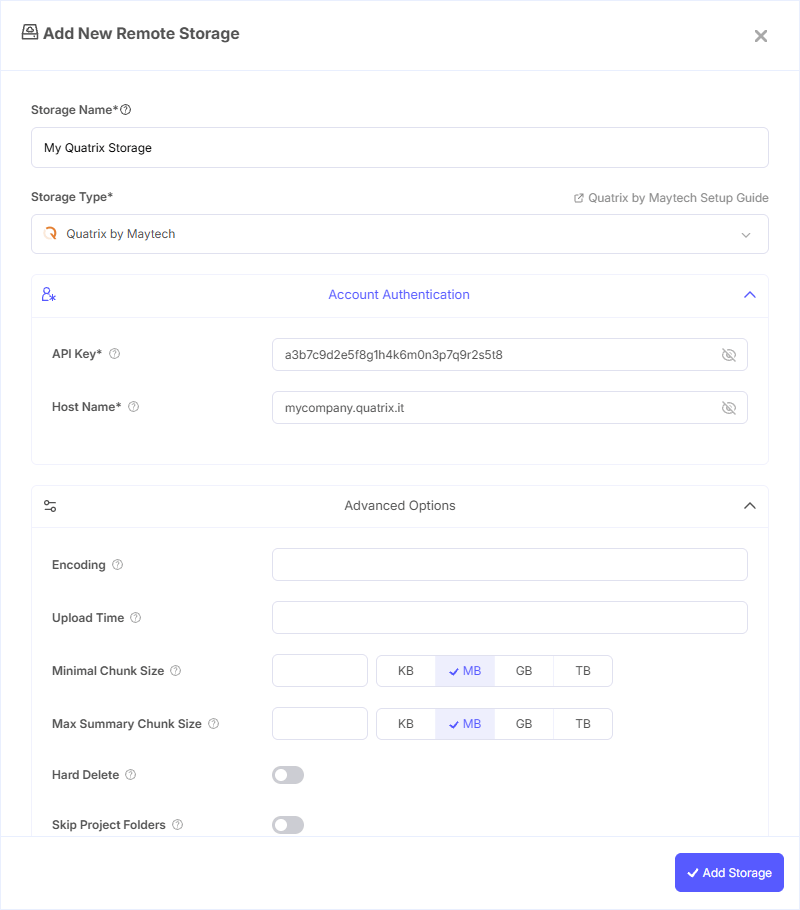
Step 1: Add Storage
- In Pluton, navigate to Storages
- Click Add Storage button
- Select Quatrix by Maytech from the provider list
Step 2: Configure Connection
Fill in the required fields:
- Storage Name: A friendly name (e.g., "Quatrix Business Storage")
- API Key: Your Quatrix API key
- Host Name: Your Quatrix host (e.g.,
yourcompany.quatrix.it)
Step 3: Advanced Options (Optional)
Additional settings available:
- Upload Time: Target upload time for one chunk (default:
4s) - Minimal Chunk Size: Minimum size for one upload chunk (default: ~9.5 MiB)
- Max Summary Chunk Size: Maximum total size for all chunks (default: ~95 MiB). Should not be less than
transfers × minimal_chunk_size - Hard Delete: Enable to permanently delete files rather than moving them to the trash
- Skip Project Folders: Enable to skip project folders in operations
Step 4: Complete the Storage Setup
- Click the Add Storage button which automatically verifies credentials and adds the storage.
- Your Quatrix storage is now ready for backup plans
Common Issues
Authentication Failure: Verify your API key is active and hasn't been deactivated or deleted. You can check and manage your API keys at https://<your-account>.quatrix.it/profile/api-keys.
Host Name Incorrect: Ensure the host name matches your Quatrix account URL exactly (e.g., yourcompany.quatrix.it), without the https:// prefix.
API Key Expired: Quatrix API keys are created without an expiration date and remain valid until deleted or deactivated. If your key was deactivated, re-enable it in your account or generate a new one.
Best Practices
- Create a dedicated API key for Pluton with a clear description
- Use the Hard Delete option with caution — files deleted with this option cannot be recovered from the trash
- If your host name changes, update the configuration in Pluton with the new host name
- Monitor file usage through the Quatrix web interface