Connecting Yandex Disk
This guide walks you through connecting a Yandex Disk storage destination to Pluton.
Prerequisites
Before connecting Yandex Disk, you need:
- A Yandex account - Sign up here
- OAuth application credentials from the Yandex OAuth portal
- Client ID and Client Secret
Getting Your Credentials
Step 1: Create a Yandex OAuth Application
- Go to the Yandex OAuth Portal
- Click Register a new application (or Create new app)
- Fill in the app details:
- App name: e.g., "Pluton Backups"
- Platform: Select Web services
- Redirect URI: Add
http://127.0.0.1:53682/
- Under Permissions, expand Yandex.Disk REST API and enable:
- Read all of Disk
- Write to app folder on Disk (or Write to entire Disk for full access)
- Click Create app
Step 2: Copy Your Credentials
- After creation, you will see the ClientID (also called Application ID) and Client secret (also called Password)
- Copy both values — you will need them in Pluton
Step 3: Generate an OAuth Token
Since Pluton runs on a server that may not have a web browser, you need to generate an OAuth token using rclone authorize:
- Install rclone on a machine with a web browser
- Run the following command:
rclone authorize "yandex" "your_client_id" "your_client_secret" - A browser window will open — log in with your Yandex account and grant access
- Copy the JSON token blob printed to the terminal
Connecting to Pluton
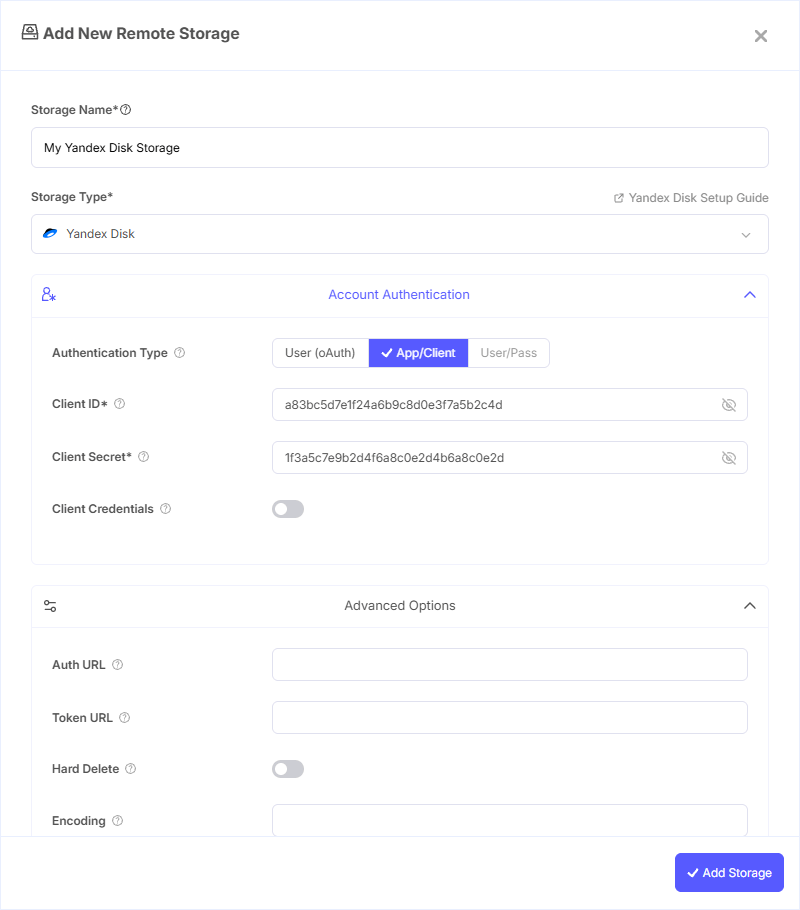
Step 1: Add Storage
- In Pluton, navigate to Storages
- Click Add Storage button
- Select Yandex Disk from the provider list
Step 2: Configure Connection
Fill in the required fields:
- Storage Name: A friendly name (e.g., "Yandex Disk Backups")
- Client ID: Your Yandex OAuth Application ID
- Client Secret: Your Yandex OAuth Client Secret (Password)
- OAuth Access Token: Paste the JSON token blob obtained from
rclone authorize
Step 3: Advanced Options (Optional)
Additional settings available:
- Hard Delete: Delete files permanently rather than putting them into the Yandex Disk trash. Disabled by default — files are sent to trash for recovery
- Spoof User Agent: Set the user agent to match an official version of the Yandex Disk client. Enabled by default and may help with upload performance
- Client Credentials: Enable to use the OAuth2 Client Credentials flow instead of interactive login
Step 4: Complete the Storage Setup
- Click the Add Storage button which automatically verifies credentials and adds the storage.
- Your Yandex Disk storage is now ready for backup plans
Common Issues
Token Expired: Yandex OAuth tokens can expire. Re-run rclone authorize "yandex" with your Client ID and Client Secret to generate a fresh token, then update it in Pluton.
Insufficient Permissions: Ensure your OAuth application has the necessary Yandex.Disk REST API permissions enabled. Without the correct scopes, reads or writes may fail.
Redirect URI Mismatch: Ensure http://127.0.0.1:53682/ is listed as a redirect URI in your Yandex OAuth application settings.
Slow Uploads: The Spoof User Agent option is enabled by default and can help with upload performance. If you experience issues, try toggling this setting.
Disk Full: Verify your Yandex Disk has sufficient free space. Check your quota at disk.yandex.com.
Best Practices
- Keep the Spoof User Agent option enabled (default) for optimal upload performance
- Leave Hard Delete disabled to keep deleted files in trash for an additional safety net
- Create a dedicated Yandex OAuth application for Pluton with only the required disk permissions
- Monitor your Yandex Disk storage quota to prevent backup failures
- Yandex Disk offers 10 GB of free storage — consider upgrading if you need more space for backups
- Regularly verify your connection to ensure the OAuth token remains valid