Connecting HTTP (Read Only)
This guide walks you through connecting an HTTP remote as a read-only storage source in Pluton.
HTTP storage is read-only. You cannot upload or write backup data to an HTTP remote. This provider is useful for accessing files hosted on a web server for restore or sync operations.
Prerequisites
Before connecting an HTTP remote, you need:
- A web server that provides directory file listings (e.g., Apache, Nginx, Caddy)
- The URL of the server or directory you want to access
Getting Your URL
Step 1: Identify the Server URL
Determine the URL of the web server hosting the files you want to access. Common examples:
https://example.com/files/https://releases.example.com/archive/https://user:[email protected]/data/(with basic authentication)
Step 2: Verify Directory Listings
Ensure the web server provides HTML directory listings. Open the URL in a browser — you should see a file listing page, not a generic web page. Most common web servers (Apache, Nginx, Caddy) support this when configured with directory indexing enabled.
Connecting to Pluton
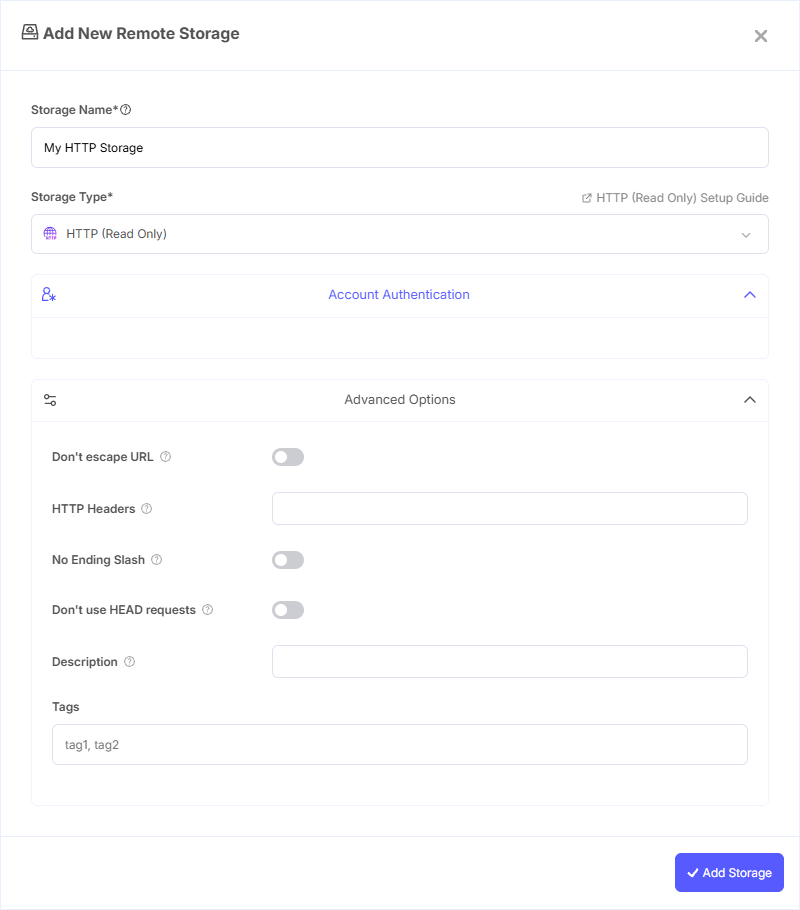
Step 1: Add Storage
- In Pluton, navigate to Storages
- Click Add Storage button
- Select HTTP from the provider list
Step 2: Configure Connection
Fill in the required fields:
- Storage Name: A friendly name (e.g., "Release Archive Server")
- HTTP URL: URL of the HTTP host to connect to (e.g.,
https://example.com). To use basic authentication, include credentials in the URL:https://user:[email protected]
Step 3: Advanced Options (Optional)
Additional settings available:
- Don't escape URL: Do not escape URL metacharacters in path names. Enable this if the server handles special characters differently
- HTTP Headers: Set additional HTTP headers for all transactions (comma-separated list). Useful for custom authentication headers or API tokens
- No Ending Slash: Enable this if the site doesn't end directory paths with
/ - Don't use HEAD requests: Disable HEAD requests for directory listings. Enable this if your site is very slow to load or doesn't support HEAD requests properly
Step 4: Test and Save
- Click Test Connection to verify the URL is accessible
- If successful, click Save
- Your HTTP storage is now available in Pluton
Common Issues
Empty File Listing: The web server must provide HTML directory index pages. Ensure directory indexing is enabled in your server configuration (e.g., Options +Indexes for Apache, autoindex on for Nginx).
Authentication Required (401/403): If the server requires authentication, include the credentials in the URL (e.g., https://user:[email protected]). For token-based authentication, use the HTTP Headers option to pass an Authorization header.
Slow Listings: If directory listings are slow, enable Don't use HEAD requests to skip pre-flight HEAD requests for each file.
Incorrect File Paths: If files with special characters aren't accessible, try enabling Don't escape URL to prevent URL encoding of metacharacters.
Cannot Write / Upload Errors: HTTP storage is read-only. You cannot use it as a backup destination. Use it only as a source for restore or sync operations.
Best Practices
- Use HTTPS URLs whenever possible for secure data transfer
- Include authentication credentials in the URL only when connecting over HTTPS
- Enable Don't use HEAD requests for servers that respond slowly to HEAD requests
- Use HTTP Headers to pass custom authentication tokens instead of URL-embedded credentials when supported
- Remember that HTTP remotes are read-only — pair them with a writable storage for full backup workflows