Connecting Koofr
This guide walks you through connecting a Koofr storage destination to Pluton.
Prerequisites
Before connecting Koofr, you need:
- A Koofr account - Sign up here
- An app password generated from your Koofr account settings
Getting Your Credentials
Step 1: Create a Koofr Account
- Go to Koofr and sign up for an account
- Verify your email address and log in
Step 2: Generate an App Password
- Log into the Koofr web application
- Go to Preferences (click your profile icon → Preferences)
- Navigate to the Password section (or go directly to app/admin/preferences/password)
- Under App Passwords, enter a name for the password (e.g., "Pluton Backups")
- Click Generate
- Important: Copy the generated app password immediately — it is shown only once
Connecting to Pluton
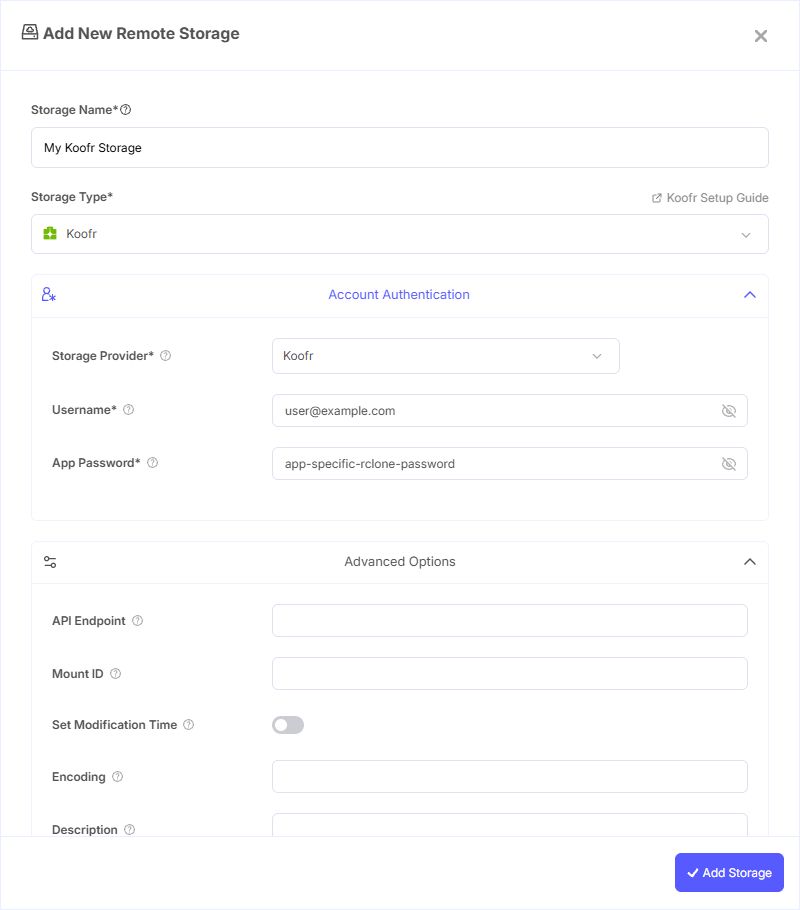
Step 1: Add Storage
- In Pluton, navigate to Storages
- Click Add Storage button
- Select Koofr from the provider list
Step 2: Configure Connection
Fill in the required fields:
- Storage Name: A friendly name (e.g., "Koofr Backups")
- Storage Provider: Choose your storage provider:
- Koofr — Standard Koofr service (https://app.koofr.net/)
- Digi Storage — Digi Storage by RCS-RDS (https://storage.rcs-rds.ro/)
- Custom — Any other Koofr API-compatible storage. When selected, you need to provide the API Endpoint
- Username: Your Koofr account email address
- App Password: The app password you generated in Step 2
Step 3: Advanced Options (Optional)
Additional settings available:
- API Endpoint: The Koofr API endpoint to use. Only needed when using the Custom storage provider
- Mount ID: The mount ID of the mount to use. If omitted, the primary mount is used. Useful when you have connected external services (like Dropbox or Amazon Drive) to your Koofr account
- Set Modification Time: Whether the backend supports setting modification time (enabled by default). Set to false if you use a mount ID that points to a Dropbox or Amazon Drive backend, as those do not fully support modification times
Step 4: Complete the Storage Setup
- Click the Add Storage button which automatically verifies credentials and adds the storage.
- Your Koofr storage is now ready for backup plans
Common Issues
Invalid App Password: Make sure you are using an app password, not your regular Koofr login password. App passwords are generated in the Preferences → Password section.
Wrong Username: The username should be your Koofr email address (the one you use to log in).
Password Shown Only Once: If you lost your app password, you cannot recover it. Delete the old app password in Koofr Preferences and generate a new one.
Mount ID Issues: When using a Mount ID to access connected external services (e.g., Dropbox connected through Koofr), some features like modification time may not work. Disable Set Modification Time in advanced options for these mounts.
Digi Storage Connection: If using Digi Storage, select the Digi Storage provider option — do not use Custom with a manual endpoint.
Best Practices
- Generate a dedicated app password for Pluton — avoid reusing passwords across services
- Use a descriptive name when generating the app password so you can identify it later in Koofr Preferences
- Koofr offers 10 GB of free storage — consider upgrading for larger backup needs
- When connecting external storage services through Koofr's mount feature, test thoroughly to ensure compatibility
- Use the primary mount (leave Mount ID empty) for the simplest setup
- Regularly review your app passwords in Koofr Preferences and remove any that are no longer in use