Connecting Proton Drive
This guide walks you through connecting a Proton Drive storage destination to Pluton.
Prerequisites
Before connecting Proton Drive, you need:
- A Proton account - Sign up here
- Your Proton username and password
- You must have logged into Proton Drive via the web browser at least once, so that your encryption keys are generated
About Proton Drive
Proton Drive is an end-to-end encrypted cloud storage service from Proton. All files are encrypted on your device before being uploaded, meaning only you can access your data. Pluton connects to Proton Drive using the same client-side encryption used by Proton's own apps.
Because Proton Drive uses end-to-end encryption, encrypted file sizes will be slightly larger than the original files. Pluton displays the original file size by default.
Getting Your Credentials
Step 1: Verify Your Proton Account
- Log into Proton Drive in your web browser
- Ensure your encryption keys have been generated (this happens automatically on first login)
- Note your Proton username (your full email, e.g.,
[email protected])
Step 2: Check Two-Factor Authentication
If you have 2FA enabled on your Proton account:
- Go to Proton Account Settings
- Note whether Two-factor authentication is enabled
- You will need your 2FA code during setup
Step 3: Check for Mailbox Password (Two-Password Mode)
If your account uses two-password mode:
- You will need both your login password and your separate mailbox password
- Most accounts use single-password mode — skip this if unsure
Connecting to Pluton
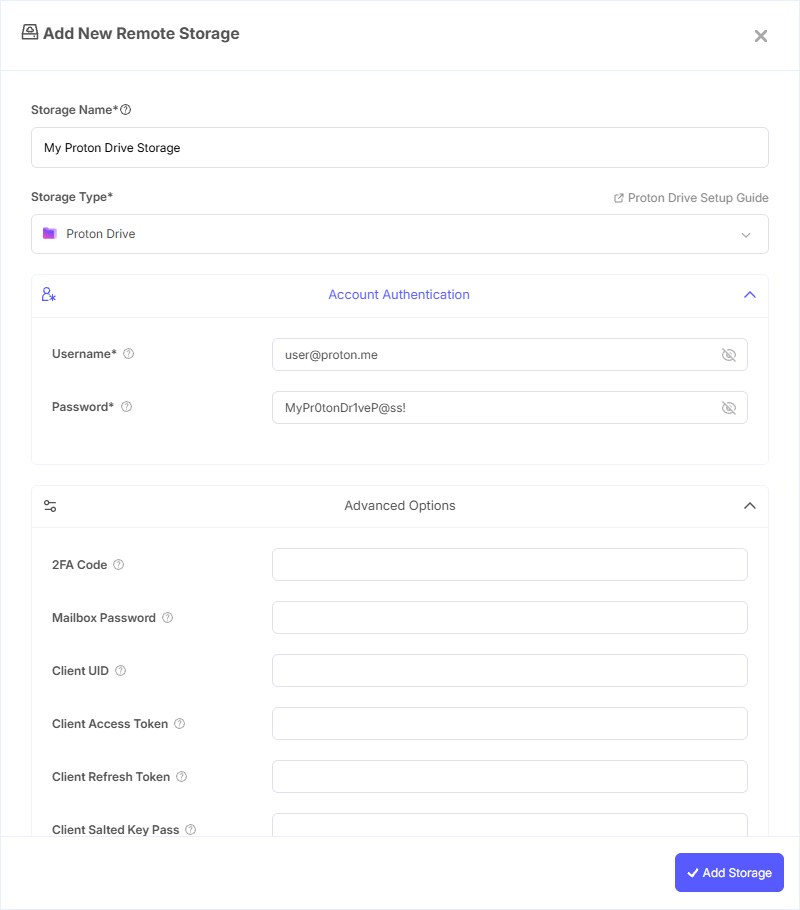
Step 1: Add Storage
- In Pluton, navigate to Storages
- Click Add Storage button
- Select Proton Drive from the provider list
Step 2: Configure Connection
Fill in the required fields:
- Storage Name: A friendly name (e.g., "Proton Drive Backups")
- Username: Your Proton account username (full email address, e.g.,
[email protected]) - Password: Your Proton account password
Step 3: Advanced Options (Optional)
Additional settings available:
- 2FA Code: Your current two-factor authentication code, if 2FA is enabled on your account
- Mailbox Password: Required only if your account uses two-password mode
- Original File Size: Returns the original file size before encryption (enabled by default). Disable to see encrypted file sizes instead
- Replace Existing Draft: Creates a new revision when a filename conflict is detected due to a previously cancelled or failed upload
- Enable Caching: Caches file and folder metadata to reduce API calls (enabled by default). Disable if changes from other clients need to be reflected immediately
Step 4: Complete the Storage Setup
- Click the Add Storage button which automatically verifies credentials and adds the storage.
- Your Proton Drive storage is now ready for backup plans
Common Issues
Authentication Failure: Ensure you are using your full Proton email as the username. If you have 2FA enabled, make sure to enter a current, valid 2FA code.
Encryption Key Error: You must log into Proton Drive via the web browser at least once before connecting through Pluton. This generates the required encryption keys.
Mailbox Password Required: If your Proton account uses two-password mode, you need to provide the mailbox password in the advanced options.
Stale Cache: If files uploaded from another client don't appear, try disabling the Enable Caching option to force fresh metadata lookups.
Best Practices
- Log into Proton Drive via the web at least once before connecting to Pluton
- Keep your 2FA device accessible when setting up the connection, as you'll need a fresh code
- Leave Enable Caching on for best performance, unless you access the drive from multiple clients simultaneously
- Proton Drive provides built-in end-to-end encryption — there's no need for additional client-side encryption layers
- Monitor your Proton Drive storage quota to prevent backup failures