Connecting QingStor
This guide walks you through connecting a QingStor Object Storage destination to Pluton.
Prerequisites
Before connecting QingStor, you need:
- A QingCloud account - Sign up here
- An Access Key ID and Secret Access Key for QingStor API access
- Knowledge of which zone your bucket is in (e.g.,
pek3a,sh1a)
Getting Your Credentials
Step 1: Create API Keys
- Log into the QingCloud Console
- Navigate to Access Keys under your account settings
- Click Create to generate a new Access Key pair
- Copy the Access Key ID and Secret Access Key
- Important: Save both credentials immediately — the Secret Access Key may only be shown once
Step 2: Identify Your Zone
QingStor uses zones to determine where your data is stored:
- pek3a — Beijing (China) Three Zone
- sh1a — Shanghai (China) First Zone
Select the zone where your bucket is (or will be) located.
Step 3: Create a Bucket (Optional)
- In the QingCloud Console, navigate to QingStor → Buckets
- Click Create Bucket
- Enter a bucket name and select your zone
- Configure access settings and create the bucket
Connecting to Pluton
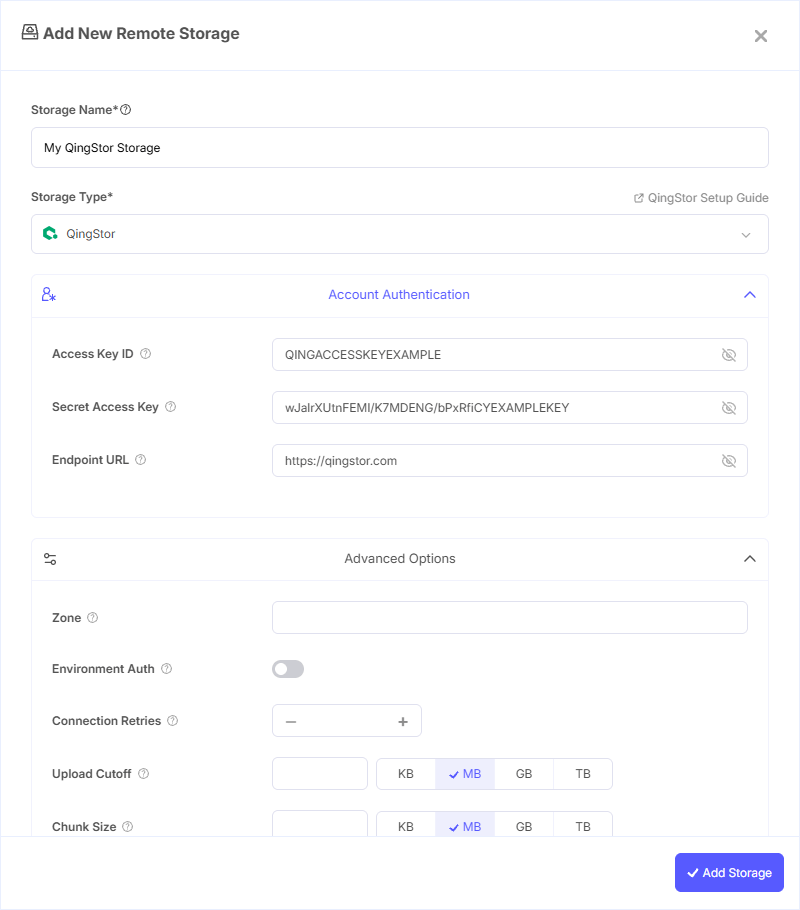
Step 1: Add Storage
- In Pluton, navigate to Storages
- Click Add Storage button
- Select QingStor from the provider list
Step 2: Configure Connection
Fill in the fields:
- Storage Name: A friendly name (e.g., "QingStor Backups")
- Access Key ID: Your QingStor Access Key ID. Leave blank for anonymous access or runtime credentials
- Secret Access Key: Your QingStor Secret Access Key (password). Leave blank for anonymous access or runtime credentials
- Endpoint URL: Endpoint URL to connect to the QingStor API. Leave blank to use the default (
https://qingstor.com:443) - Zone: Zone to connect to (default:
pek3a)
Step 3: Advanced Options (Optional)
Additional settings available:
- Environment Auth: Get QingStor credentials from runtime environment variables. Only applies if Access Key ID and Secret Access Key are left blank
- Connection Retries: Number of connection retries (default: 3)
- Upload Cutoff: Cutoff for switching to chunked upload (default: 200 MiB). Files larger than this will be uploaded in chunks. Minimum is 0, maximum is 5 GiB
- Chunk Size: Chunk size for multipart uploads (default: 4 MiB). Files larger than the upload cutoff are split using this chunk size
- Upload Concurrency: Number of chunks of the same file uploaded concurrently (default: 1)
Step 4: Complete the Storage Setup
- Click the Add Storage button which automatically verifies credentials and adds the storage.
- Your QingStor storage is now ready for backup plans
Common Issues
Authentication Failed: Verify your Access Key ID and Secret Access Key are correct. Ensure the API keys have not been deactivated in the QingCloud Console.
Zone Mismatch: Make sure the zone matches the region where your bucket was created. Using the wrong zone will result in bucket not found errors.
Endpoint Errors: Leave the endpoint blank unless you are connecting to a private or custom QingStor deployment. The default endpoint (https://qingstor.com:443) works for all standard QingStor services.
Bucket Not Found: Confirm the bucket exists in your selected zone and that your API keys have access to it.
Best Practices
- Create dedicated API keys for Pluton with minimum required permissions
- Select the zone closest to your Pluton server for optimal transfer speeds
- Use the default endpoint unless you have a specific reason to override it
- Adjust Upload Concurrency for better throughput on high-bandwidth connections
- Monitor bucket usage and costs through the QingCloud Console