Connecting RackCorp Object Storage
This guide walks you through connecting a RackCorp Object Storage destination to Pluton.
Prerequisites
Before connecting RackCorp Object Storage, you need:
- A RackCorp account — Sign up here
- An Access Key ID and Secret Access Key generated from the RackCorp portal
Getting Your RackCorp Credentials
Step 1: Create Access Keys
- Log into the RackCorp Portal
- Navigate to the Object Storage section
- Create a new Access Key and Secret Key for your desired storage location
- Copy both the Access Key ID and Secret Access Key — the secret is shown only once
Step 2: Prepare Your Bucket
- In the RackCorp portal, create a new bucket in your preferred location
- Note the Bucket Name and the Region where it was created (e.g., au-nsw, hk, ph)
Connecting to Pluton
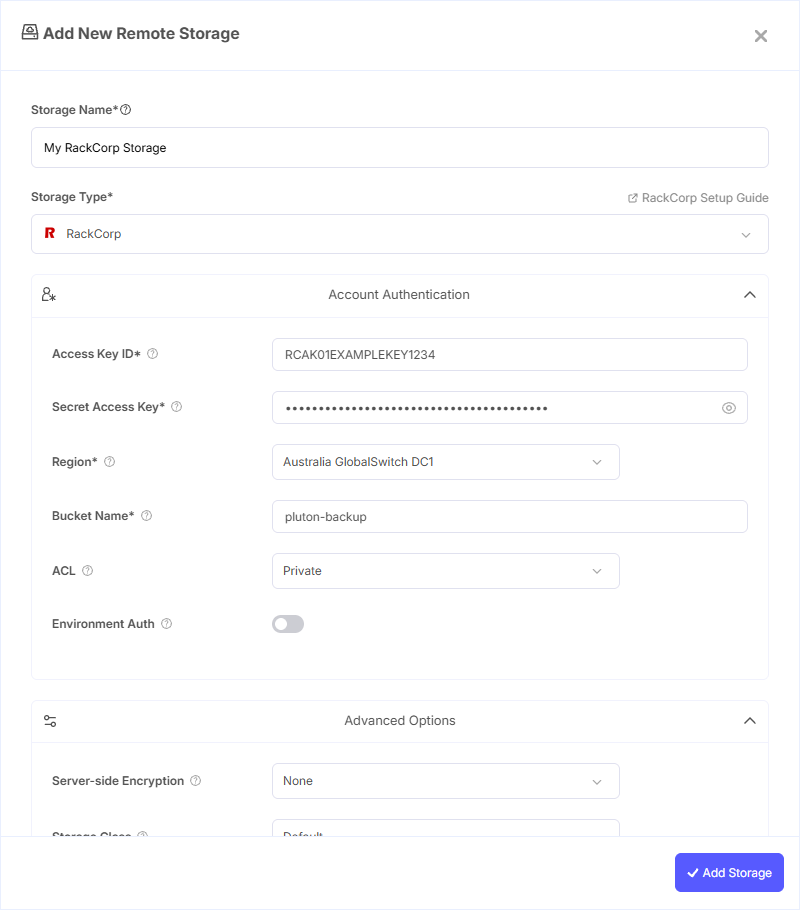
Step 1: Add Storage
- In Pluton, navigate to Storages
- Click Add Storage button
- Select RackCorp Object Storage from the provider list
Step 2: Configure Connection
Fill in the required fields:
- Storage Name: A friendly name (e.g., "RackCorp Sydney Backups")
- Access Key ID: Your RackCorp Access Key ID
- Secret Access Key: Your RackCorp Secret Access Key (password)
- Region: Select the region matching your bucket location. Available regions include Australia (Sydney, GlobalSwitch DC1, Equinix SYD4, Newcastle, Dubbo), Hong Kong, Thailand (Bangkok), Mongolia (Ulaanbaatar), Philippines, Indonesia, and Kyrgyzstan. You can also enter a custom region if needed
- Bucket Name: Your RackCorp Bucket Name
Step 3: Advanced Options (Optional)
Additional settings available:
- ACL: Access control permissions applied when creating buckets and storing objects. Options are Private and Public Read
- Server-side Encryption: Encrypt objects at rest using AES256 or AWS KMS
- Storage Class: The storage class for new objects (Standard, Reduced Redundancy, Standard IA, Glacier, etc.)
- Bucket ACL: Canned ACL applied specifically when creating buckets
Step 4: Complete the Storage Setup
- Click the Add Storage button which automatically verifies credentials and adds the storage.
- Your RackCorp Object Storage is now ready for backup plans
Common Issues
Authentication Failure: Verify that your Access Key ID and Secret Access Key are correct and active in the RackCorp portal.
Region Mismatch: The selected region must match the region where your bucket was created. RackCorp uses region-specific S3 endpoints.
Connection Timeout: RackCorp serves many unique locations — ensure your Pluton server can reach the selected region's endpoint. Check firewall rules if needed.
Best Practices
- Choose a RackCorp region that meets your data sovereignty requirements
- Use the region closest to your Pluton server for optimal transfer speeds
- Create dedicated access keys with minimal permissions for Pluton
- Monitor your storage usage through the RackCorp portal to manage costs