Connecting HiDrive
This guide walks you through connecting a HiDrive storage destination to Pluton.
Prerequisites
Before connecting HiDrive, you need:
- A HiDrive account from STRATO - Sign up here
- OAuth application credentials from the STRATO HiDrive Developer Portal
- Client ID and Client Secret
Getting Your Credentials
Step 1: Create a HiDrive OAuth Application
- Go to the STRATO HiDrive Developer Portal
- Register a new application
- Fill in the required details:
- Application Name: e.g., "Pluton Backups"
- Redirect URI: Add
http://127.0.0.1:53682/
- Copy the Client ID and Client Secret after creation
Step 2: Generate an OAuth Token
Since Pluton runs on a server that may not have a web browser, you need to generate an OAuth token using rclone authorize:
- Install rclone on a machine with a web browser
- Run the following command:
rclone authorize "hidrive" "your_client_id" "your_client_secret" - A browser window will open — log in with your HiDrive account and grant access
- Copy the JSON token blob printed to the terminal
Connecting to Pluton
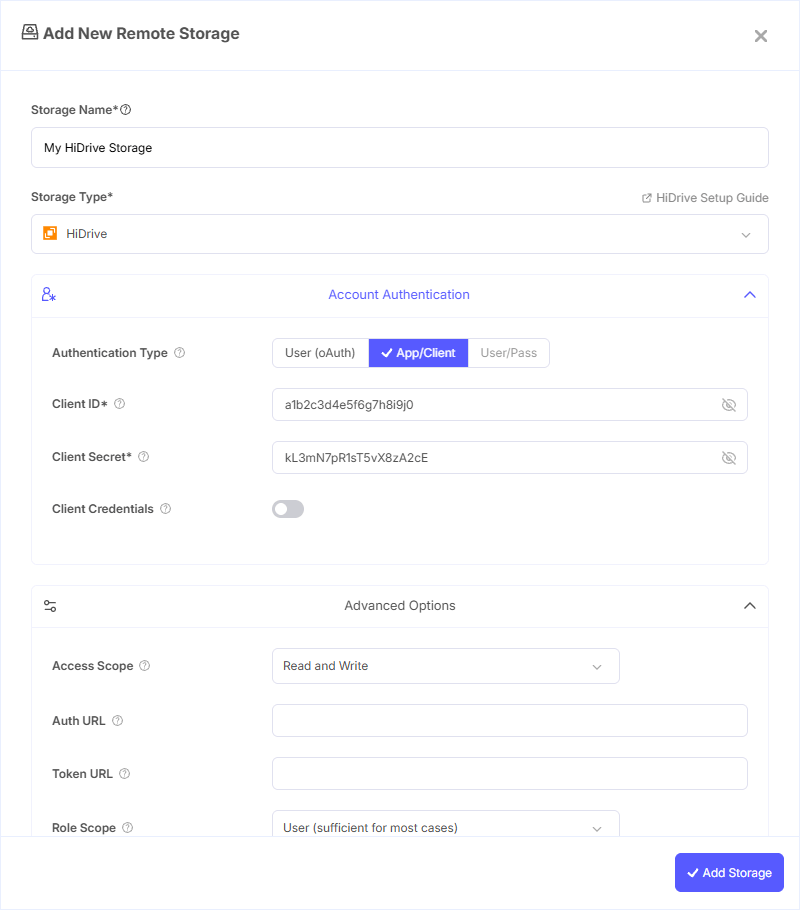
Step 1: Add Storage
- In Pluton, navigate to Storages
- Click Add Storage button
- Select HiDrive from the provider list
Step 2: Configure Connection
Fill in the required fields:
- Storage Name: A friendly name (e.g., "HiDrive Backups")
- Client ID: Your HiDrive OAuth Client ID
- Client Secret: Your HiDrive OAuth Client Secret
- OAuth Access Token: Paste the JSON token blob obtained from
rclone authorize
Step 3: Advanced Options (Optional)
Additional settings available:
- Access Scope: Access permissions to request from HiDrive:
- Read and Write — Full read and write access (default)
- Read-only — Only read access, no modifications
- Role Scope: User-level to use when requesting access:
- User — Sufficient for most cases (default)
- Admin — Administrative access level
- Owner — Owner-level access
- Root Prefix: The root/parent folder for all paths. Use this to restrict operations to a specific folder (default:
/) - Endpoint: The HiDrive API endpoint URL (default:
https://api.hidrive.strato.com/2.1). Only change this if instructed by STRATO support - Chunk Size: Chunk size for chunked uploads (default: 48 MiB). Files larger than the upload cutoff are uploaded in chunks of this size
- Upload Cutoff: Cutoff for switching to chunked uploads (default: 96 MiB). Files larger than this are uploaded in chunks
- Upload Concurrency: Number of concurrent chunk uploads for the same file (default: 4)
- Disable Member Count: Do not fetch the number of objects in directories. May speed up listings when the count is not needed
- Client Credentials: Enable to use the OAuth2 Client Credentials flow instead of interactive login
Step 4: Complete the Storage Setup
- Click the Add Storage button which automatically verifies credentials and adds the storage.
- Your HiDrive storage is now ready for backup plans
Common Issues
Token Expired: HiDrive OAuth tokens can expire. Re-run rclone authorize "hidrive" with your Client ID and Client Secret to generate a fresh token.
Access Denied: Ensure your OAuth application has the correct permissions and that the Access Scope is set to "Read and Write" for backup operations.
Wrong Root Prefix: If files are not appearing where expected, check the Root Prefix setting. The default / starts from the root of your HiDrive. Set a specific path (e.g., /users/username/backups) to restrict the starting folder.
Slow Directory Listings: If directory listings are slow, enable the Disable Member Count option to skip fetching the object count for each directory.
Upload Failures for Large Files: For large files, ensure the Chunk Size and Upload Cutoff settings are appropriate. Increase Upload Concurrency for faster uploads on high-bandwidth connections.
Best Practices
- Use "Read and Write" access scope for backup operations that require both uploading and downloading
- Set a Root Prefix to keep backups organized in a dedicated folder within your HiDrive
- Use the "User" role scope unless you specifically need admin or owner-level access
- Enable Disable Member Count for directories with many files to improve listing performance
- Adjust Chunk Size and Upload Concurrency based on your network connection for optimal upload speeds
- Keep the default Endpoint unless you have a specific reason to change it