Connecting Internet Archive
This guide walks you through connecting an Internet Archive storage destination to Pluton.
Prerequisites
Before connecting Internet Archive, you need:
- An Internet Archive account — Sign up here
- IAS3 API keys (Access Key and Secret Key) from your account
Getting Your Credentials
Step 1: Create an Internet Archive Account
- Go to archive.org and create a free account
- Verify your email address
Step 2: Get Your IAS3 Keys
- Log into your Internet Archive account
- Navigate to the S3-like API Keys page
- Your IAS3 Access Key and IAS3 Secret Key will be displayed
- Important: Copy both keys — you'll need them to configure Pluton
Connecting to Pluton
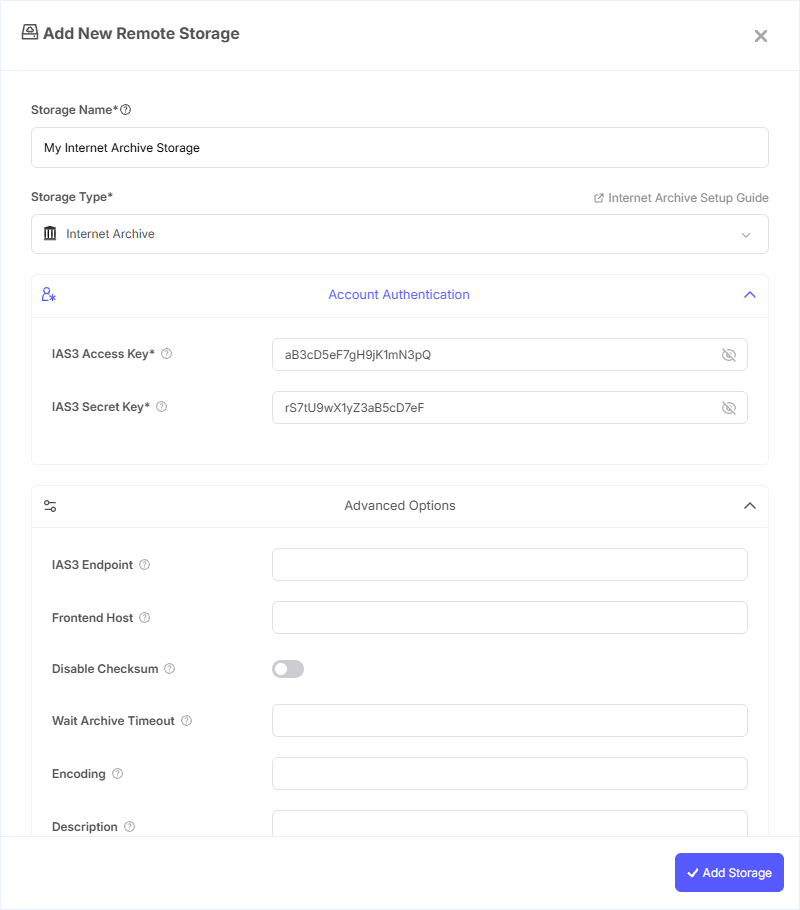
Step 1: Add Storage
- In Pluton, navigate to Storages
- Click Add Storage button
- Select Internet Archive from the provider list
Step 2: Configure Connection
Fill in the required fields:
- Storage Name: A friendly name (e.g., "Internet Archive Backups")
- IAS3 Access Key: Your IAS3 Access Key from archive.org/account/s3.php
- IAS3 Secret Key: Your IAS3 Secret Key (password)
Step 3: Advanced Options (Optional)
Additional settings available:
- IAS3 Endpoint: The IAS3 API endpoint. Leave blank for the default (
https://s3.us.archive.org) - Frontend Host: Host of the Internet Archive frontend. Leave blank for the default (
https://archive.org) - Disable Checksum: Skip MD5 checksum verification before uploading. This speeds up uploads of large files but reduces data integrity checking (enabled by default)
- Wait Archive Timeout: Timeout for waiting for the server's processing tasks (archive and book_op) to finish. Set to
0sto disable waiting. Only enable if you need uploads to be reflected immediately after write operations
Step 4: Complete the Storage Setup
- Click the Add Storage button which automatically verifies credentials and adds the storage.
- Your Internet Archive storage is now ready for backup plans
Important Notes
- Due to Internet Archive's architecture, write operations are enqueued in a per-item queue. Uploads and deletes will not appear immediately and take some time to become available.
- Avoid uploading a large number of small files — Internet Archive works best with fewer, larger files.
- The Internet Archive automatically creates metadata files after upload. These are auto-generated and cannot be modified or deleted.
Common Issues
Authentication Failure: Verify your IAS3 keys are correct by checking archive.org/account/s3.php. Make sure you're using the S3-like API keys, not your account password.
Uploads Not Appearing: Internet Archive processes uploads asynchronously. Files may take several minutes to hours to appear. You can check the processing queue at https://catalogd.archive.org/history/<item-name>.
Upload Blocked: The Item Deriver Queue has a rate limit. If you're uploading too much data too quickly, further uploads may be temporarily blocked.
Best Practices
- Use descriptive item names for easier organization
- Batch your uploads to reduce the number of small files
- Set the Wait Archive Timeout if you need guaranteed consistency after writes (e.g.,
30m0sfor smaller files) - Monitor the Item Deriver Queue status if you're doing large uploads