Connecting Akamai Netstorage
This guide walks you through connecting an Akamai NetStorage storage destination to Pluton.
Prerequisites
Before connecting Akamai NetStorage, you need:
- An Akamai account with NetStorage provisioned — Learn more
- A NetStorage host domain, account name, and secret (G2O key)
- A CP code assigned to your storage group
About Akamai NetStorage
Akamai NetStorage is an enterprise-grade, globally distributed cloud storage solution designed for high-performance content delivery. It integrates with Akamai's CDN to serve content from edge servers worldwide. NetStorage is commonly used by organizations that require reliable, scalable storage with low-latency content distribution.
Getting Your Credentials
Step 1: Access NetStorage Configuration
- Log into the Akamai Control Center
- Navigate to NetStorage in the sidebar
- Go to Storage Groups to find your storage group details
Step 2: Note Your Host Domain and CP Code
- Your NetStorage host domain follows the format:
<domain-prefix>-nsu.akamaihd.net - Note your CP Code (a numeric identifier for your content, e.g.,
123456) - The full host path should be formatted as:
<domain>/<cpcode>/<content>/- Example:
baseball-nsu.akamaihd.net/123456/content/
- Example:
Step 3: Get Your Account Name and Secret
- In the Akamai Control Center, go to Upload Accounts
- Find or create an upload account for Pluton
- Note the Account Name (upload account ID)
- Copy the G2O Key (Secret) for authentication
- Important: Store the secret securely — treat it like a password
Connecting to Pluton
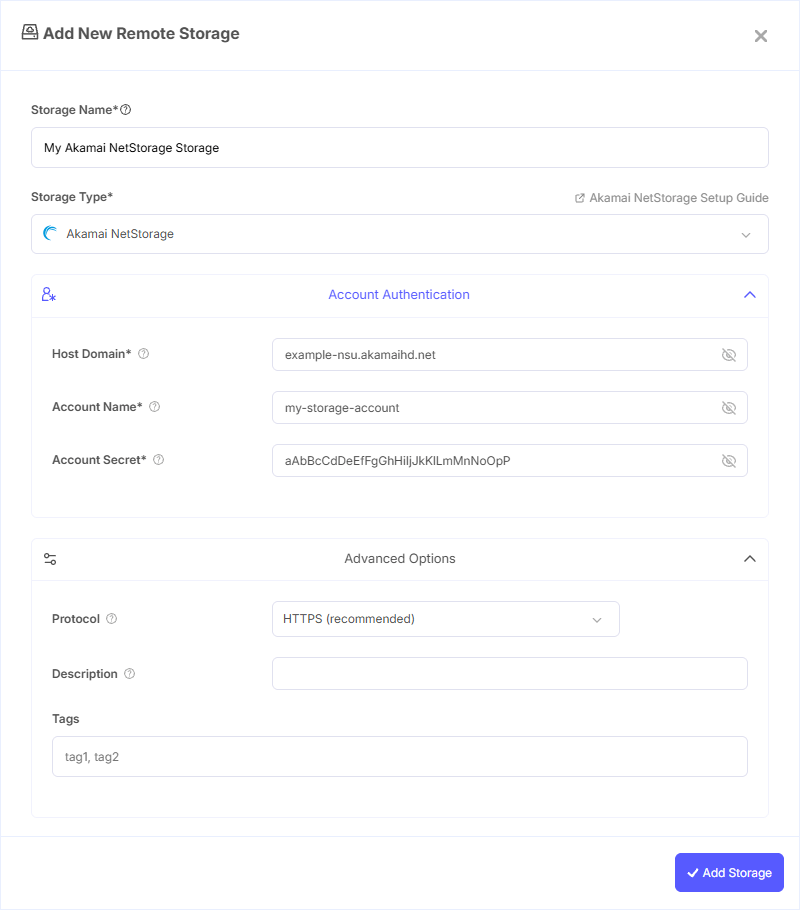
Step 1: Add Storage
- In Pluton, navigate to Storages
- Click Add Storage button
- Select Akamai Netstorage from the provider list
Step 2: Configure Connection
Fill in the required fields:
- Storage Name: A friendly name (e.g., "Akamai NetStorage Backups")
- Host Domain: Your NetStorage host domain and path (e.g.,
baseball-nsu.akamaihd.net/123456/content/) - Account Name: Your NetStorage upload account name
- Account Secret: Your NetStorage account secret (G2O key) for authentication
Step 3: Advanced Options (Optional)
Additional settings available:
- Protocol: Select between HTTPS (recommended, default) or HTTP. HTTP is primarily for debugging purposes
Step 4: Complete the Storage Setup
- Click the Add Storage button which automatically verifies credentials and adds the storage.
- Your Akamai NetStorage is now ready for backup plans
Common Issues
Authentication Failure: Verify your account name and secret (G2O key) are correct. Ensure the upload account has proper permissions for the specified CP code.
Host Domain Format: The host domain must include the full path with CP code (e.g., baseball-nsu.akamaihd.net/123456/content/). An incomplete or incorrect host path will cause connection failures.
Permission Denied: Ensure your upload account has read and write access to the target CP code and directory structure.
Protocol Issues: If you experience connectivity problems, ensure HTTPS is selected. Only use HTTP for debugging purposes.
Best Practices
- Always use HTTPS protocol for secure data transfer
- Create a dedicated upload account with minimum required permissions for Pluton
- Include the full CP code path in the host domain to target the correct storage location
- Monitor storage usage through the Akamai Control Center
- Keep your G2O key secret and rotate it periodically for security
- Use subdirectories within your CP code to organize backup data