Connecting Storj
This guide walks you through connecting a Storj decentralized cloud storage destination to Pluton.
Prerequisites
Before connecting Storj, you need:
- A Storj account — Sign up here
- Either an Access Grant or an API Key with a satellite address and encryption passphrase
About Storj
Storj is a decentralized, encrypted, and cost-effective object storage service. Data is erasure-coded and distributed across a global network of independent storage nodes, providing high durability and availability. Storj supports two authentication methods:
- Access Grant: A pre-generated token that encapsulates satellite address, API key, and encryption passphrase. Use this if someone has shared an access grant with you.
- API Key + Passphrase: Create a new access grant using a satellite address, your project API key, and an encryption passphrase. Use this for new setups.
Getting Your Credentials
Option A: Using an Existing Access Grant
If you already have an access grant (shared by a team member or generated previously):
- Simply copy the access grant string — that's all you need
Option B: Creating a New Access Grant
Step 1: Create a Storj Project
- Log into the Storj Console
- Create a project or select an existing one
Step 2: Generate an API Key
- Go to Access in the left sidebar
- Click Create Access Grant or Create S3 Credentials
- Select API Access
- Name your access (e.g., "Pluton Backups")
- Configure permissions (select the buckets and operations you want to allow)
- Click Create Access and copy the API Key
Step 3: Choose an Encryption Passphrase
- Choose a strong encryption passphrase
- Important: Store this passphrase securely — it is needed to decrypt your data and cannot be recovered if lost
- To access existing objects, use the same passphrase that was used for uploading
Connecting to Pluton
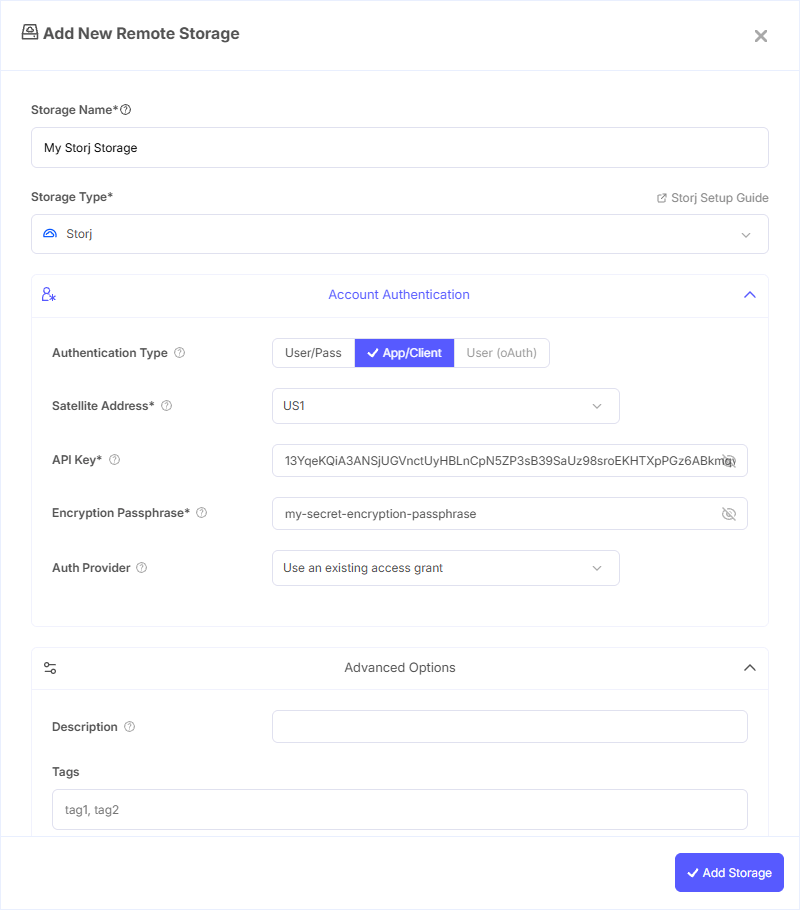
Step 1: Add Storage
- In Pluton, navigate to Storages
- Click Add Storage button
- Select Storj from the provider list
Step 2: Choose Authentication Method
Pluton supports two auth methods for Storj:
Method 1: Access Grant (Password Auth)
Use this if you have an existing access grant:
- Access Grant: Paste your pre-generated access grant token
Method 2: API Key + Satellite (Client Auth)
Use this to create a new access grant:
- Auth Provider: Select
Use an existing access grantorCreate a new access grant - Satellite Address: Select your satellite region:
- US1 (
us1.storj.io) — United States - EU1 (
eu1.storj.io) — Europe - AP1 (
ap1.storj.io) — Asia-Pacific - Or enter a Custom satellite address in the format
<nodeid>@<address>:<port>
- US1 (
- API Key: Your Storj project API key
- Encryption Passphrase: Your encryption passphrase for encrypting/decrypting data
Step 3: Complete the Storage Setup
- Click the Add Storage button which automatically verifies credentials and adds the storage.
- Your Storj storage is now ready for backup plans
Common Issues
Authentication Failure: Verify your access grant is complete and hasn't been truncated, or that your API key and satellite address are correct.
Decryption Errors: If you can't access existing files, ensure you're using the same encryption passphrase that was used when the files were originally uploaded. Each passphrase produces different encryption, so mismatched passphrases will fail.
Satellite Connection Issues: Ensure you've selected the correct satellite region. If using a custom satellite address, verify the format matches <nodeid>@<address>:<port>.
Too Many Open Files: The Storj native backend uses many TCP connections (up to 110 per upload, 35 per download per 64 MB segment). On Linux, you may need to increase the open file limit with ulimit -n 65536.
Best Practices
- Use the API Key + Passphrase method for new setups to maintain full control over your encryption
- Store your encryption passphrase in a secure location — it is irreplaceable and required to access your data
- Use separate access grants or API keys per application for better security management
- Choose the satellite region closest to your Pluton server for best performance
- Storj provides 25 GB free storage and bandwidth — ideal for testing before committing to a plan