Connecting AWS S3
This guide explains how to connect an Amazon S3 bucket to Pluton for storing backups.
Prerequisites
Before connecting S3, you need:
- An AWS account - Sign up here
- An S3 bucket created in your desired region
- AWS Access Keys (Access Key ID and Secret Access Key)
Getting Your AWS Credentials
Step 1: Create IAM User
- Log into AWS Console
- Navigate to IAM (Identity and Access Management)
- Click Users in the left sidebar, then Add users
- Enter a username (e.g., "pluton-backup-user")
- Select Access key - Programmatic access
- Click Next: Permissions
Step 2: Attach Permissions
Choose one of these permission options:
Option A - Full S3 Access (simpler):
- Select Attach existing policies directly
- Search for and select AmazonS3FullAccess
Option B - Specific Bucket Access (recommended):
- Create a custom policy with permissions for your specific bucket
- Example policy for bucket named "my-backups":
{
  "Version": "2012-10-17",
  "Statement": [
    {
      "Effect": "Allow",
      "Action": ["s3:ListBucket"],
      "Resource": ["arn:aws:s3:::my-backups"]
    },
    {
      "Effect": "Allow",
      "Action": ["s3:GetObject", "s3:PutObject", "s3:DeleteObject"],
      "Resource": ["arn:aws:s3:::my-backups/*"]
    }
  ]
}
Step 3: Create Access Keys
- Complete the user creation process
- On the success page, copy the Access Key ID and Secret Access Key
- Important: Save these credentials securely - the Secret Access Key cannot be retrieved later
Step 4: Create S3 Bucket
If you don't have a bucket yet:
- Go to S3 service in AWS Console
- Click Create bucket
- Enter a unique bucket name
- Choose your preferred AWS region
- Configure settings as needed and create the bucket
Connecting to Pluton
Step 1: Add Storage
- In Pluton, go to Storages
- Click Add Storage
- Select AWS S3 from provider list
Step 2: Configure Connection
Fill in the required information:
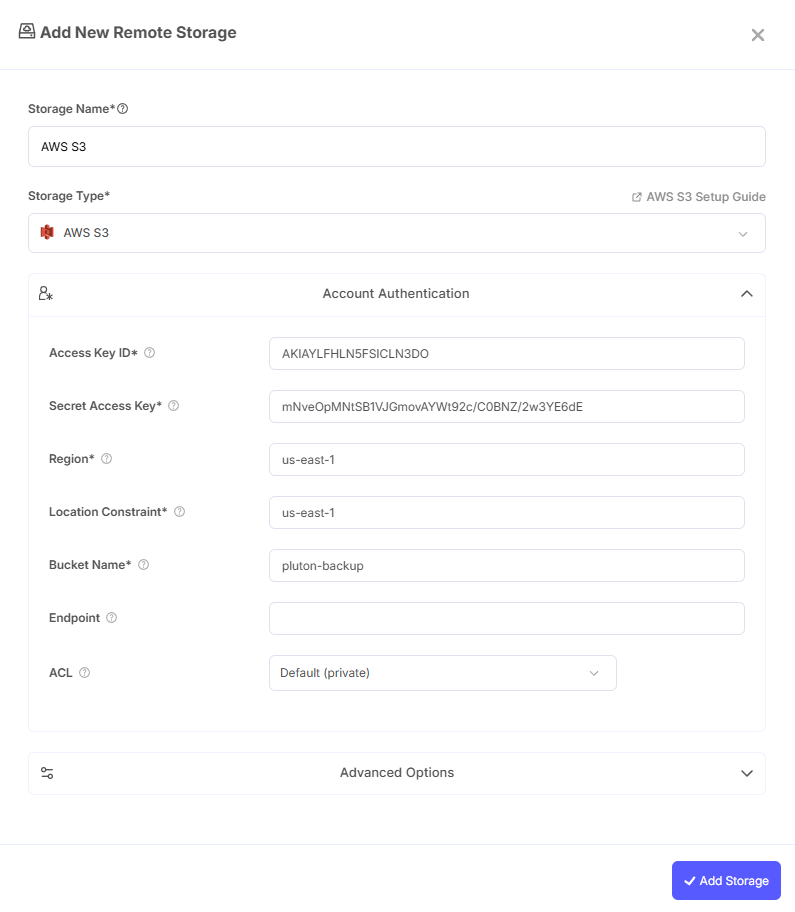
- Storage Name: Friendly identifier (e.g., "AWS S3 Production")
- Access Key ID: Paste your AWS Access Key ID
- Secret Access Key: Paste your AWS Secret Access Key
- Region: Select the region where your bucket is located (e.g., us-east-1, eu-west-1)
- Location Constraint: Should be the same as Region for most cases.
- Bucket Name: Enter your S3 bucket name
- Endpoint: Leave blank for standard AWS S3
Step 3: Advanced Options (Optional)
- Server-Side Encryption: Enable AES256 or KMS encryption if required
- Storage Class: Choose between STANDARD, STANDARD_IA, GLACIER, etc.
Step 4: Complete the Storage Setup
- Click the Add Storage button which automatically verifies credentials and adds the storage.
- Your S3 storage is now available for backups
Common Issues
Access Denied Errors: Verify IAM permissions allow S3 operations on your bucket. Check the policy attached to your IAM user.
Bucket Not Found: Ensure bucket name is correct and exists in the specified region.
Region Mismatch: The region must match where your bucket was created. Check in S3 console.
Best Practices
- Use IAM users with minimal required permissions (principle of least privilege)
- Enable S3 bucket versioning for additional protection
- Consider using S3 Lifecycle policies to transition old backups to cheaper storage classes
- Enable S3 bucket logging for audit trails
- Use encryption at rest (server-side encryption) for sensitive data