Connecting MEGA
This guide walks you through connecting a MEGA storage destination to Pluton.
Prerequisites
Before connecting MEGA, you need:
- A MEGA account - Sign up here
- Your MEGA email address and password
- You must have logged in at least once via the MEGA web browser to generate your encryption keys
About MEGA
MEGA is a cloud storage and file hosting service known for its strong security. All files are encrypted client-side before upload, meaning no one — including MEGA employees — can access your files without your encryption key. Pluton connects to MEGA using your account email and password.
MEGA also offers MEGA S4 Object Storage, an S3-compatible object store. If you are starting a new project, the S3-compatible option may be preferable. This guide covers the standard MEGA cloud storage connection.
Getting Your Credentials
Step 1: Verify Your Account
- Ensure you have a MEGA account with a confirmed email address
- Important: Log in at least once via the MEGA web interface — this generates the encryption keys required for API access. Without this step, connections will fail with an "Object not found" error
Step 2: Note Your Credentials
- Email: Your MEGA account email address
- Password: Your MEGA account password
If you have trouble logging in with a password containing special characters, try temporarily changing your password to alphanumeric characters only.
Connecting to Pluton
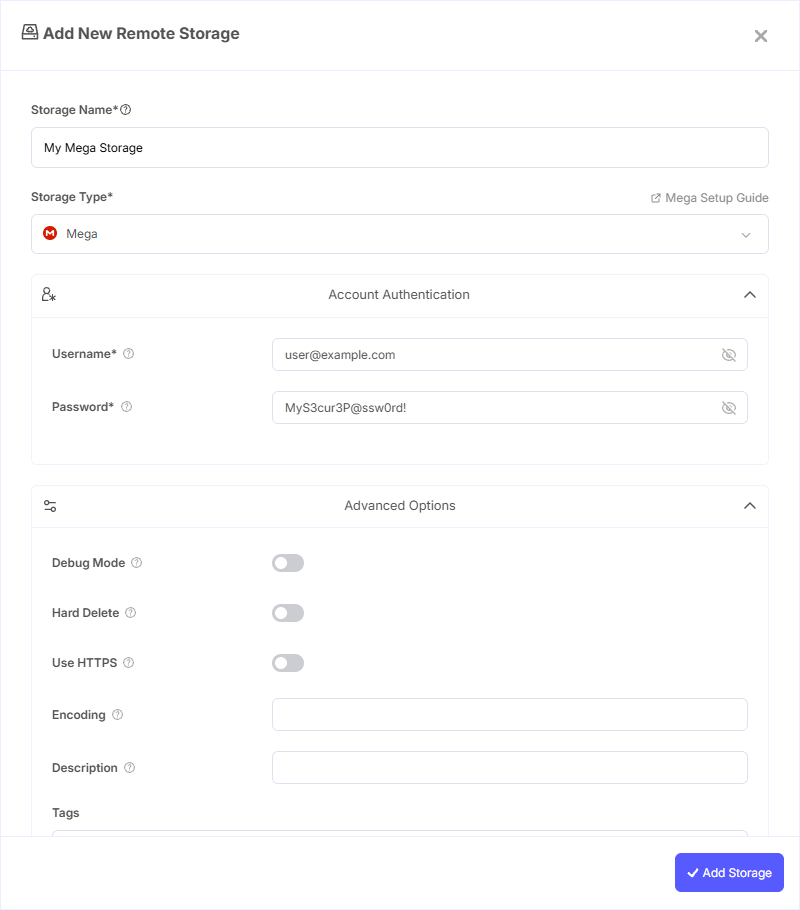
Step 1: Add Storage
- In Pluton, navigate to Storages
- Click Add Storage button
- Select MEGA from the provider list
Step 2: Configure Connection
Fill in the required fields:
- Storage Name: A friendly name (e.g., "MEGA Backups")
- Username: Your MEGA account email address
- Password: Your MEGA account password
Step 3: Advanced Options (Optional)
Additional settings available:
- Use HTTPS: Use HTTPS for file transfers instead of plain HTTP (disabled by default). MEGA uses HTTP by default for transfers. Some ISPs throttle HTTP connections, making transfers slow. Enabling HTTPS increases CPU usage and adds network overhead but may help with throttled connections
- Hard Delete: Delete files permanently instead of moving them to the trash (disabled by default)
- Debug Mode: Enable additional debug output from the MEGA backend for troubleshooting
Step 4: Complete the Storage Setup
- Click the Add Storage button which automatically verifies credentials and adds the storage.
- Your MEGA storage is now ready for backup plans
Common Issues
"Object (typically, node or user) not found": This error usually means your encryption keys have not been generated. Log into the MEGA web interface at least once, then try connecting again.
Special Characters in Password: Some users have reported issues with passwords containing special characters. If authentication fails, try changing your MEGA password to alphanumeric characters only.
Rate Limiting / Blocked Access: MEGA may temporarily block access after many rapid successive API calls. If you encounter this, wait several minutes before retrying. Using Use HTTPS may help in some cases.
Duplicate Files: MEGA can have two files with the exact same name and path in the same folder (unlike a normal filesystem). This can cause issues with sync operations. Check MEGA logs for duplicate file warnings.
Slow Transfers: If transfers are slow, your ISP may be throttling HTTP connections. Enable the Use HTTPS option in advanced settings.
File System Notes
Encryption: All files are encrypted client-side before upload. MEGA has zero-knowledge encryption, meaning they cannot access your data.
No Modification Times: MEGA does not currently support file modification times or hashes. Change detection relies on file size.
Duplicate Files: Unlike a standard filesystem, MEGA allows duplicate file names in the same directory. This can cause sync issues — use Pluton's logs to monitor for warnings.
Best Practices
- Always log into the MEGA web interface at least once before configuring Pluton to ensure encryption keys are generated
- Since MEGA provides its own client-side encryption, evaluate whether Pluton's additional encryption layer is needed to avoid double-encryption overhead
- Enable HTTPS transfers if you experience slow speeds due to ISP throttling
- Keep Hard Delete disabled to allow recovery of accidentally deleted files from the MEGA trash
- Space out backup operations to avoid MEGA's rate limiting — avoid scheduling multiple rapid successive backup jobs