Connecting Pixeldrain
This guide walks you through connecting a Pixeldrain storage destination to Pluton.
Prerequisites
Before connecting Pixeldrain, you need:
- A Pixeldrain account — Sign up here
- A Pixeldrain Pro subscription or Prepaid plan (required for the filesystem feature)
- An API key from your account
Getting Your Credentials
Step 1: Create a Pixeldrain Account and Subscribe
- Go to pixeldrain.com and create an account
- Subscribe to the Pro plan or Prepaid plan — the filesystem feature requires an active subscription. View subscription options
Step 2: Generate an API Key
- Log into your Pixeldrain account
- Navigate to the API Keys page
- Click Generate a new API key
- Give the key a descriptive name (e.g., "Pluton Backups")
- Copy the generated API key
Connecting to Pluton
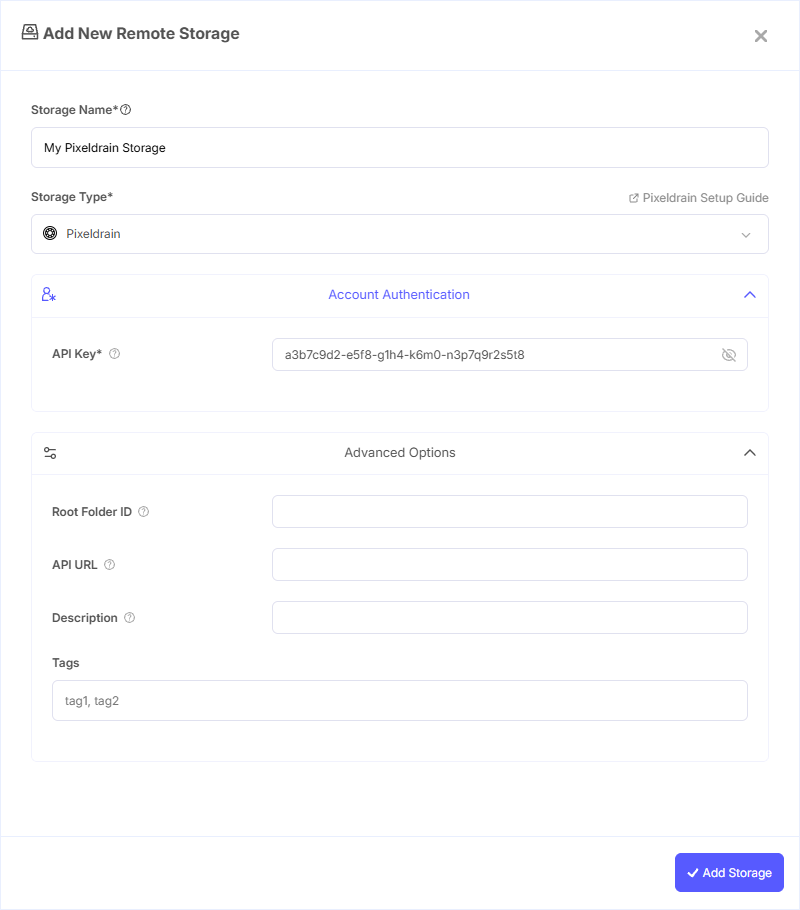
Step 1: Add Storage
- In Pluton, navigate to Storages
- Click Add Storage button
- Select Pixeldrain from the provider list
Step 2: Configure Connection
Fill in the required fields:
- Storage Name: A friendly name (e.g., "Pixeldrain Backups")
- API Key: Your API key from pixeldrain.com/user/api_keys
Step 3: Advanced Options (Optional)
Additional settings available:
- Root Folder ID: The root of the filesystem to use. Set to
me(default) to use your personal filesystem, or set to a shared directory ID to use a shared directory - API URL: The API endpoint to connect to (default:
https://pixeldrain.com/api). Only change this for testing purposes
Step 4: Complete the Storage Setup
- Click the Add Storage button which automatically verifies credentials and adds the storage.
- Your Pixeldrain storage is now ready for backup plans
Common Issues
Authentication Failure: Ensure your API key is correct and hasn't been revoked. Generate a new key from the API Keys page if needed.
Filesystem Not Available: The Pixeldrain filesystem feature requires a Pro subscription or Prepaid plan. Free accounts cannot use this feature. Check your subscription status.
Shared Directory Access: To use a shared directory, you need the directory ID from the shared URL (e.g., abcd1234 from https://pixeldrain.com/d/abcd1234). Set this as the Root Folder ID.
Best Practices
- Generate a dedicated API key for Pluton and label it clearly
- Use your personal filesystem (
me) for private backups - Monitor your Pixeldrain storage usage and subscription limits through the dashboard
- Revoke unused API keys regularly to maintain security