Connecting Citrix ShareFile
This guide walks you through connecting a Citrix ShareFile storage destination to Pluton.
Prerequisites
Before connecting Citrix ShareFile, you need:
- A Citrix ShareFile account - Sign up here
- A web browser to complete the OAuth authentication flow
About Citrix ShareFile
Citrix ShareFile is a secure file sharing and transfer service designed for businesses. It offers enterprise-grade security, compliance features, and integrations with business workflows. Pluton connects to ShareFile using OAuth authentication, so your ShareFile password is never stored directly.
Getting Your Credentials
Step 1: Verify Your ShareFile Account
- Log into your ShareFile account and confirm you have access to the file storage area
- Note your ShareFile subdomain (e.g.,
yourcompany.sharefile.com) — this is automatically detected during authentication
Step 2: Authenticate via OAuth
Pluton uses OAuth to securely connect to ShareFile. During the connection process in Pluton, you will be redirected to ShareFile's login page to authorize access. No manual credential generation is required for the default setup.
If your Pluton server does not have a web browser available (e.g., a headless server), you will need to run rclone authorize "sharefile" on a machine that does have a browser, then paste the resulting token into Pluton's OAuth Access Token field. See Rclone Remote Setup for details.
Connecting to Pluton
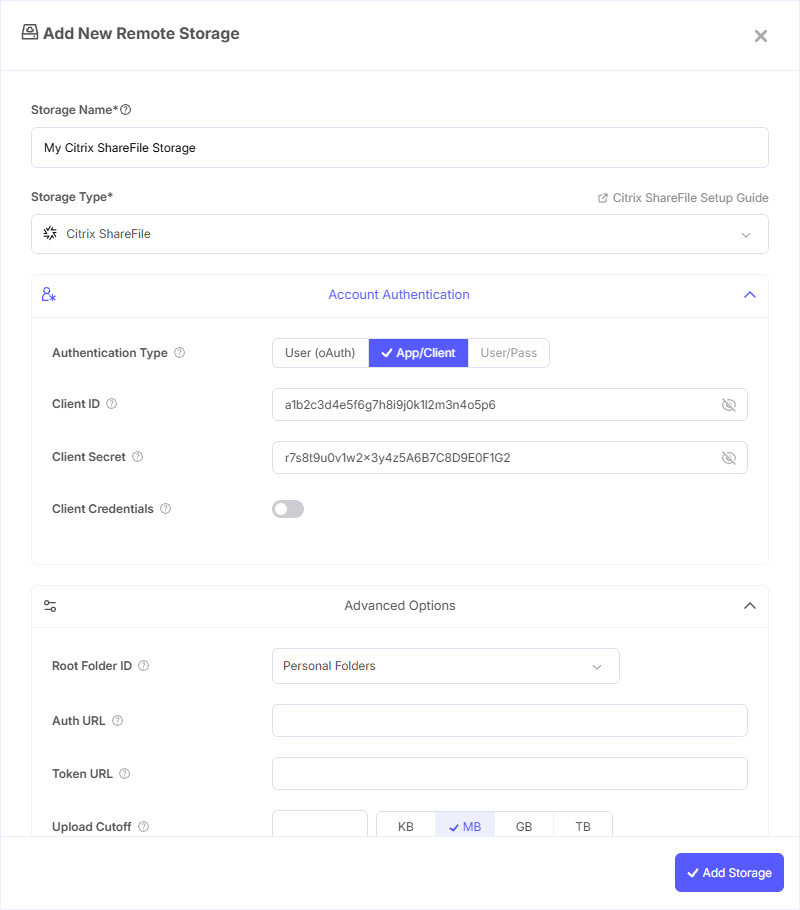
Step 1: Add Storage
- In Pluton, navigate to Storages
- Click Add Storage button
- Select Citrix ShareFile from the provider list
Step 2: Configure Connection
Fill in the required fields:
- Storage Name: A friendly name (e.g., "ShareFile Backups")
- OAuth Access Token: The OAuth token obtained during authorization. If using browser-based OAuth, this is populated automatically. For headless setups, paste the token from
rclone authorize
Step 3: Advanced Options (Optional)
Additional settings available:
- Client ID: OAuth Client ID. Leave blank to use Pluton's default application credentials
- Client Secret: OAuth Client Secret. Leave blank normally
- Client Credentials: Enable to use the OAuth2 Client Credentials Flow (RFC 6749) instead of the standard user authorization flow
- Root Folder ID: Choose which folder to use as the root:
- Personal Folders (default) — your personal file area
- Favorites — your favorited folders
- All Shared Folders — all shared folders you have access to
- All Connectors — all configured connectors
- Home, Favorites, Shared, Connectors — combined view of all sections
- Custom Folder ID — specify a specific folder ID (long hex number)
- API Endpoint: Manually set the API endpoint URL (e.g.,
https://yourcompany.sharefile.com). Usually auto-discovered during OAuth - Upload Cutoff: Threshold for switching to multipart uploads (default: 128 MiB)
- Chunk Size: Upload chunk size for multipart uploads (default: 64 MiB). Must be a power of 2, minimum 256 KiB
Step 4: Complete the Storage Setup
- Click the Add Storage button which automatically verifies credentials and adds the storage.
- Your Citrix ShareFile storage is now ready for backup plans
Common Issues
OAuth Token Expired: ShareFile tokens can expire. Re-authorize through Pluton to refresh your connection, or generate a new token using rclone authorize "sharefile".
Headless Server Authentication: If your Pluton server has no browser, run rclone authorize "sharefile" on a machine with a browser, then paste the resulting JSON token into the OAuth Access Token field.
Access Denied to Shared Folders: Ensure your ShareFile account has the appropriate permissions. Try changing the Root Folder ID to access different folder areas.
Endpoint Not Auto-Detected: If the API endpoint is not discovered automatically, set it manually in the advanced options to your ShareFile URL (e.g., https://yourcompany.sharefile.com).
Best Practices
- Use the default OAuth flow with a browser for the simplest setup experience
- For automated or headless setups, generate tokens using
rclone authorizeon a machine with browser access - Choose a specific Root Folder ID to limit Pluton's access to only the folders needed for backups
- ShareFile supports modification times accurate to 1 second, ensuring reliable change detection for incremental backups
- Monitor your ShareFile storage quota to prevent backup failures