Connecting WebDAV
This guide walks you through connecting a WebDAV storage destination to Pluton. WebDAV is a widely supported protocol used by many cloud storage services and self-hosted solutions, including Nextcloud, ownCloud, OpenDrive, Fastmail, and more.
Prerequisites
Before connecting WebDAV, you need:
- A WebDAV-compatible server or service
- Your WebDAV server URL (endpoint)
- Your login credentials (username and password, or a bearer token)
Connecting to Pluton
Step 1: Add Storage
- In Pluton, navigate to Storages
- Click Add Storage button
- Select WebDAV from the provider list
Step 2: Configure Connection
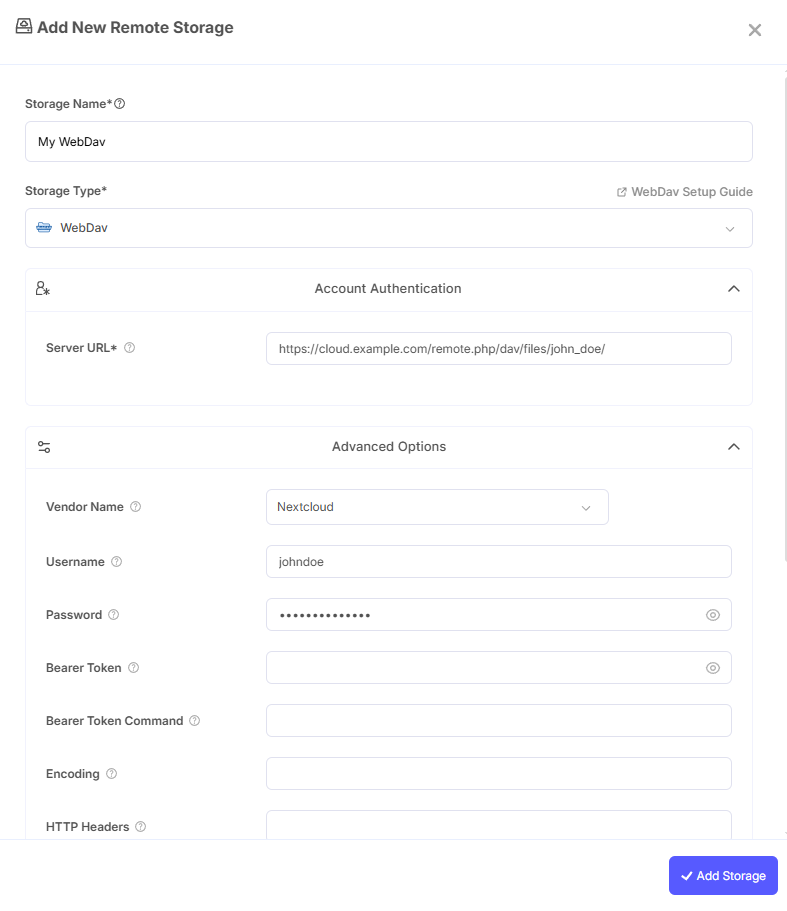
Fill in the required fields:
- Storage Name: A friendly name for this storage (e.g., "My WebDAV Server")
- Server URL: The full URL of your WebDAV server (e.g.,
https://example.com/remote.php/webdav/) - Vendor Name: Select the WebDAV vendor that matches your service. Options include
nextcloud,owncloud,infinitescale,sharepoint,sharepoint-ntlm,fastmail,rclone, orother. Choosing the correct vendor enables optimizations specific to that service. - Username: Your account username
- Password: Your account password
If your service uses two-factor authentication (2FA), you may need to generate an app password instead of using your regular password.
Step 3: Advanced Options (Optional)
Additional settings available:
- Bearer Token: Use a bearer token for authentication instead of username/password (e.g., a Macaroon)
- Bearer Token Command: A command to run to dynamically generate a bearer token
- Encoding: Override the default backend encoding
- HTTP Headers: Set custom HTTP headers for all transactions
- Pacer Min Sleep: Minimum time to sleep between API calls (default:
10ms) - NextCloud Chunk Size: Upload chunk size for Nextcloud servers (default:
10Mi) - Exclude OwnCloud Shares: Exclude shared files when using ownCloud (default:
false) - Exclude OwnCloud Mounts: Exclude mounted external storages when using ownCloud (default:
false) - Unix Socket Path: Path to a Unix domain socket for connections instead of TCP
- Auth Redirect: Preserve authentication headers on redirects (default:
false) - Description: A description of this storage
Step 4: Test and Save
- Click Test Connection to verify your credentials and server URL
- If successful, click Save
- Your WebDAV storage is now ready for backup plans
Connecting Nextcloud
Nextcloud is a popular self-hosted file sync and collaboration platform with full WebDAV support. Connecting Nextcloud to Pluton gives you incremental backups of your Nextcloud files.
Prerequisites
- A Nextcloud instance (self-hosted or managed)
- Your Nextcloud username and password (or an app password if 2FA is enabled)
Step 1: Get Your Nextcloud WebDAV URL
Your Nextcloud WebDAV URL follows this format:
https://your-nextcloud-server.com/remote.php/webdav/
To find it in Nextcloud:
- Log into your Nextcloud instance
- Click on Files in the top navigation
- Click the Settings cog icon in the bottom-left corner
- Copy the WebDAV URL shown there
Step 2: Configure in Pluton
- In Pluton, navigate to Storages → Add Storage → WebDAV
- Fill in the fields:
- Storage Name: e.g., "Nextcloud Backups"
- Server URL:
https://your-nextcloud-server.com/remote.php/webdav/ - Vendor Name: Set to
nextcloud - Username: Your Nextcloud username
- Password: Your Nextcloud password (or app password if 2FA is enabled)
Step 3: Generate an App Password (If Using 2FA)
If you have two-factor authentication enabled on your Nextcloud account:
- Log into Nextcloud and go to Settings → Security
- Scroll down to Devices & sessions
- Enter a name for the app (e.g., "Pluton Backup") and click Create new app password
- Copy the generated app password and use it as the Password in Pluton
Step 4: Optional Nextcloud Settings
- NextCloud Chunk Size: Controls the upload chunk size (default:
10Mi). For better performance with large files, consider increasing this — Nextcloud recommends configuring your server to support up to 1 GB chunks. See the Nextcloud documentation for details.
Step 5: Test and Save
- Click Test Connection to verify
- If successful, click Save
Nextcloud supports modified timestamps and file hashes (SHA1 and MD5), which improves backup efficiency and integrity verification compared to plain WebDAV servers.
Connecting OpenDrive
OpenDrive is a cloud storage service that supports WebDAV access for file management.
Prerequisites
- An OpenDrive account — Sign up here
- Your OpenDrive email and password
Step 1: Configure in Pluton
- In Pluton, navigate to Storages → Add Storage → WebDAV
- Fill in the fields:
- Storage Name: e.g., "OpenDrive Backups"
- Server URL:
https://webdav.opendrive.com/ - Vendor Name: Set to
other - Username: Your OpenDrive email address
- Password: Your OpenDrive password
Step 2: Test and Save
- Click Test Connection to verify your credentials
- If successful, click Save
- Your OpenDrive storage is now ready for backup plans
Common Issues
Connection Refused or Timeout: Verify your Server URL is correct and includes the full path (e.g., /remote.php/webdav/ for Nextcloud). Ensure the server is reachable from the machine running Pluton.
Authentication Failure: Double-check your username and password. If your service uses 2FA, you must use an app password. For NTLM authentication (e.g., SharePoint), use the format Domain\User for the username.
SSL/TLS Errors: Ensure your WebDAV server has a valid SSL certificate. Self-signed certificates may cause connection failures.
Vendor Mismatch: Setting the wrong vendor can cause unexpected behavior. Use nextcloud for Nextcloud, owncloud for ownCloud, and other for services like OpenDrive that don't have a dedicated vendor option.
Slow Uploads to Nextcloud: If uploads are slow, try increasing the NextCloud Chunk Size setting and configuring your Nextcloud server to support larger chunks.
Best Practices
- Always use HTTPS for WebDAV connections to encrypt data in transit
- Use app passwords instead of your main account password when available
- Set the correct Vendor Name to enable service-specific optimizations
- For Nextcloud, increase the chunk size for better upload performance with large backup sets
- Regularly verify your WebDAV credentials haven't expired, especially when using app passwords
- Monitor your storage quota on the WebDAV service to ensure there is enough space for backups