Connecting Sia
This guide walks you through connecting a Sia decentralized cloud storage destination to Pluton.
Prerequisites
Before connecting Sia, you need:
- A running instance of the Sia daemon (
siad) orSia-UI— Get started here - A funded Sia wallet with active storage contracts
- The Sia daemon API URL and password
About Sia
Sia is a decentralized cloud storage platform based on blockchain technology. Instead of storing data on centralized servers, Sia splits and distributes your data across a network of independent hosts. You need a running Sia daemon (either via Sia-UI or siad) to use Sia as a storage backend.
Getting Your Credentials
Step 1: Install and Run the Sia Daemon
- Download and install
Sia-UIorsiadfrom sia.tech/get-started - Start the daemon and wait for the blockchain to sync
- Create and fund a wallet with Siacoins (SC)
- Set up renter contracts and allowance
Step 2: Find Your API Password
The Sia daemon API password can be found in one of these locations:
- Linux/macOS:
~/.sia/apipassword - Windows:
C:\Users\<YourUser>\AppData\Local\Sia\apipassword - Or in the
apipasswordfile in your daemon directory
If you set a custom password, it can be found in the SIA_API_PASSWORD environment variable.
Step 3: Determine Your API URL
- If the Sia daemon runs locally (same machine as Pluton): Use the default
http://127.0.0.1:9980 - If the Sia daemon runs on a remote host: Use
http://<host-ip>:9980(requires--disable-api-securityflag on the daemon — not recommended for production)
Connecting to Pluton
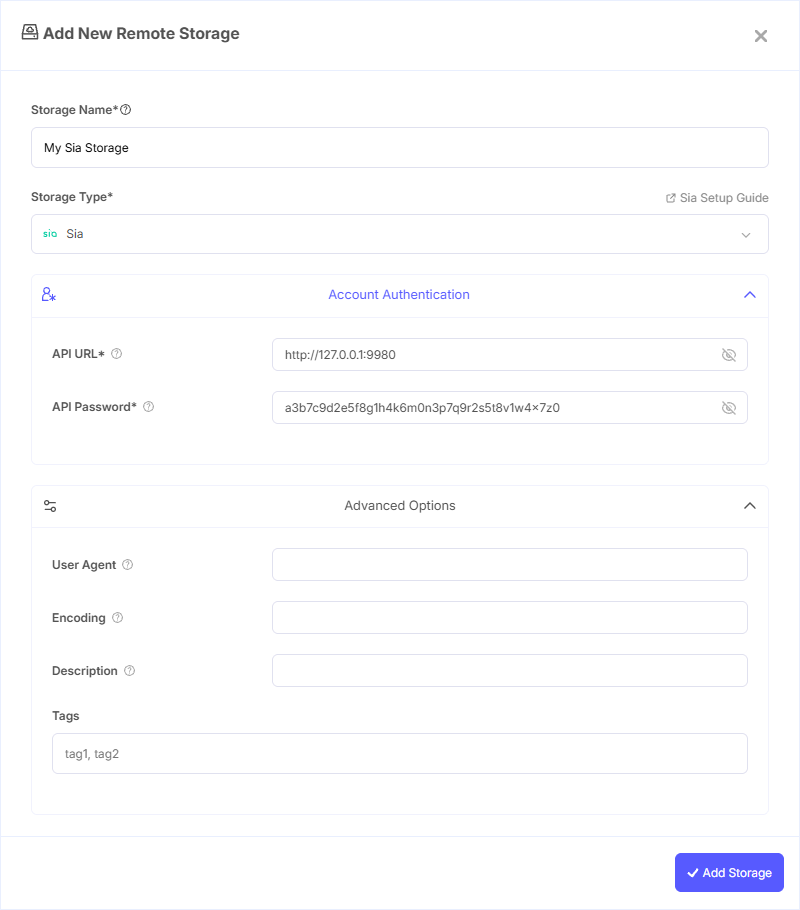
Step 1: Add Storage
- In Pluton, navigate to Storages
- Click Add Storage button
- Select Sia from the provider list
Step 2: Configure Connection
Fill in the required fields:
- Storage Name: A friendly name (e.g., "Sia Decentralized Storage")
- API URL: The Sia daemon API URL (default:
http://127.0.0.1:9980). Only change if the daemon runs on a remote host - API Password: The Sia daemon API password from the
apipasswordfile
Step 3: Advanced Options (Optional)
Additional settings available:
- User Agent: The user agent string sent to the Sia daemon (default:
sia-agent). The Sia daemon requires theSia-Agentuser agent by default for security
Step 4: Complete the Storage Setup
- Click the Add Storage button which automatically verifies credentials and adds the storage.
- Your Sia storage is now ready for backup plans
Important Notes
- Your Sia wallet must be unlocked before Pluton can use the daemon. Unlock it via
Sia-UIor runsiac wallet unlockfrom the command line. Alternatively, startsiadwith theSIA_WALLET_PASSWORDenvironment variable for automatic unlocking. - The Sia daemon needs active storage contracts with hosts. Ensure you have sufficient renter allowance set up before creating backups.
- Running the daemon on
localhostwithout an API password is possible but strongly discouraged.
Common Issues
Connection Refused: Ensure the Sia daemon (siad) is running and listening on the expected port (default: 9980). If running on a remote host, verify the firewall allows connections on that port.
Authentication Failure: Double-check the API password matches the value in the apipassword file. The password is case-sensitive.
Wallet Locked: If backups fail with wallet-related errors, unlock your wallet with siac wallet unlock or through Sia-UI.
Insufficient Storage Contracts: Ensure you have active storage contracts with enough capacity. Check your allowance and contracts through Sia-UI or siac renter.
Best Practices
- Keep the Sia daemon running continuously to maintain storage contracts
- Run the daemon on the same machine as Pluton to avoid exposing the API over the network
- Set a strong API password via the
SIA_API_PASSWORDenvironment variable - Monitor your Siacoin balance and renter allowance regularly to avoid contract lapses
- Fund your wallet well in advance — contract formation can take time