Connecting Zoho WorkDrive
This guide walks you through connecting a Zoho WorkDrive storage destination to Pluton.
Method 1: Quick Connect (Using Rclone Client)
Step 1: Add Storage
- In Pluton, navigate to Storages
- Click Add Storage button
- Select Zoho Work Drive from the provider list
- Set a Storage name. (e.g., "My Zoho Work Drive")
Step 2: Acquire Access Token
Acquiring Access Token on Desktop Installations
- From the Authentication Section, select User (oAuth)
- If you've installed Pluton on a desktop machine, simply click the Authorize & Get Access Token button.
- When a new browser tab opens asking you to authorize the Rclone connection, accept it.
- Once authorized, you will be returned to a Success screen in the same tab. Close the tab as its not needed anymore.
- Go back to Pluton, and the OAuth Access Token should be automatically filled.
Acquiring Access Token on Server/Docker Installations
Since Pluton installed on servers that may not have a web browser, you need to generate an OAuth token using rclone authorize on a machine that does have a browser:
- Install rclone on a machine with a web browser
- Run the following command:
rclone authorize drive - A browser window will open — log in with your Zoho account and grant access
- Once authorized, rclone will print a JSON token blob to the terminal which should looks something like this
   Paste the following into your remote machine --->
   {"access_token":"VWFL7ZDnONSzyJXpmZ6EiR5kZvWXNeprInuuCap7pW7jwzH65aGak","token_type":"bearer","expiry":"0001-01-01T00:00:00Z"}
<---End paste - Copy the entire JSON token between the
--->and<--- - Go back to Pluton, and insert the copied token in the OAuth Access Token field.
Step 3: Complete the Storage Setup
- Click the Add Storage button which automatically verifies credentials and adds the storage.
- Your Zoho Work Drive is now ready for backup plans
Method 2: Using your own Zoho Client App
Prerequisites
Before connecting Zoho WorkDrive, you need:
- A Zoho account with WorkDrive access - Sign up here
- A Zoho API Console application with OAuth 2.0 credentials
- Client ID and Client Secret from the Zoho API Console
Getting Your Credentials
Step 1: Create a Zoho API Application
- Go to the Zoho API Console
- Click Add Client
- Select Server-based Applications (or Self Client for testing)
- Fill in the required details:
- Client Name: e.g., "Pluton Backups"
- Homepage URL: Your server URL
- Authorized Redirect URI:
http://127.0.0.1:53682/
- Click Create
Step 2: Copy Your Credentials
- After creation, you will see the Client ID and Client Secret
- Copy both values — you will need them in Pluton
Step 3: Generate an OAuth Token
Since Pluton runs on a server that may not have a web browser, you need to generate an OAuth token using rclone authorize:
- Install rclone on a machine with a web browser
- Run the following command:
rclone authorize "zoho" "your_client_id" "your_client_secret" - A browser window will open — log in with your Zoho account and grant access
- You may be asked to select a Team and Workspace — choose the appropriate ones
- Copy the JSON token blob printed to the terminal
Connecting to Pluton
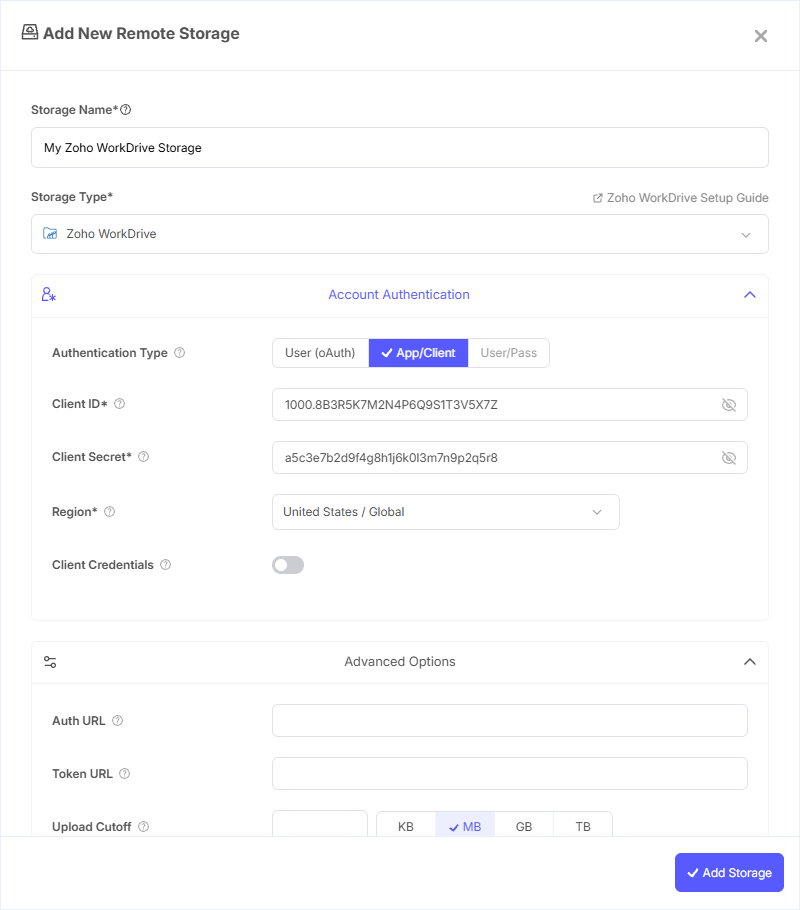
Step 1: Add Storage
- In Pluton, navigate to Storages
- Click Add Storage button
- Select Zoho WorkDrive from the provider list
Step 2: Configure Connection
Fill in the required fields:
- Storage Name: A friendly name (e.g., "Zoho WorkDrive Backups")
- Client ID: Your Zoho OAuth Client ID
- Client Secret: Your Zoho OAuth Client Secret
- Region: Select the Zoho region your organization is registered in:
- United States / Global (zoho.com)
- Europe (zoho.eu)
- India (zoho.in)
- Japan (zoho.jp)
- China (zoho.com.cn)
- Australia (zoho.com.au)
- OAuth Access Token: Paste the JSON token blob obtained from
rclone authorize
To determine your correct region, check the URL you use when logging into Zoho. For example, if you access WorkDrive at workdrive.zoho.eu, select Europe.
Step 3: Advanced Options (Optional)
Additional settings available:
- Client Credentials: Enable to use the OAuth2 Client Credentials flow instead of interactive login
- Upload Cutoff: Cutoff for switching to large file upload API (default: 10 MiB)
Step 4: Complete the Storage Setup
- Click the Add Storage button which automatically verifies credentials and adds the storage.
- Your Zoho WorkDrive storage is now ready for backup plans
Common Issues
Wrong Region Selected: If you get authentication errors, verify you selected the correct Zoho region. Your region must match where your Zoho organization is registered for the OAuth token to work.
Token Expired: Zoho OAuth tokens expire periodically. Re-run rclone authorize "zoho" with your Client ID and Client Secret to generate a fresh token.
Team/Workspace Not Found: During the rclone authorize flow, you need to select a Team and Workspace. If you don't see the expected options, ensure your Zoho account has WorkDrive enabled and you're a member of the appropriate team.
API Console Domain Mismatch: Ensure you created your API app in the same regional Zoho API Console that matches your account. For example, use api-console.zoho.eu for European accounts.
Insufficient Permissions: Verify your Zoho account has the necessary permissions to access WorkDrive. Admins may need to enable API access for your organization.
Best Practices
- Always select the correct region matching your Zoho organization to avoid authentication issues
- Create a dedicated Zoho API application specifically for Pluton
- Consider using the Client Credentials flow for unattended server-to-server operations
- Verify your WorkDrive storage quota before configuring large backup plans
- Use a descriptive storage name in Pluton to easily identify the connection among multiple storages