Connecting SugarSync
This guide walks you through connecting a SugarSync storage destination to Pluton.
Prerequisites
Before connecting SugarSync, you need:
- A SugarSync account — Sign up here
- Your SugarSync email address and password (used only during initial setup)
Getting Your Credentials
Step 1: Create a SugarSync Account
- Go to sugarsync.com and sign up for an account
- Choose a plan that fits your storage needs
- Verify your email address
Step 2: Prepare Your Login Details
SugarSync uses your email address and password to generate an authentication token during the initial setup. Your password is not stored — it is only used once to obtain a refresh token.
- Email Address: Your SugarSync account email
- Password: Your SugarSync account password
Connecting to Pluton
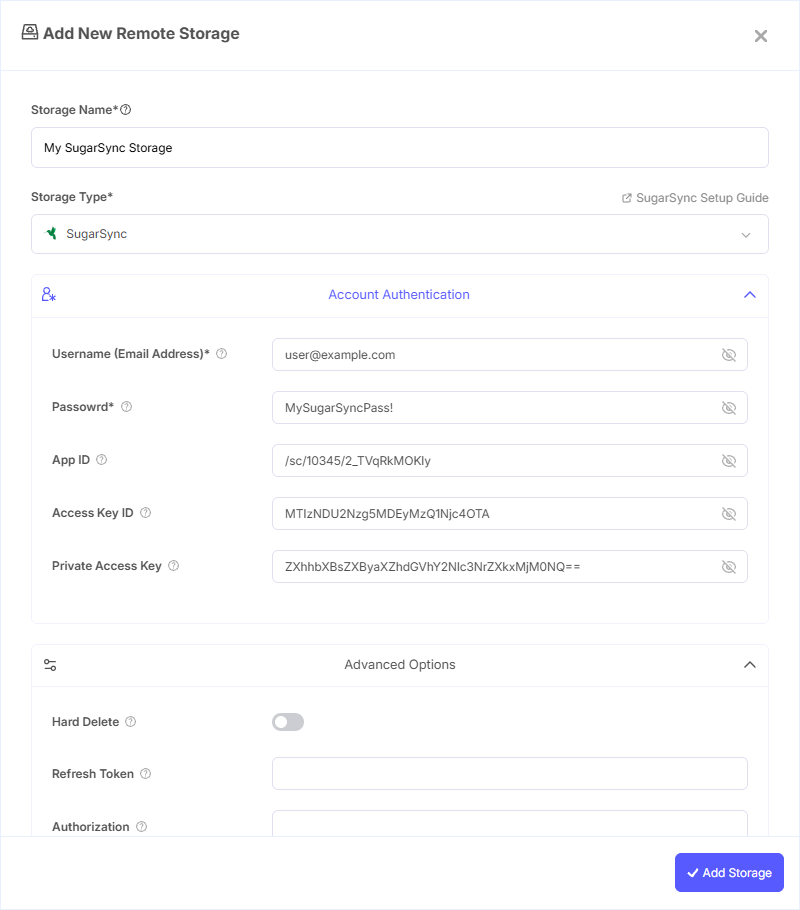
Step 1: Add Storage
- In Pluton, navigate to Storages
- Click Add Storage button
- Select SugarSync from the provider list
Step 2: Configure Connection
Fill in the required fields:
- Storage Name: A friendly name (e.g., "SugarSync Backups")
- Username (Email Address): Your SugarSync account email address
- Password: Your SugarSync password (used only during setup, not stored)
Step 3: Advanced Options (Optional)
Additional settings available:
- App ID: SugarSync App ID. Leave blank to use the default
- Access Key ID: SugarSync Access Key ID. Leave blank to use the default
- Private Access Key: SugarSync Private Access Key. Leave blank to use the default
- Hard Delete: Enable to permanently delete files instead of moving them to the "Deleted items" folder
- Refresh Token: SugarSync refresh token. Leave blank normally — this is auto-generated during setup
- Authorization: SugarSync authorization. Leave blank normally
- Root ID: SugarSync root ID. Leave blank normally
- Deleted Folder ID: SugarSync deleted folder ID. Leave blank normally
Step 4: Complete the Storage Setup
- Click the Add Storage button which automatically verifies credentials and adds the storage.
- Your SugarSync storage is now ready for backup plans
Important Notes
- You cannot create files in the top-level folder. You must create a subfolder first — Pluton will create it as a "Sync Folder" within SugarSync.
- SugarSync does not support modification times or hashes. File syncing will default to size-only comparison.
- Your password is used only during the initial setup to obtain an authentication token and is not saved by Pluton.
Common Issues
Authentication Failure: Verify your email address and password are correct. If you've changed your SugarSync password recently, you'll need to reconfigure the storage connection.
Cannot Create Files at Root: SugarSync requires files to be stored inside folders (Sync Folders). Ensure your backup plan targets a specific folder path, not the root.
Deleted Files Reappearing: By default, deleted files are moved to the "Deleted items" folder rather than permanently removed. Enable Hard Delete if you want files permanently deleted.
Token Expired: If your connection stops working, the refresh token may have expired. Reconfigure the storage by entering your email and password again to generate a new token.
Best Practices
- Leave the App ID, Access Key ID, and Private Access Key fields blank unless you have a specific reason to use custom app credentials
- Use the Hard Delete option with caution — permanently deleted files cannot be recovered
- Keep backups organized in named subfolders for clarity
- Monitor your SugarSync storage quota through the SugarSync dashboard