Running Pre/Post Scripts
Pluton can run your own scripts on the agent device around a backup run, for example to quiesce a database, take a filesystem snapshot, or send a custom notification. These are called pre/post scripts (or lifecycle scripts), and you attach them to a backup plan against specific events.
This page explains how script execution works, what permissions a script needs, and the exact steps to set up both non-privileged scripts and scripts that require sudo / root / administrator privileges on Linux, macOS, and Windows.
Script Events
A script can be attached to any of the following backup plan events:
| Event | When it runs |
|---|---|
| On Backup Start | Before the backup begins. Ideal for snapshots, quiescing, etc. |
| On Backup End | After the backup finishes (regardless of outcome). |
| On Backup Error | When the backup encounters a non-fatal error. |
| On Backup Failure | When the backup fails. |
| On Backup Complete | After a successful backup completes. Ideal for cleanup. |
Each event can have one or more scripts, and each script has its own settings (path, timeout, logging, etc.).
Script Requirements
Before a script will run, it must satisfy these rules (enforced by the agent):
-
Absolute path. The script path must be absolute (e.g.
/opt/pluton-scripts/pre.shorC:\PlutonScripts\pre.ps1). Relative paths are rejected. -
No path traversal. The path must not contain
..sequences. -
The file must already exist on the agent device and be a regular file (not a directory).
-
A supported file extension. The extension determines which interpreter is used:
Extension Interpreter used .sh,.bash/bin/bash(Linux/macOS).zshzsh.ps1powershell.exe -NoProfile -NonInteractive -ExecutionPolicy Bypass -File.bat,.cmdcmd.exe /c.pypython3(Linux/macOS) orpython(Windows).rbruby.plperlThe chosen interpreter must be installed and available on the agent service's
PATH.
Environment variables available to your script
Pluton injects the following variables into the script's environment so it can identify the run:
| Variable | Description |
|---|---|
PLAN_ID | The ID of the backup plan. |
BACKUP_ID | The ID of the current backup run. |
The script's working directory is set to the directory containing the script file.
Adding a Script to a Backup Plan
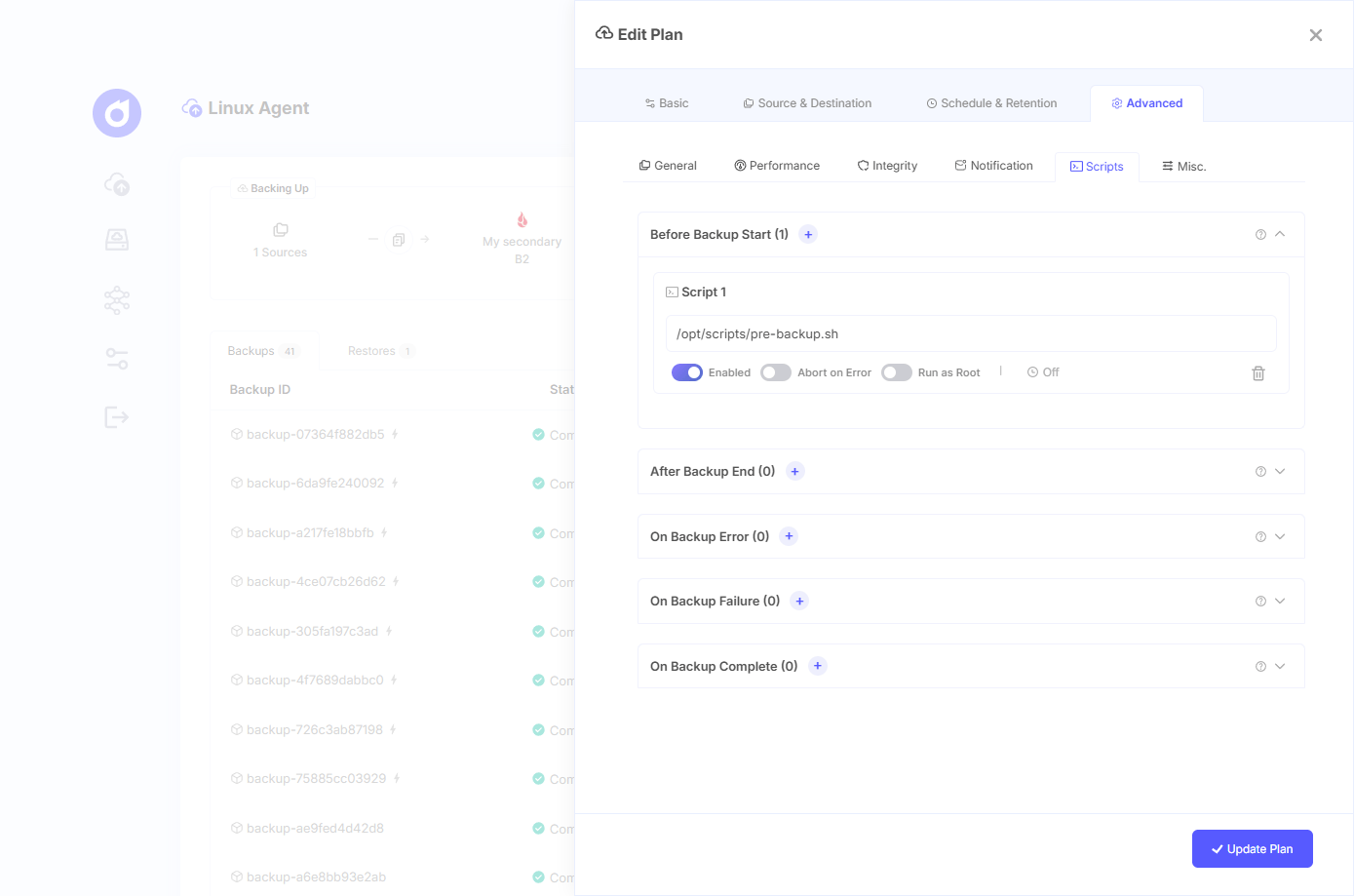
- Open the backup plan you want to attach a script to, and edit its settings.
- Open the Settings screen by clicking the Edit Plan button and then navigate to Advanced -> Scripts section.
- Choose the event you want the script to run on (e.g. Before Backup Start), and click the plus Icon.
- Configure the script entry:
- Script Path. The absolute path to the script file on the agent device.
- Enabled. Toggle the script on.
- Abort on Error (optional). If the script exits with a non-zero code, abort the backup. This option only takes effect for On Backup Start scripts.
- Run as Root (optional, Linux only). Run the script as root through Pluton's bundled privileged helper. This toggle is only shown for Linux plans, and only takes effect when the plan backs up the local machine on an installed Linux server. It requires a one-time sudoers rule; see Scripts That Require Root.
- Timeout (optional). The maximum number of seconds the script may run before it is killed. Leave empty for no timeout.
- Log Output (optional). Capture the script's stdout/stderr in the backup logs.
- Save the plan.
Set Abort on Error on your On Backup Start scripts when a successful backup depends on the script succeeding (for example, taking a snapshot). If the snapshot fails, you usually want the backup to stop rather than back up inconsistent data. Enable Log Output on the script entry to capture stdout/stderr in the backup logs while diagnosing issues.
Running Scripts in Pluton Server
When a backup plan backs up the local machine (the built-in local source that runs on the same host as the Pluton server), its pre/post scripts run on the Pluton server itself, not on any remote agent. The rules for these scripts are the same as everywhere else (see Script Requirements), but the identity they run under, and the way you grant them root, differ from the agent.
How Scripts Are Executed on the Server
- Scripts run as the server's service account, not as the person who created the plan. The server runs your script with the same identity the Pluton service itself runs under (see the table below).
- Only local script files are executed. As with the agent, Pluton never runs arbitrary commands. It only launches a script file that already exists on the server host, referenced by an absolute path.
- Scripts run non-interactively. There is no terminal attached, so any command that prompts for input (including an interactive
sudopassword prompt) will hang until it times out. - Root is opt-in via a built-in toggle. Unlike the agent, where you must call
sudoinside your own script, the server offers a Run as Root switch on each script entry (Linux only). When enabled, Pluton elevates the script for you through its bundled privileged helper. See Scripts That Require Root.
The server service account per deployment
| Deployment | Runs scripts as | Service manager | Install directory | Data directory |
|---|---|---|---|---|
| Linux (self-hosted binary) | pluton (system user, no login shell) | systemd | /opt/pluton | /var/lib/pluton |
| Docker | root (inside the container) | container runtime | /app | PLUTON_DATA_DIR |
| Desktop (Windows / macOS / Linux) | the user who launched Pluton | not applicable | not applicable | not applicable |
In a Docker deployment the server already runs as root inside the container, so local-source scripts run with root privileges directly. The Run as Root toggle and the sudoers rule described below are neither needed nor used.
Non-Privileged Scripts (Server)
On a Linux install the server runs as the pluton system user, which has no login shell and no writable home. Place scripts somewhere that user can read and execute, and make the directories leading to them traversable.
# 1. Create a directory for your scripts
sudo mkdir -p /opt/pluton-scripts

# 2. Create your script
sudo tee /opt/pluton-scripts/pre-backup.sh > /dev/null <<'EOF'
#!/bin/bash
set -euo pipefail
echo "Preparing backup for plan ${PLAN_ID}, run ${BACKUP_ID}"
# ... your logic here ...
EOF

# 3. Give the pluton user read + execute access, and make the dir traversable
sudo chown pluton:pluton /opt/pluton-scripts/pre-backup.sh
sudo chmod 750 /opt/pluton-scripts/pre-backup.sh
sudo chmod 755 /opt/pluton-scripts
Then set the Script Path to /opt/pluton-scripts/pre-backup.sh in the plan, and leave Run as Root off.
Scripts That Require Root (Server)
Some tasks, such as creating an LVM snapshot, stopping a system service, or reading protected paths, require elevated privileges. On the server you do not write your own sudo calls. Instead you flip the Run as Root toggle on the script entry, and Pluton runs the script as root through its bundled helper (pluton-helper).
For security, Pluton invokes the helper non-interactively (sudo -n /usr/bin/pluton-helper run-script ...). That call only succeeds if the pluton user is granted passwordless (NOPASSWD) sudo for the helper. The installer does not add this rule automatically, so an administrator must add it once.
Step 1. Enable Run as Root on the script.
In the plan's Scripts section, add or edit the script entry and turn on Run as Root. (The toggle is only shown for Linux plans.)
Step 2. Grant passwordless sudo for the helper.
Create your own sudoers file, /etc/sudoers.d/pluton-run-script:
pluton ALL=(root) NOPASSWD: /usr/bin/pluton-helper run-script *
Then lock it down and validate it:
sudo chmod 0440 /etc/sudoers.d/pluton-run-script
sudo visudo -c -f /etc/sudoers.d/pluton-run-script
Step 3. Save the plan. The next time the event fires, the script runs as root, with no sudo calls inside the script required.
Scope the sudoers rule to the exact scripts you intend to run as root rather than every script. For example, restrict it to a single path:
pluton ALL=(root) NOPASSWD: /usr/bin/pluton-helper run-script /opt/pluton-scripts/pre-backup.sh*
This keeps the grant minimal, so the helper can only be elevated for the scripts you approved.
If Run as Root is enabled but no matching sudoers rule exists, the script fails with an error asking an administrator to grant NOPASSWD access for /usr/bin/pluton-helper run-script <your-script-path>. Add the rule above (or scope it to that path) to resolve it.
Run as Root only takes effect on an installed Linux server (systemd binary install). In Docker the server is already root (see the note above), and on Windows/macOS desktop builds the server runs as the launching user, so there is no helper-based elevation on those platforms.
Running Scripts in Pluton Agent
When you set pre/posts scripts in your Backup Plan that runs on a remote machine, the scripts are run on that remote machine. Agent scripts are runn with low-privillege pluton-agent user and may need some steps to run the scripts on the machine.
How Scripts Are Executed in Agents
Understanding the execution model is essential to getting permissions right.
- Scripts run as the agent's service account, not as the person who created the plan and not as
root/administrator by default. The agent runs your script with the same identity the agent service itself runs under (see the table below). - Only local script files are executed. Pluton never runs arbitrary commands sent from the server. It only launches a script file that already exists on the agent device, referenced by an absolute path.
- No automatic privilege elevation. The agent invokes your script directly (e.g.
/bin/bash /path/to/script.sh). It does not wrap it insudo. If your script needs root, you must arrange that yourself; see Scripts That Require sudo / root. - Scripts run non-interactively. There is no terminal attached, so any command that prompts for input (including a
sudopassword prompt) will hang until it times out.
The agent service account per platform
| Platform | Runs scripts as | Service manager | Agent install directory |
|---|---|---|---|
| Linux | pluton-agent (system user, no login shell) | systemd | /opt/pluton-agent |
| macOS | _pluton-agent (hidden system user) | launchd | /usr/local/pluton-agent |
| Windows | LocalSystem (SYSTEM) | Windows Service | C:\Program Files\Pluton Agent |
On Windows, the agent service runs as LocalSystem, which is already the most privileged account on the machine. This means scripts on Windows effectively run with administrator/system rights, so there is no sudo step required. See the Windows sections below.
Non-Privileged Scripts
A non-privileged script is one that does not need root/administrator rights. It only touches files and commands the agent service account is already allowed to use. The only thing you must ensure is that the agent's service account can read and execute the script and traverse the directories leading to it.
Linux
Scripts run as the pluton-agent system user. Because that user has no login shell and no home directory, place scripts in a location it can reach.
# 1. Create a directory for your scripts
sudo mkdir -p /opt/pluton-scripts

# 2. Create your script
sudo tee /opt/pluton-scripts/pre-backup.sh > /dev/null <<'EOF'
#!/bin/bash
set -euo pipefail
echo "Preparing backup for plan ${PLAN_ID}, run ${BACKUP_ID}"
# ... your logic here ...
EOF

# 3. Give the agent user read + execute access, and make the dir traversable
sudo chown pluton-agent:pluton-agent /opt/pluton-scripts/pre-backup.sh
sudo chmod 750 /opt/pluton-scripts/pre-backup.sh
sudo chmod 755 /opt/pluton-scripts
Then set the Script Path to /opt/pluton-scripts/pre-backup.sh in the plan.
macOS
Scripts run as the hidden _pluton-agent user. The setup mirrors Linux:
sudo mkdir -p /opt/pluton-scripts

sudo tee /opt/pluton-scripts/pre-backup.sh > /dev/null <<'EOF'
#!/bin/bash
set -euo pipefail
echo "Preparing backup for plan ${PLAN_ID}, run ${BACKUP_ID}"
EOF

sudo chown _pluton-agent:staff /opt/pluton-scripts/pre-backup.sh
sudo chmod 750 /opt/pluton-scripts/pre-backup.sh
sudo chmod 755 /opt/pluton-scripts
Windows
Scripts run as LocalSystem, which can read almost anywhere on the machine, so permissions are rarely an issue. Create your script with a supported extension and reference its absolute path.
Example C:\PlutonScripts\pre-backup.ps1:
$ErrorActionPreference = "Stop"
Write-Host "Preparing backup for plan $env:PLAN_ID, run $env:BACKUP_ID"
# ... your logic here ...
Set the Script Path to C:\PlutonScripts\pre-backup.ps1.
PowerShell scripts are launched with -ExecutionPolicy Bypass, so you do not need to change the system execution policy for the script to run.
Scripts That Require sudo / root
Some tasks, such as creating an LVM snapshot, stopping a system service, or reading protected paths, require elevated privileges. Because the agent runs scripts as an unprivileged user on Linux and macOS (and never wraps them in sudo), you must grant that privilege explicitly.
The mechanism differs by platform.
Linux
The agent user (pluton-agent) is non-interactive, so a normal sudo call would hang waiting for a password. You must grant passwordless (NOPASSWD) sudo for the specific commands your script needs.
Do not edit /etc/sudoers.d/pluton-agent. That file is managed by the installer and is overwritten on every upgrade. Always add your own rules in a separate file under /etc/sudoers.d/.
Step 1. Write a script that calls sudo for the privileged command.
Remember: the agent runs /bin/bash /path/to/script.sh, not sudo /path/to/script.sh. Your script must invoke sudo itself for the parts that need root.
/opt/pluton-scripts/lvm-presnap.sh:
#!/bin/bash
set -euo pipefail

VG="vg0"                          # volume group
LV="data"                         # logical volume to snapshot
SNAP="pluton-${BACKUP_ID}"        # BACKUP_ID is injected by Pluton

sudo /usr/sbin/lvcreate --snapshot --name "${SNAP}" --size 5G "/dev/${VG}/${LV}"
echo "Created LVM snapshot ${SNAP} of /dev/${VG}/${LV}"
Make it accessible to the agent user:
sudo chown pluton-agent:pluton-agent /opt/pluton-scripts/lvm-presnap.sh
sudo chmod 750 /opt/pluton-scripts/lvm-presnap.sh
Step 2. Grant passwordless sudo for the exact command.
Confirm the binary's real path first:
command -v lvcreate # e.g. /usr/sbin/lvcreate
Create your own sudoers file, /etc/sudoers.d/pluton-custom:
pluton-agent ALL=(root) NOPASSWD: /usr/sbin/lvcreate --snapshot *
pluton-agent ALL=(root) NOPASSWD: /usr/sbin/lvremove *
Then lock it down and validate it:
sudo chmod 0440 /etc/sudoers.d/pluton-custom
sudo visudo -c -f /etc/sudoers.d/pluton-custom
Scope the rule to specific subcommands and arguments (e.g. lvcreate --snapshot *) rather than the whole binary. This keeps the grant minimal, so the agent can create snapshots without being able to run destructive volume operations you didn't intend.
Step 3. Attach the script to the plan's On Backup Start event (see Adding a Script to a Backup Plan), and set Abort on Error so the backup stops if the snapshot fails.
macOS
macOS works exactly like Linux, but the service account is _pluton-agent. Use a NOPASSWD rule for it, in your own sudoers file:
/etc/sudoers.d/pluton-custom:
_pluton-agent ALL=(root) NOPASSWD: /path/to/privileged-command *
sudo chmod 0440 /etc/sudoers.d/pluton-custom
sudo visudo -c -f /etc/sudoers.d/pluton-custom
The same rule applies: don't edit the installer-managed /etc/sudoers.d/pluton-agent, and have your script call sudo internally for the privileged command.
Windows
There is nothing extra to do. The agent service runs as LocalSystem, so scripts already execute with full system privileges. Commands that require administrator rights (e.g. vssadmin, Stop-Service, wbadmin) run directly. No sudo/elevation step exists on Windows.
Because Windows scripts run as SYSTEM, they have unrestricted access to the machine. Treat script files as trusted, privileged code: store them in a directory only administrators can modify (for example under C:\Program Files\), so a non-admin user cannot alter what the agent will run as SYSTEM.