Connecting Jottacloud
This guide walks you through connecting a Jottacloud storage destination to Pluton.
Prerequisites
Before connecting Jottacloud, you need:
- A Jottacloud account - Sign up here
- A personal login token generated from your Jottacloud security settings
About Jottacloud
Jottacloud is a cloud storage service from a Norwegian company, using its own datacenters in Norway. It offers strong privacy protections under Norwegian and European data protection laws. In addition to the official service at jottacloud.com, the Jottacloud backend also supports several white-label services including Elkjøp Cloud, Telia Cloud, Tele2 Cloud, and others.
Getting Your Credentials
Step 1: Generate a Personal Login Token
Jottacloud uses a personal login token for authentication instead of your regular password.
- Log into your Jottacloud account
- Navigate to Settings → Security, or use the direct link: https://www.jottacloud.com/web/secure
- Scroll down to the Personal login token section
- Click the Generate button
- Copy the generated token immediately — you will need it when configuring Pluton
Connecting to Pluton
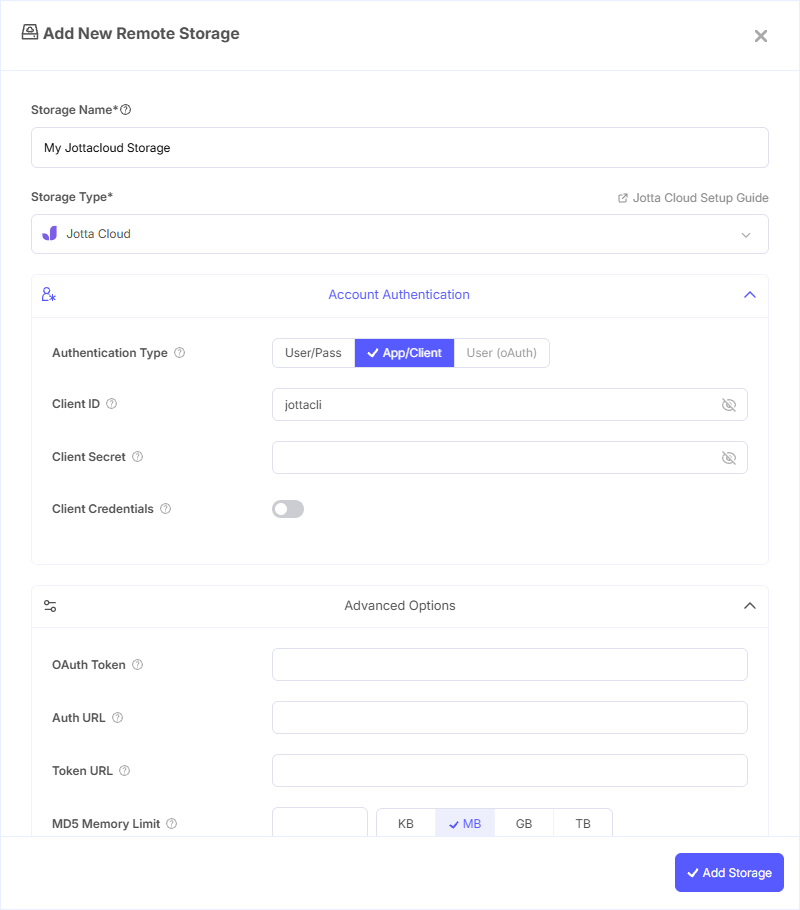
Step 1: Add Storage
- In Pluton, navigate to Storages
- Click Add Storage button
- Select Jottacloud from the provider list
Step 2: Configure Connection
Fill in the required fields:
- Storage Name: A friendly name (e.g., "Jottacloud Backups")
- Login Token: The personal login token generated from your Jottacloud security settings
Step 3: Advanced Options (Optional)
Additional settings available:
- Client ID: OAuth Client ID. Only needed for white-label services or custom OAuth setups. Leave blank for the standard Jottacloud service
- Client Secret: OAuth Client Secret. Leave blank normally
- Client Credentials: Enable to use the OAuth2 Client Credentials Flow (RFC 6749)
- Hard Delete: Delete files permanently instead of moving them to the trash (disabled by default)
- Trashed Only: Only show files in the trash, displayed in their original directory structure (disabled by default)
- No Versions: Avoid server-side versioning by deleting and recreating files instead of overwriting them (disabled by default)
- MD5 Memory Limit: Files larger than this are cached on disk for MD5 calculation (default: 10 MiB)
- Upload Resume Limit: Files larger than this can be resumed if upload fails (default: 10 MiB)
Step 4: Complete the Storage Setup
- Click the Add Storage button which automatically verifies credentials and adds the storage.
- Your Jottacloud storage is now ready for backup plans
Token Management
Jottacloud implements Refresh Token Rotation with Automatic Reuse Detection. This has important implications:
- Each time an access token is refreshed, a new refresh token is also issued and the old one is invalidated
- If an old refresh token is ever reused (e.g., from a copied configuration), all tokens in the family are immediately invalidated
- If you see an
invalid_granterror, you will need to generate a new personal login token and reconfigure the storage
Do not copy your Pluton configuration to another machine. Instead, generate a new personal login token for each Pluton instance.
Common Issues
"invalid_grant" Error: This means your refresh token has been invalidated. Generate a new personal login token from https://www.jottacloud.com/web/secure and update your storage configuration in Pluton.
Token Reuse Detected: If you copied your Pluton configuration to another machine, both instances will eventually fail. Generate a separate login token for each installation.
White-Label Service Not Connecting: Some white-label services (Elkjøp, Telia, etc.) may require the traditional OAuth flow instead of personal login tokens. Use the Client ID and Client Secret fields for these services.
Upload Failures for Large Files: Enable the Upload Resume Limit option to allow Pluton to resume interrupted uploads for files larger than the configured threshold.
Best Practices
- Generate a unique personal login token for each Pluton installation — never share tokens between instances
- Monitor the "My logged in devices" section in Jottacloud settings to track active sessions
- Keep Hard Delete disabled (default) so accidentally deleted files can be recovered from the trash
- Jottacloud data is stored in Norwegian datacenters, making it a strong choice for European data residency requirements
- If you don't need file versioning on Jottacloud's side, enable No Versions to reduce storage usage