Connecting Backblaze B2
This guide walks you through connecting a Backblaze B2 storage destination to Pluton.
Prerequisites
Before connecting B2, you need:
- A Backblaze account - Sign up here
- An Application Key with access to your buckets
Getting Your B2 Credentials
Step 1: Create Application Keys
- Log into your Backblaze account
- Go to App Keys in the left sidebar
- Click Add a New Application Key
- Configure your key:
- Name: Choose a descriptive name (e.g., "Pluton Backups")
- Access: Select appropriate permissions (typically "Read and Write")
- Bucket: Choose "Allow access to all buckets" or select specific bucket
- Click Create New Key
- Important: Copy both the keyID and applicationKey immediately - the applicationKey is shown only once
Step 2: Note Your Bucket Name
You'll need an existing bucket name or create one:
- Go to Buckets section
- Note the bucket name you want to use
- Or click Create a Bucket to make a new one
Connecting to Pluton
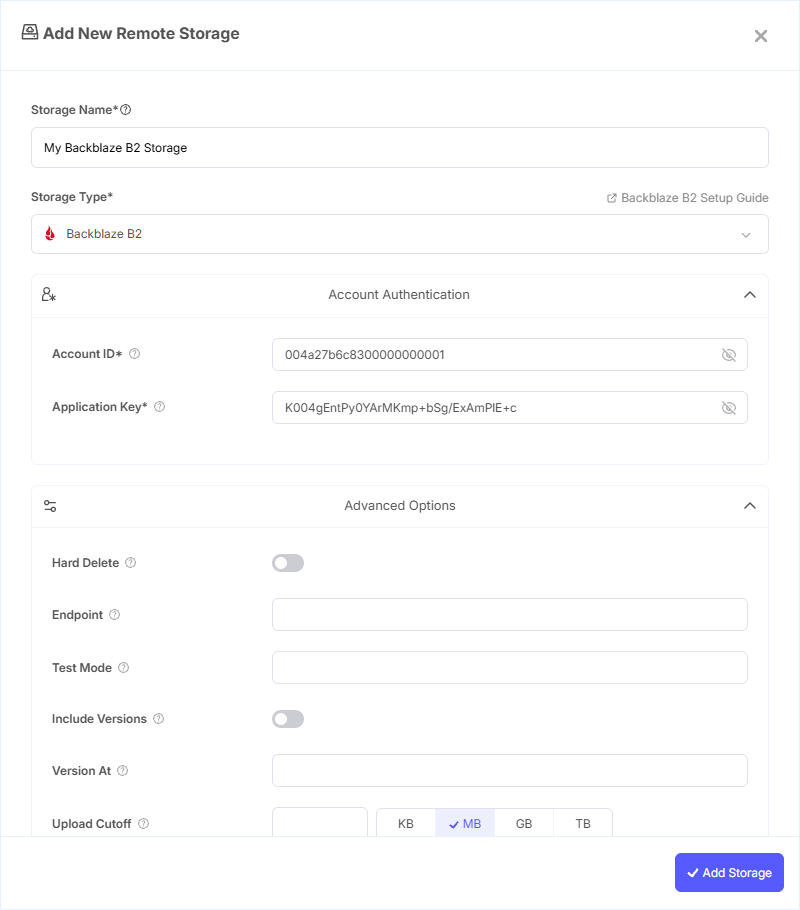
Step 1: Add Storage
- In Pluton, navigate to Storages
- Click Add Storage button
- Select Backblaze B2 from provider list
Step 2: Configure Connection
Fill in the required fields:
- Storage Name: A friendly name (e.g., "B2 Production Backups")
- Account ID: Paste the keyID from your Application Key
- Application Key: Paste the applicationKey you saved
- Bucket Name: Enter your B2 bucket name
Step 3: Advanced Options (Optional)
Additional settings available:
- Hard Delete: Enable to permanently delete files instead of hiding them (use with caution)
- Endpoint: Leave blank for standard Backblaze endpoints
- Download URL: Optional Cloudflare CDN URL for faster downloads with free egress
Step 4: Complete the Storage Setup
- Click the Add Storage button which automatically verifies credentials and adds the storage.
- Your B2 storage is now ready for backup plans
Common Issues
Authentication Failure: Verify you're using the Application Key ID (not your master Account ID) and that the key has appropriate permissions.
Bucket Not Found: Ensure the bucket name exactly matches (case-sensitive) and your Application Key has access to it.
Region Issues: Backblaze automatically handles regions - no manual configuration needed.
Best Practices
- Use Application Keys with minimum required permissions
- Enable lifecycle rules in B2 to manage old backup versions
- Consider using Backblaze's free Cloudflare CDN integration for downloads
- Monitor your B2 storage usage through the Backblaze dashboard