Connecting IBM COS S3
This guide walks you through connecting an IBM Cloud Object Storage (COS) S3 storage destination to Pluton.
Prerequisites
Before connecting IBM COS S3, you need:
- An IBM Cloud account — Sign up here
- An IBM COS service instance with HMAC credentials (Access Key ID and Secret Access Key)
Getting Your IBM COS Credentials
Step 1: Create Service Credentials
- Log into the IBM Cloud Console
- Navigate to your Cloud Object Storage service instance
- Click Service credentials in the left sidebar
- Click New credential
- Give it a name (e.g., "Pluton Backup Key")
- Under Advanced options, enable Include HMAC Credential
- Click Add
- Expand the new credential and note the access_key_id and secret_access_key values from the
cos_hmac_keyssection
Step 2: Prepare Your Bucket
- Navigate to Buckets in your COS instance
- Note the bucket name you want to use, or click Create bucket to make a new one
- Note the Region or endpoint type (Public, Private, or Direct) for your bucket
Connecting to Pluton
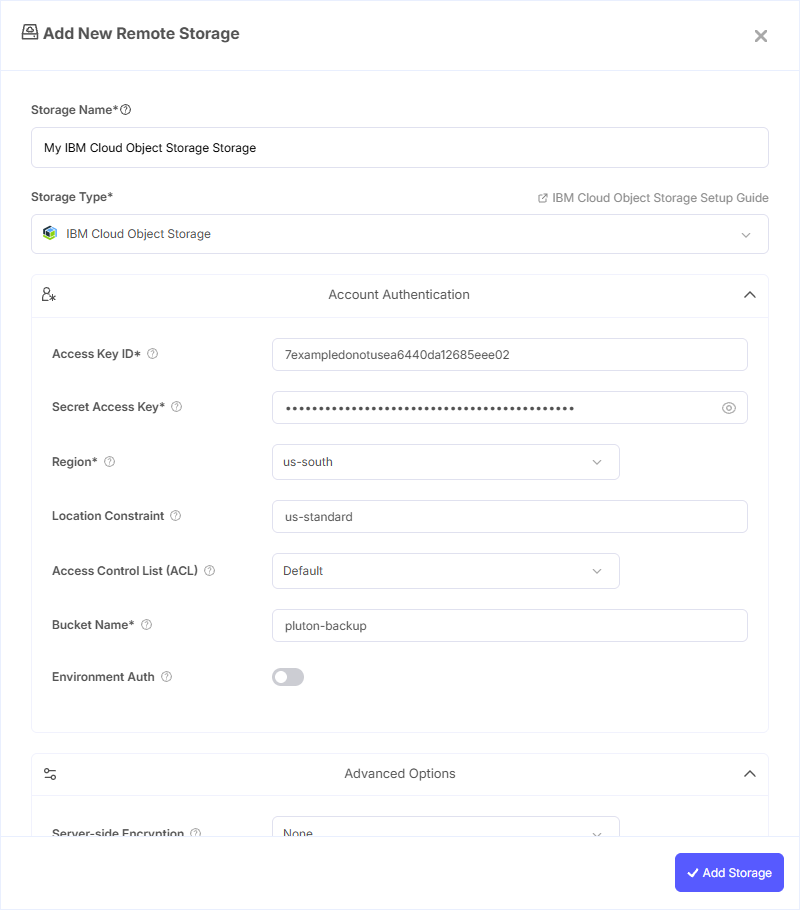
Step 1: Add Storage
- In Pluton, navigate to Storages
- Click Add Storage button
- Select IBM COS S3 from the provider list
Step 2: Configure Connection
Fill in the required fields:
- Storage Name: A friendly name (e.g., "IBM COS Backups")
- Access Key ID: Your IBM COS HMAC Access Key ID
- Secret Access Key: Your IBM COS HMAC Secret Access Key (password)
- Region: Select the endpoint matching your bucket's region. Options include regional endpoints (us-south, us-east, eu-gb, eu-de, au-syd, jp-tok, jp-osa, ca-tor, br-sao, eu-es), Private and Direct variants of each region, and Cross-Region endpoints (us, eu, ap). You can also enter a custom endpoint if needed
- Bucket Name: Your IBM COS Bucket Name
Step 3: Advanced Options (Optional)
Additional settings available:
- Location Constraint: Location constraint that should match the endpoint. Used when creating new buckets
- Access Control List (ACL): Permissions applied when creating buckets and storing objects. Options include Private, Public Read, Public Read/Write, and Authenticated Read
- Server-side Encryption: Encrypt objects at rest using AES256 or AWS KMS
- Storage Class: The storage class for new objects (Standard, Standard IA, Glacier, etc.)
- Bucket ACL: Canned ACL applied specifically when creating buckets
Step 4: Complete the Storage Setup
- Click the Add Storage button which automatically verifies credentials and adds the storage.
- Your IBM COS S3 storage is now ready for backup plans
Common Issues
Authentication Failure: Make sure you are using HMAC credentials (not API keys). Expand the service credential and look for the cos_hmac_keys section containing access_key_id and secret_access_key.
Endpoint Mismatch: The selected region/endpoint must match where your bucket was provisioned. Public, Private, and Direct endpoints serve different network paths.
Location Constraint Error: When creating buckets, the location constraint must align with the selected endpoint (e.g., us-south-standard for us-south).
Best Practices
- Use HMAC credentials with minimum required permissions via IBM IAM policies
- Choose Private or Direct endpoints when your Pluton server runs on IBM Cloud for better performance and no egress fees
- Use Cross-Region endpoints for higher availability across geographic regions
- Monitor your COS usage through the IBM Cloud dashboard to manage storage costs