Sync File Revisions
Sync File Revisions is the safety layer that lets a sync plan keep older file copies before the mirror overwrites or deletes them.
This feature is useful when you want the convenience of a live sync destination but still need a short recovery window for recent mistakes.
What the Feature Does
When File Revisions is enabled on a sync plan, Pluton tells Rclone to move replaced or deleted destination files into a revision area before the mirror updates the destination.
Those older copies are stored under:
.pluton/revisions/<sync-timestamp>
This means a sync run can preserve the previous version of files that were:
- overwritten by a newer source version
- removed from the source and therefore removed from the destination mirror
What It Does Not Do
Sync File Revisions is not the same thing as full snapshot backup history.
It does not give you:
- a full point-in-time copy of the entire source on every run
- long-term archival history by default
- protection for every sync run regardless of size or change volume
- a replacement for incremental backup plans
Use incremental backups as well if you need durable historical recovery rather than short-term rollback protection.
How It Works
The flow is:
- A sync run starts.
- Pluton estimates whether the run has changes.
- If revisions are enabled and the run is allowed to keep them, Rclone syncs with a revision destination under
.pluton/revisions/<timestamp>. - Files that would be replaced or deleted are moved into that revision area before the mirror updates the live destination.
- Pluton records sync metadata, change counts, and, when available, a change list for that run.
Important consequence:
- revisions are tied to changed files from a sync run, not to a complete snapshot of the whole source tree
How to Set It Up
Open the sync plan and go to:
Advanced SettingsContent
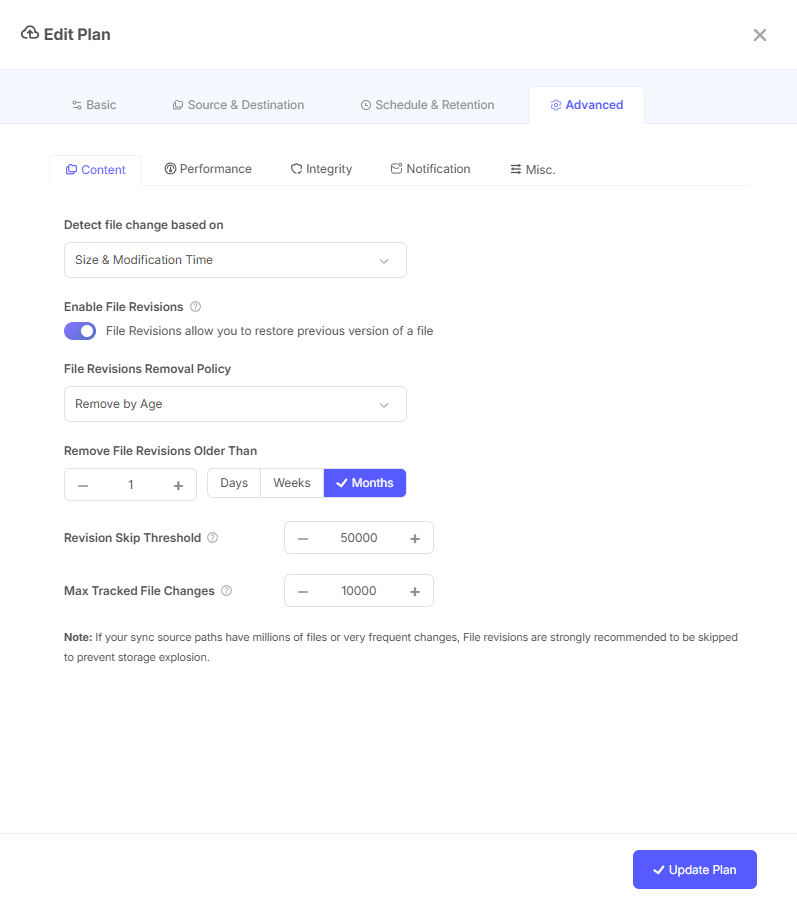
Then configure the following:
File Revisions
- Turn this on to preserve previous destination copies before overwrite or delete operations
Remove Revisions After
- Retention is age-based
- Choose a time window that matches how long you want rollback to remain available
Revision Skip Threshold
- This protects you from runaway revision growth on very large sync runs
- If the estimated number of changed items is above this threshold, Pluton can skip creating revisions for that run
Max Tracked File Changes
- This controls how many per-file changes Pluton keeps in the sync metadata for the UI
- Higher values improve visibility but increase metadata size
Recommended Setup Pattern
For most teams:
- enable File Revisions only on datasets that actually need rollback
- keep retention short at first
- set a realistic revision skip threshold for your dataset size
- test one overwrite and one deletion after the first few syncs
- review storage growth before widening retention
Restoring Files from a Past Sync
Past-sync restore and download workflows depend on revision data still being available for that sync run.
At a high level:
- Open the sync plan details page.
- Open a past sync entry from the sync history.
- Browse the changed files for that run.
- For files or folders that still have revision data available, preview, download, or restore them.
Pluton supports these workflows for sync revisions:
- browsing files from a past sync run
- downloading a file or folder from that run
- restoring selected items back to the original source or another target path
Behavior to understand:
- Pluton uses the stored revision location for that sync run to retrieve past content
- when you download a past file, Pluton first copies it from revision storage into a local download area
- folder downloads are packaged before delivery
What Is Usually Restorable
File Revisions are most useful for files that were:
- modified and therefore replaced at the destination
- deleted from the source and therefore removed from the destination mirror
This is the key mental model:
- revisions preserve the previous version that would otherwise be lost during the mirror update
Important Limitations
Not Every Sync Run Produces Useful Revision Content
A sync run may have little or no usable revision content when:
- no files were overwritten or deleted
- revisions were disabled
- revisions were auto-skipped for that run
Initial Sync Is Not a Historical Revision Set
The initial sync creates the live mirror. It is not meant to behave like a full historical revision snapshot of every file.
Past Recovery Depends on Revision Data Still Existing
If revision cleanup has already removed the corresponding revision directory, that past content is no longer restorable.
Very Large or Very Busy Sources Can Explode Storage Usage
If the source contains millions of files or has constant churn, revisions can generate large amounts of extra storage very quickly.
Sync Plans Still Mirror the Source
File Revisions gives you a short rollback window, but the destination is still a live mirror. It should not be treated as immutable backup history.
One Effective Source Root Per Plan
Current sync execution uses one effective source path per plan. If you need different revision behavior for different roots, create separate sync plans.
When Revisions Are Skipped
Pluton can skip revisions automatically for a specific run when:
- File Revisions is enabled, and
- the estimated change volume for that run is higher than the configured
Revision Skip Threshold
Why this exists:
- creating revisions for massive sync cycles can create a storage spike large enough to be harmful
- auto-skip lets the mirror complete without creating another full wave of revision copies
What it means operationally:
- that sync run still updates the live mirror
- previous versions for that specific run are not preserved
- past restore/download options for that run may be incomplete or unavailable
When to Disable Revisions
Consider disabling revisions, shortening retention, or lowering reliance on the feature if:
- the source has millions of files
- the sync runs every few minutes on a high-churn dataset
- large binary assets are frequently replaced
- storage growth is already difficult to control
- the dataset is mostly generated output, caches, exports, or rebuildable artifacts
Best Use Cases
File Revisions works best when all of the following are true:
- the dataset is important
- the files are human-edited
- recent accidental changes are a real risk
- storage growth is still predictable
Strong examples:
- office documents and reports
- spreadsheets and financial workbooks
- source code and project files
- design files and creative work in active collaboration
- small to medium business data folders with moderate daily churn
When to Avoid It
Avoid or heavily constrain File Revisions for:
- media ingest folders with constant high-volume turnover
- export folders that can be regenerated
- caches, temp paths, and dependency folders
- large machine-generated datasets with constant rewrites
- ultra-large mirrors where one change cycle can touch a huge percentage of files
In those cases, the storage cost and cleanup pressure can outweigh the recovery value.
Good Operating Practices
- Start with short retention.
- Review storage growth after a week of normal sync activity.
- Set a revision skip threshold before enabling revisions on a busy dataset.
- Test both overwrite recovery and delete recovery.
- Use incremental backups as the long-term safety net.
Troubleshooting Checklist
If a past file is not available:
- confirm File Revisions was enabled when that sync ran
- confirm revisions were not skipped for that run
- confirm cleanup has not already removed the revision directory
- confirm the file was actually overwritten or deleted in that run
- confirm the sync history for that run still has usable change metadata
If revision storage is growing too fast:
- shorten retention
- reduce sync frequency for that dataset
- raise the bar for which folders get revisions at all
- split large datasets into separate plans
- exclude generated content