Connecting Google Drive
This guide walks you through connecting a Google Drive storage destination to Pluton.
Prerequisites
Before connecting Google Drive, you need:
- A Google account - Sign up here
- A Google Cloud project with the Drive API enabled (for custom Client ID)
- OAuth 2.0 Client ID and Client Secret
Getting Your Credentials
Method 1: Quick Connect (Using Rclone Client)
Step 1: Add Storage
- In Pluton, navigate to Storages
- Click Add Storage button
- Select Google Drive from the provider list
- Set a Storage name. (e.g., "My Google Drive")
Step 2: Acquire Access Token
Acquiring Access Token on Desktop Installations
- From the Authentication Section, select User (oAuth)
- If you've installed Pluton on a desktop machine, simply click the Authorize & Get Access Token button.
- When a new browser tab opens asking you to authorize the Rclone connection, accept it.
- Once authorized, you will be returned to a Success screen in the same tab. Close the tab as its not needed anymore.
- Go back to Pluton, and the OAuth Access Token should be automatically filled.
Acquiring Access Token on Server/Docker Installations
Since Pluton installed on servers that may not have a web browser, you need to generate an OAuth token using rclone authorize on a machine that does have a browser:
- Install rclone on a machine with a web browser
- Run the following command:
rclone authorize drive - A browser window will open — log in with your Google account and grant access
- Once authorized, rclone will print a JSON token blob to the terminal which should looks something like this
   Paste the following into your remote machine --->
   {"access_token":"VWFL7ZDnONSzyJXpmZ6EiR5kZvWXNeprInuuCap7pW7jwzH65aGak","token_type":"bearer","expiry":"0001-01-01T00:00:00Z"}
<---End paste - Copy the entire JSON token between the
--->and<--- - Go back to Pluton, and insert the copied token in the OAuth Access Token field.
Step 3: Complete the Storage Setup
- Click the Add Storage button which automatically verifies credentials and adds the storage.
- Your Google Drive storage is now ready for backup plans
Method 2: Using your Own Google Client App
Step 1: Create a Google Cloud Project
- Go to the Google Cloud Console
- Click Select a project → New Project
- Enter a project name (e.g., "Pluton Backups") and click Create
Step 2: Enable the Google Drive API
- In your project, go to APIs & Services → Library
- Search for Google Drive API
- Click on it and then click Enable
Step 3: Configure OAuth Consent Screen
- Go to APIs & Services → OAuth consent screen
- Select External user type (or Internal if using Google Workspace) and click Create
- Fill in the required fields (App name, User support email, Developer contact)
- Under Scopes, add the Google Drive scopes you need
- Under Test users, add your Google account email
- Complete the setup
Step 4: Create OAuth Credentials
- Go to APIs & Services → Credentials
- Click Create Credentials → OAuth client ID
- Select Desktop app as the application type
- Give it a name (e.g., "Pluton")
- Click Create
- Copy the Client ID and Client Secret — you will need these in Pluton
Step 5: Generate an OAuth Token
Since Pluton runs on a server that may not have a web browser, you need to generate an OAuth token using rclone authorize on a machine that does have a browser:
- Install rclone on a machine with a web browser
- Run the following command:
rclone authorize drive --drive-client-id "your_client_id" --drive-client-secret "your_client_secret" - A browser window will open — log in with your Google account and grant access
- Once authorized, rclone will print a JSON token blob to the terminal
- Copy the entire JSON token (including the curly braces) — you will paste this into Pluton
Connecting to Pluton
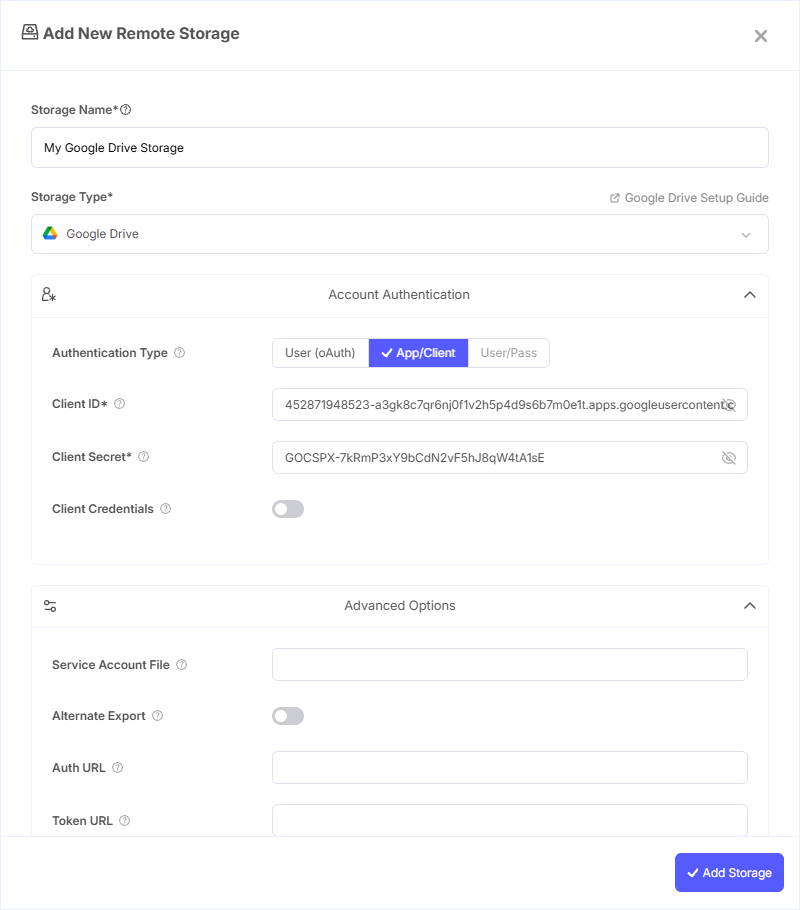
Step 1: Add Storage
- In Pluton, navigate to Storages
- Click Add Storage button
- Select Google Drive from the provider list
Step 2: Configure Connection
Fill in the required fields:
- Storage Name: A friendly name (e.g., "Google Drive Backups")
- Client ID: Your Google OAuth Client ID
- Client Secret: Your Google OAuth Client Secret
- Scope: The access level to request from Google Drive:
- Full access (all files) — Read and write access to all files (default)
- Read-only access — Only read files, no modifications
- Access rclone files only — Only access files created by this connection
- Application Data folder — Access the hidden Application Data folder
- Read-only metadata — Read file metadata only, no file content access
- OAuth Access Token: Paste the JSON token blob obtained from
rclone authorize
Step 3: Complete the Storage Setup
- Click the Add Storage button which automatically verifies credentials and adds the storage.
- Your Google Drive storage is now ready for backup plans
Advanced Options (Optional)
Additional settings available:
- Root Folder ID: Start from a specific folder instead of the root. Useful for accessing "Computers" folders or restricting access to a subfolder
- Team Drive ID: Enter a Shared Drive (Team Drive) ID to access shared organizational drives
- Service Account File: Path to a Service Account credentials JSON file for server-to-server authentication (alternative to OAuth)
- Shared With Me: Only show files from your "Shared with me" folder
- Auth Owner Only: Only consider files owned by the authenticated user
- Use Trash: Send files to the trash instead of deleting permanently (enabled by default)
- Skip Google Docs: Skip Google Docs in all file listings
- Export Formats: Comma-separated list of preferred formats for downloading Google Docs (default: docx, xlsx, pptx, svg)
- Upload Cutoff: Cutoff for switching to chunked upload (default: 8 MiB)
- Chunk Size: Upload chunk size, must be a power of 2 ≥ 256k (default: 8 MiB)
- Stop On Upload Limit: Stop when Google Drive's daily upload limit (~750 GB/day) is reached
- Copy Shortcut Content: Copy the actual file contents of shortcuts instead of the shortcut itself
- Skip Shortcuts: Skip shortcut files instead of following them
Common Issues
Token Expired or Invalid: OAuth tokens can expire. Re-run rclone authorize "drive" with your Client ID and Client Secret to generate a fresh token, then update it in Pluton.
Access Denied / Insufficient Scopes: Ensure you selected the correct Scope when configuring. "Full access (all files)" is recommended for backups. You may also need to re-authorize if you change the scope.
Daily Upload/Download Limits: Google Drive has a daily upload limit of approximately 750 GB and download limit of approximately 10 TB. Enable the Stop On Upload Limit option to handle this gracefully.
Shared Drive Not Found: When using a Shared Drive, make sure you enter the correct Team Drive ID (not the folder name). You can find this ID in the URL when viewing the Shared Drive in your browser.
OAuth Consent Screen in Testing Mode: If your Google Cloud project is still in "Testing" mode, tokens will expire after 7 days. Submit your app for verification or keep it in testing mode and re-authorize periodically.
Best Practices
- Create a dedicated Google Cloud project for Pluton to keep credentials organized
- Use a Service Account for production/unattended backup operations to avoid token expiration
- Use the "Full access" scope for backup plans that need to read all files
- Set a specific Root Folder ID to limit backup scope to a particular folder
- Enable "Use Trash" to prevent accidental permanent deletions during sync operations
- For Google Workspace users, consider using Shared Drives for organizational backups