Connecting Drime
This guide explains how to connect Drime cloud storage to Pluton for storing your backups.
Prerequisites
- A Drime account - Sign up here
- An API Access Token generated from your Drime developer settings
Getting Your Drime Credentials
Step 1: Create an API Access Token
- Log into your account at drime.cloud
- Navigate to Settings → Developer
- Click Create a token
- Give the token a descriptive name (e.g., "Pluton Backups")
- Copy the generated token — this is your API Access Token
Connecting to Pluton
Step 1: Add Storage
- In Pluton, navigate to Storages
- Click Add Storage button
- Select Drime from the provider list
Step 2: Configure Connection
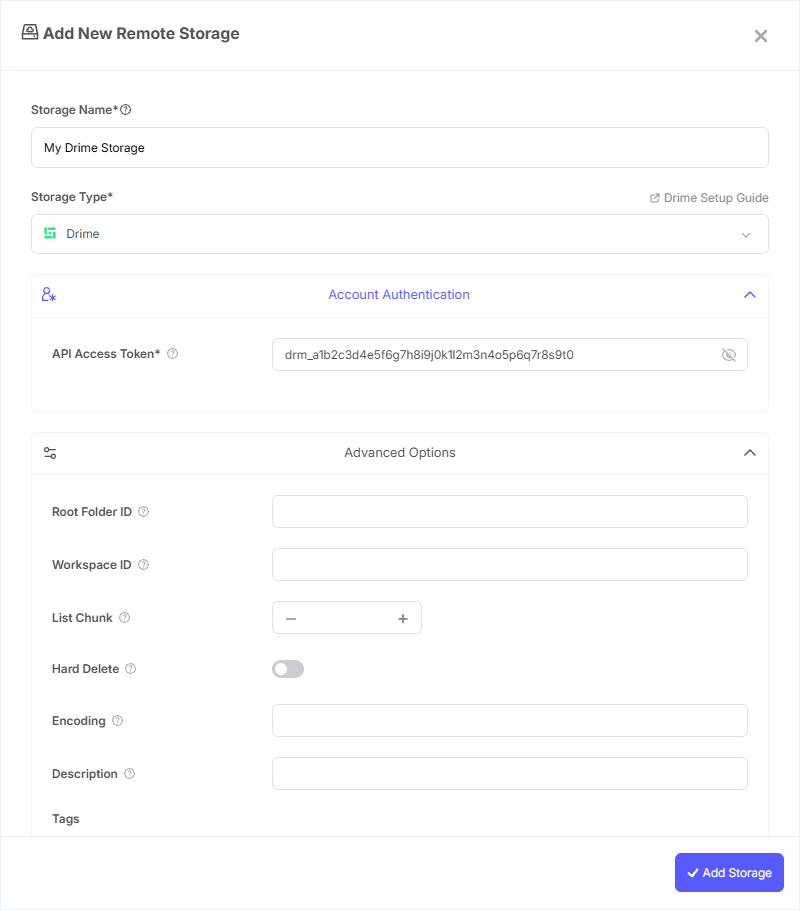
Fill in the required fields:
- Storage Name: A friendly name (e.g., "Drime Backups")
- API Access Token: Paste the token you created in your Drime developer settings
Step 3: Advanced Options (Optional)
Additional settings available:
- Root Folder ID: Restrict Pluton to a specific folder in your Drime account. Leave blank to use your entire drive.
- Workspace ID: If your account belongs to a specific workspace, enter its ID here.
- Hard Delete: Enable to permanently delete files instead of moving them to trash.
Step 4: Test and Save
- Click Test Connection to verify your token and connectivity
- If successful, click Save
- Your Drime storage is now ready for backup plans
Common Issues
Authentication Failed: Verify that you copied the full API Access Token. Tokens can be regenerated from the Developer section in your Drime settings.
Folder Not Found: If you specified a Root Folder ID, double-check that the ID is correct and that your token has access to it.
Deleted Files Reappearing: By default, Drime uses soft delete (trash). Enable the Hard Delete option if you want permanent deletions.
Limitations
- Drime does not support modification timestamps — syncs rely on file size for comparison
- Backslash characters and leading/trailing spaces in filenames are automatically replaced
- Maximum stream upload size is approximately 48 GiB with default settings
Best Practices
- Generate a dedicated API token for Pluton rather than reusing tokens from other applications
- Use the Root Folder ID setting to keep backups organized in a dedicated folder
- Keep the Hard Delete option disabled unless you're certain you don't need trash recovery