Two-Factor Authentication (2FA)
Add an extra layer of security to your Pluton instance by enabling Two-Factor Authentication (2FA). When enabled, users must provide a verification code from an authenticator app in addition to their password when logging in.
Prerequisites
- An authenticator app installed on your mobile device (e.g., Google Authenticator, Authy, Microsoft Authenticator)
Enabling 2FA
- Navigate to Settings → General tab
- Locate the Enable 2FA toggle
- Toggle it on
- A confirmation dialog appears asking if you want to enable 2FA
- Click "Yes, Enable 2FA"
- The 2FA Setup modal opens
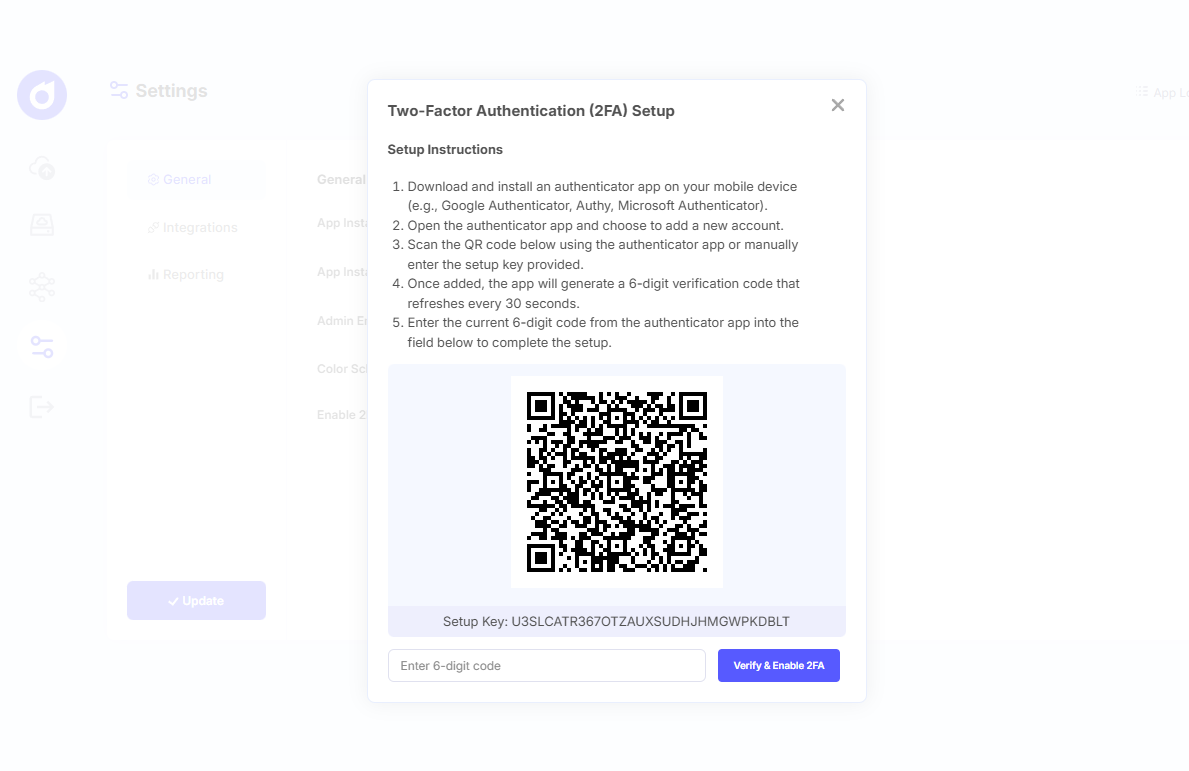
Setting Up Your Authenticator App
After clicking "Yes, Enable 2FA", the setup modal displays:
- Scan the QR Code: Open your authenticator app and scan the displayed QR code
- Alternatively, manually enter the Setup Key shown below the QR code
- Your authenticator app will start generating 6-digit codes that refresh every 30 seconds
- Enter the current 6-digit code from your authenticator app into the verification field
- Click "Verify & Enable 2FA"
Saving Recovery Codes
After successful verification:
- A success message confirms 2FA has been enabled
- 10 recovery codes are displayed
- Save these codes securely - they are required to access your account if you lose your device
- Recovery codes are shown only once and cannot be retrieved later
- Close the modal when you have saved your recovery codes
warning
Store your recovery codes in a secure location separate from your device. If you lose access to your authenticator app and don't have recovery codes, you will be locked out of your account.
Logging In with 2FA
Once 2FA is enabled:
- Enter your username and password on the login page
- After successful password verification, you are redirected to the Two-Factor Authentication page
- Open your authenticator app
- Enter the current 6-digit code
- Click "Login"
Disabling 2FA
To disable 2FA:
- Navigate to Settings → General tab
- Toggle Enable 2FA off
- Save your settings
Using Recovery Codes
If you lose access to your authenticator app:
- On the Two-Factor Authentication login page, enter a recovery code instead of the authenticator code
- Each recovery code can only be used once
- After using a recovery code, set up 2FA again with your new device