Connecting SeaweedFS
This guide walks you through connecting a SeaweedFS storage destination to Pluton.
Prerequisites
Before connecting SeaweedFS, you need:
- A running SeaweedFS instance with the S3 API gateway enabled
- S3 API credentials (Access Key ID and Secret Access Key) configured on your SeaweedFS server
Getting Your SeaweedFS Credentials
Step 1: Enable S3 Gateway
- Ensure your SeaweedFS cluster is running with the S3 gateway enabled
- The S3 gateway is typically started with
weed s3or as part of theweed servercommand - Note the S3 endpoint URL (e.g.,
http://your-server:8333)
Step 2: Configure S3 Credentials
- Create or edit the SeaweedFS S3 configuration file (typically
s3.json) - Define your access credentials with appropriate actions (Admin, Read, Write, List)
- Restart the S3 gateway to apply the configuration
Step 3: Create a Bucket
Create a bucket using any S3-compatible client or the SeaweedFS shell before connecting to Pluton.
Connecting to Pluton
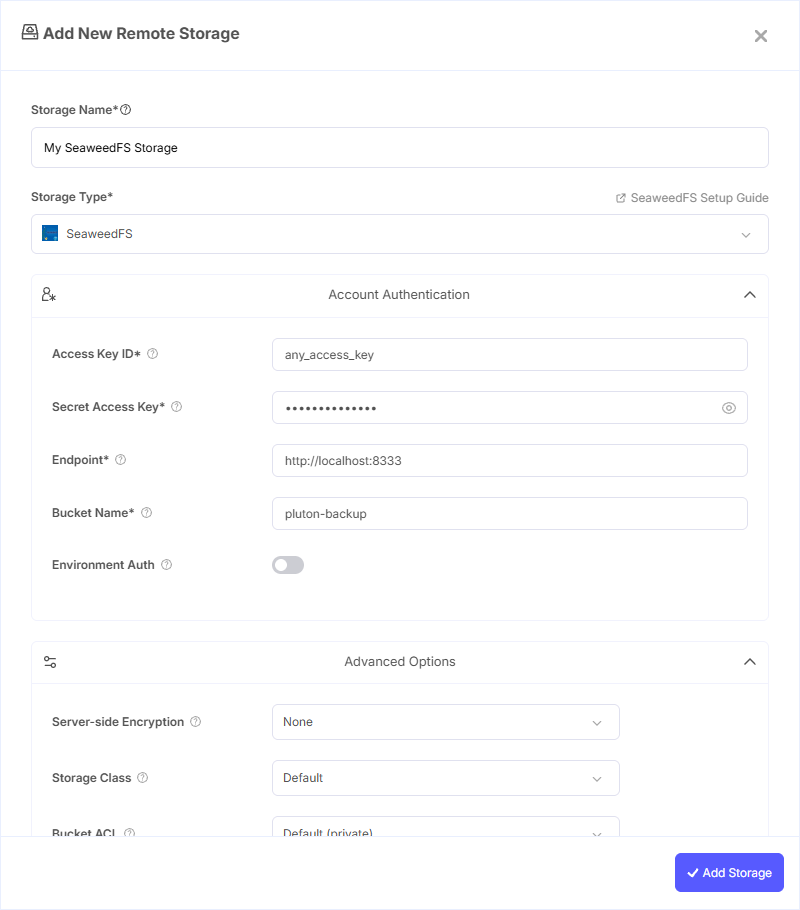
Step 1: Add Storage
- In Pluton, navigate to Storages
- Click Add Storage button
- Select SeaweedFS from the provider list
Step 2: Configure Connection
Fill in the required fields:
- Storage Name: A friendly name (e.g., "SeaweedFS Local Backups")
- Access Key ID: Your SeaweedFS S3 Access Key
- Secret Access Key: Your SeaweedFS S3 Secret Key
- Endpoint: Your SeaweedFS S3 gateway URL (e.g.,
http://your-server:8333) - Bucket Name: Your SeaweedFS S3 Bucket Name
Step 3: Advanced Options (Optional)
Additional settings available:
- Server-side Encryption: Choose AES256 encryption if supported by your setup
- Storage Class: Select a storage class if configured on your SeaweedFS cluster
- Upload Cutoff: Threshold for switching to chunked uploads (default: 200 MiB)
- Chunk Size: Size of chunks for multipart uploads (default: 5 MiB)
- Force Path Style: Enabled by default; recommended for self-hosted S3-compatible storage
- V2 Authentication: Enable if your SeaweedFS instance requires v2 auth signatures
Step 4: Complete the Storage Setup
- Click the Add Storage button which automatically verifies credentials and adds the storage.
- Your SeaweedFS storage is now ready for backup plans
Common Issues
Connection Refused: Verify the SeaweedFS S3 gateway is running and the endpoint URL is reachable from your Pluton server.
Authentication Failure: Double-check that your credentials match the S3 configuration and the gateway was restarted after changes.
Bucket Not Found: Ensure the bucket exists. Create it via CLI or the SeaweedFS shell before connecting.
Best Practices
- Use HTTPS for the S3 gateway endpoint when possible, especially over public networks
- Assign dedicated credentials for Pluton with appropriate access permissions
- Ensure your SeaweedFS cluster has sufficient storage capacity for backup growth
- Regularly monitor SeaweedFS cluster health and replication status