Connecting Huawei OBS
This guide walks you through connecting a Huawei Object Storage Service (OBS) storage destination to Pluton.
Prerequisites
Before connecting Huawei OBS, you need:
- A Huawei Cloud account — Sign up here
- An Access Key ID and Secret Access Key with permissions to manage OBS buckets
Getting Your Huawei OBS Credentials
Step 1: Create Access Keys
- Log into the Huawei Cloud Console
- Hover over your account name and select My Credentials
- Navigate to Access Keys in the left sidebar
- Click Create Access Key
- Complete the verification and download the credentials CSV file
- Note both the Access Key ID and Secret Access Key from the file
Step 2: Prepare Your Bucket
- Navigate to Object Storage Service (OBS) in the Huawei Cloud console
- Note the bucket name you want to use, or click Create Bucket to make a new one
- Note the Region where your bucket is located (e.g., AP-Singapore, CN North-Beijing1)
Connecting to Pluton
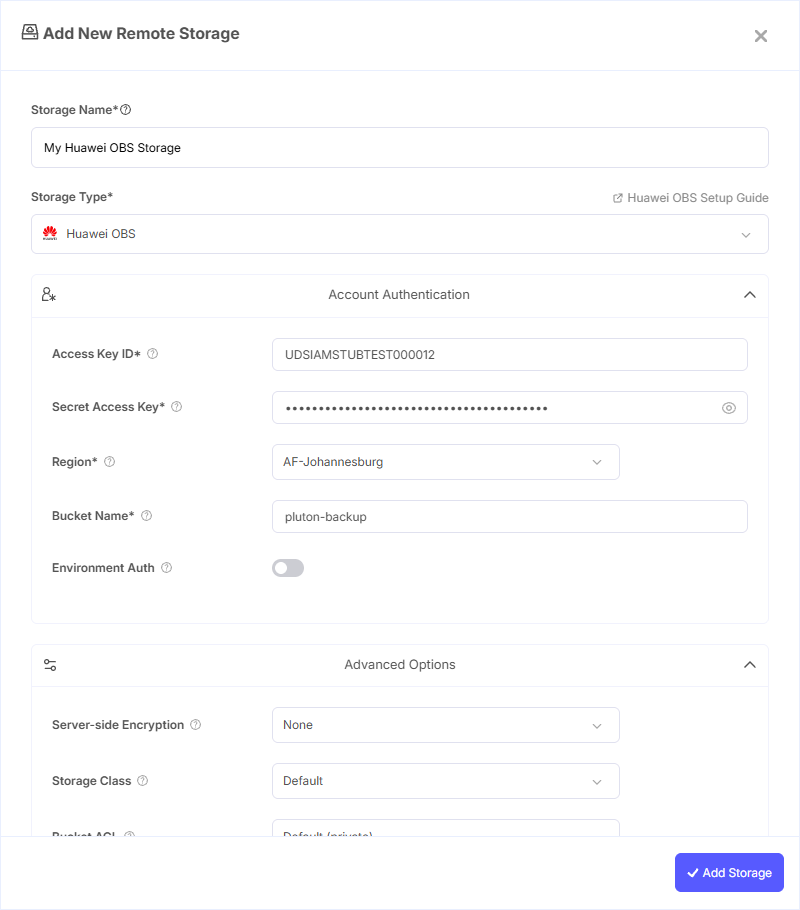
Step 1: Add Storage
- In Pluton, navigate to Storages
- Click Add Storage button
- Select Huawei OBS from the provider list
Step 2: Configure Connection
Fill in the required fields:
- Storage Name: A friendly name (e.g., "Huawei OBS Backups")
- Access Key ID: Your Huawei Cloud Access Key ID
- Secret Access Key: Your Huawei Cloud Secret Access Key (password)
- Region: Select the region matching your bucket location. Available regions include AF-Johannesburg, CN-Hong Kong, AP-Bangkok, AP-Singapore, AP-Jakarta, CN East-Shanghai, CN North-Beijing, CN South-Guangzhou, LA-Mexico City, LA-Santiago, LA-Sao Paulo, and TR-Istanbul. You can also enter a custom endpoint if needed
- Bucket Name: Your Huawei OBS Bucket Name
Step 3: Advanced Options (Optional)
Additional settings available:
- Server-side Encryption: Encrypt objects at rest using AES256 or AWS KMS
- Storage Class: The storage class for new objects (Standard, Reduced Redundancy, Standard IA, Glacier, etc.)
- Bucket ACL: Canned ACL applied when creating buckets (Private, Public Read, etc.)
- Requester Pays: Enable requester pays option when interacting with the bucket
Step 4: Complete the Storage Setup
- Click the Add Storage button which automatically verifies credentials and adds the storage.
- Your Huawei OBS storage is now ready for backup plans
Common Issues
Authentication Failure: Verify that your Access Key ID and Secret Access Key are correct and that the key has not been disabled or expired.
Region Mismatch: Ensure the selected region in Pluton matches the region where your OBS bucket was created. Each region has a distinct endpoint.
Permission Denied: Check that your IAM user has the appropriate OBS permissions (e.g., OBS Administrator or OBS Buckets Viewer/Operator).
Best Practices
- Create a dedicated IAM user with least-privilege OBS permissions for Pluton
- Select a region close to your Pluton server to minimize latency
- Enable versioning on your OBS bucket for additional data protection
- Review Huawei Cloud's storage class options to optimize costs for your backup retention needs